Choose a mini PC based first on your editing software, source format and project size. As Adobe explains for Premiere, syncing separately recorded audio and video is a software task and does not, in itself, require a special audio feature in your computer. For larger projects, the exact RAM and SSD configuration and the ports available are what matter. So compare the full specification, not just the processor name.
Which approach is right for you?
Family film with separate audio
You want to bring together footage from several devices with separately recorded conversations or speeches, and find out how your editing software syncs everything before you buy. Adobe describes manual and automatic ways to match video with separately recorded audio in Premiere.
Lots of clips or high-resolution footage
If your project involves lots of clips or high-resolution footage, compare the RAM, SSD and ports on the specific configuration, rather than focusing only on its compact design.
Compact home editing setup
You want to keep desk space to a minimum, while checking that the storage, peripherals and editing software are suited to a small computer.
What should you look for when buying?
When it comes to family footage with separately recorded audio, your priorities will depend mainly on what your project needs most.
| Priority |
What to check before buying |
Who is it most relevant to? |
| Syncing separate audio |
Does the editing software support your planned syncing workflow? Are the ports compatible with your camera and audio recorder? |
If I want to combine conversations or speeches from a separate file with the family film, syncing is my top priority. Around 31% of consumers would name audio syncing as their most important buying priority. |
| Footage and project size |
Check the source format and software requirements; compare the RAM in the configuration you’re considering. |
With lots of clips, high-resolution footage or effects, I want the full specification to suit my project. Around 25% of consumers would prioritise choosing a computer suited to their footage and editing workload. |
| Storing project files |
Check the SSD capacity for source files and exports; consider possible storage upgrades separately. |
If I need to keep the original files, audio tracks and finished versions, available storage is crucial. Around 19% of consumers would put storing project files first. |
| Connecting recording devices |
Check the USB and video ports you need and, if necessary, make sure you have a suitable card reader. |
I want to connect my camera, audio recorder and other devices without having to budget for unexpected adapters. Around 13% of consumers would name compatibility with their existing peripherals as a priority. |
| Compact workspace |
Check whether it’s a barebone or a ready-to-use system, and check the included RAM, SSD and operating system. |
If space is limited, I want a compact computer in a configuration that’s ready to fit into my editing setup. Around 12% of consumers would prioritise a compact design with suitable specifications. |
Avoid common assumptions
-
Assuming a 4K monitor output means 4K editing performance
A monitor output tells you about picture output. It doesn’t automatically mean your footage will play smoothly with effects in your editing software.
Check your source format, software requirements and the computer’s full specification separately from the monitors it supports.
-
Assuming the maximum upgrade capacity is what comes in the box
Product ranges may be available as barebones or with different amounts of RAM and SSD storage. The option to upgrade doesn’t tell you what’s included in the configuration you choose.
Before you buy, check the operating system, installed RAM and SSD, and upgrade options for the specific configuration.
-
Thinking a more powerful CPU will solve separate audio file issues
Separate recordings need to be synced in your editing software. More processing power won’t replace this step; Adobe describes syncing options in Premiere.
Try importing and syncing sample footage in your software before choosing a more powerful model solely because you’re working with separate audio.
Key brands to consider
Apple
The Mac mini M6 and M5 Pro are compact macOS options for an editing setup.
- Apple lists hardware support for H.264, HEVC and ProRes on both chips.
- RAM and SSD specifications vary by configuration. Codec support alone doesn’t tell you how a particular project will perform.
GEEKOM
The A5 Pro 2026 and A8 Max are Windows mini PCs with different specifications.
- GEEKOM lists upgradeable RAM and SSD storage, USB4 and a card reader for the A8 Max. For the A5 Pro 2026, the manufacturer lists a base configuration with 16 GB RAM and 1 TB SSD, as well as upgrade options.
- The configurations on offer vary. Manufacturer specifications for features and upgrade options are not independent measurements of editing speed.
MINISFORUM
The UM890 Pro is aimed at buyers comparing ports and configuration options on a Windows mini PC.
- MINISFORUM lists two USB4 ports and configurations ranging from barebones to models with RAM and SSD.
- Check exactly what’s included in the configuration on offer. Manufacturer claims about performance and cooling are not independent editing tests.
ASUS
The NUC-15-Pro range includes several specification and case options.
- ComputerBase described the tested Tall version with Core Ultra 7 255H as offering plenty of ports and running quietly in whisper mode.
- According to ComputerBase, the tested version was clearly audible under full load. The test results don’t automatically apply to other NUC configurations.
MEDION
The Picoworx T80 III is a Windows alternative with a specific configuration.
- MEDION offers a version with Core Ultra 7 258V, 32 GB RAM and 1 TB SSD.
- The specifications alone don’t show how well the computer will suit a particular video project. Check your format and editing software requirements.
Joybuy mini PCs for video editing
The Joybuy models below are mini PC options for a Windows editing setup. Before you buy, check that the specific configuration suits your software and files, and provides the storage you need.
 No image available
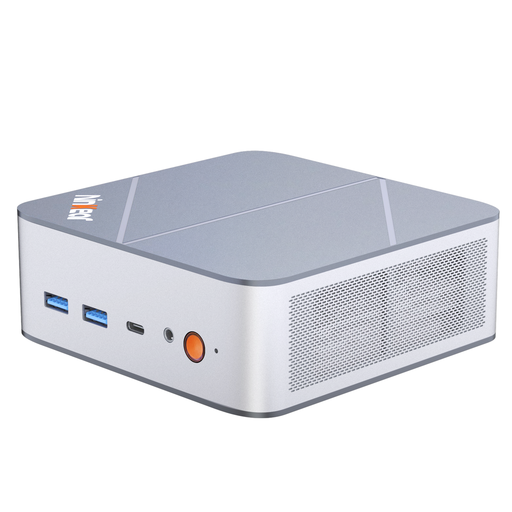
Ninkear M8 mini PC, 16 GB DDR5, 1 TB SSD
For a Windows editing setup where a 1 TB SSD is planned for project files and exports.
AMD Ryzen 7 8745HS; Windows 10/11; 16 GB DDR5; 1 TB SSD; dual 2.5 Gigabit Ethernet; Wi-Fi 6; 130 × 127,5 × 52 mm.
View at Joybuy
 No image available
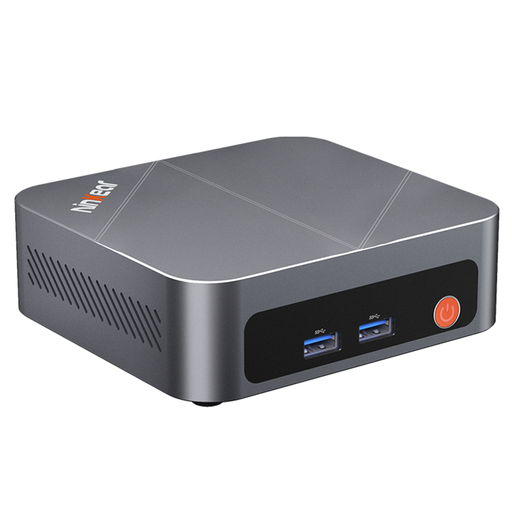
Ninkear M7 mini PC, 16 GB DDR4, 512 GB SSD
For a Windows editing setup with a 512 GB SSD for project files and exports.
Intel Core i7-1185G7; Windows 10/11; 16 GB DDR4; 512 GB SSD; support for three displays; dual-band Wi-Fi 6; Bluetooth 5.2.
View at Joybuy
Frequently asked questions
Do I need a special mini PC because my audio was recorded separately?
Not for that reason alone. Adobe explains how Premiere can sync separately recorded video and audio clips, including on the timeline. What matters is whether your editing software and files suit the workflow you have planned.
How should I set up the computer for editing?
First, transfer the original files from your camera and audio recorder, keeping track of which files go together. Check the ports on your specific computer configuration and the syncing features in your editing software before matching the files in your project.
What should I look for in RAM and storage?
Check the specification included with the computer separately from its potential upgrade limits. GEEKOM lists upgradeable RAM and SSD storage for the A8 Max; MINISFORUM also offers the UM890 Pro as a barebone. The right configuration depends on what your project needs and what’s included.
Is a manufacturer’s guarantee the same as your statutory rights?
No. The Verbraucherzentrale distinguishes statutory consumer rights from a voluntary guarantee. If a product is faulty, your statutory rights apply in relation to the seller; check the terms of any additional guarantee separately.
What does the CE marking on a mini PC mean?
Harmonised EU rules may require electrical and electronic equipment to carry a CE marking. Your Europe, the European Union’s information portal, explains that the manufacturer uses it to declare conformity; it is not a test certificate issued by a central EU body.


