What should you look for when buying?
First choose your hypervisor and operating system. Then check the memory actually supplied and the exact configuration. Separately, plan where to position your monitor by the window and check the available ports.
| Buying criteria |
What to look for |
Who is this important to? |
| RAM and hypervisor |
Plan for the RAM needed by the host and guest machines running at the same time; check the CPU features and requirements of your specific hypervisor and operating system versions. |
If I’m planning to run several guest machines at once, I want to check the memory and host requirements in advance. Around 36% of consumers put the resources needed for simultaneous VMs first. |
| Screen by a window |
Check the monitor position, potential reflections and sunlight, as well as the ports available on the monitor and Mini PC. |
By a bright window, I want to use my screen without distracting reflections and plan the setup accordingly. Around 29% of consumers prioritise having a comfortable screen-based workspace. |
| Configuration and what’s included |
Check whether RAM, an SSD and an operating system are included, and whether the configuration suits your planned VM setup. |
If I want to set up the PC straight away or choose the components myself, it’s important to know exactly what’s included. Around 21% of consumers prioritise the specification and the effort involved in getting set up. |
| SSD capacity and networking |
Check there’s enough space for the host and VM files, along with the SSD slots and network ports available on the exact configuration. |
If you want to store VM files locally or connect the host to your network, plan for storage and ports together. Around 14% of consumers put these considerations first. |
Mini PCs at Joybuy to consider
This selection includes fully equipped Windows Mini PCs for planning a VM setup and connecting a separate screen. Before choosing a configuration, check how much memory your guest machines will actually need and where you’ll position the PC by the window.
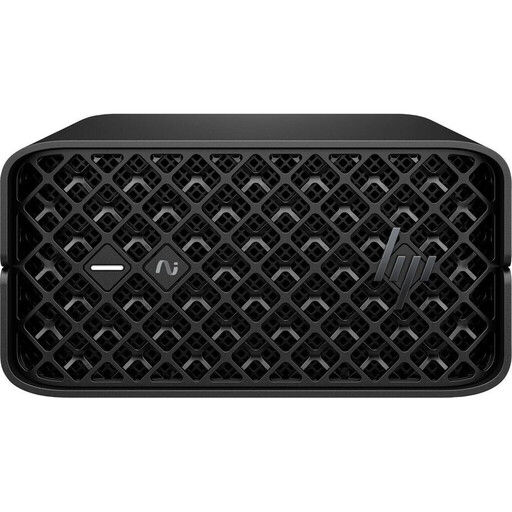 Image unavailable
HP Z2 Mini G1a Ryzen AI Max+ PRO 395, 128 GB, 2 TB
This Windows configuration could suit a host running several VMs, provided the components included meet your planned requirements.
Specifications include 128 GB RAM, a 2 TB SSD and Windows 11 Professional. Listed outputs include USB-C and Mini DisplayPort.
The product description advises against exposing the device to direct sunlight for long periods and says to keep the ventilation openings clear.
View at Joybuy
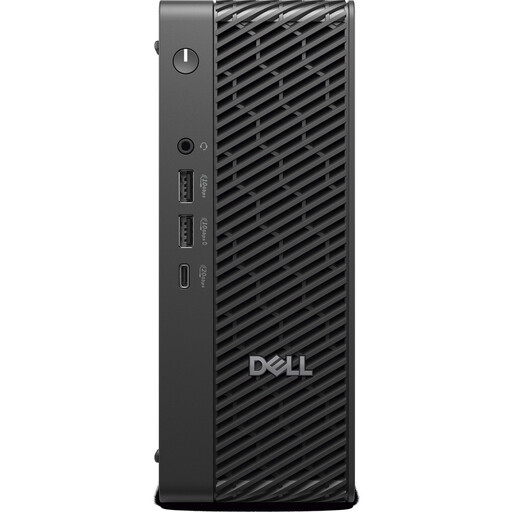 Image unavailable
Dell Pro Max Micro FCM2250 TPM, Core Ultra 7 with 14 cores, 16 GB, 512 GB, Windows 11 Pro
This fully equipped Windows configuration is an option if you’re looking for a compact host and the installed memory meets your planned VM requirements.
The product specifications list 16 GB RAM, a 512 GB SSD, Windows 11 Pro and an Intel Core Ultra 7 with 14 cores. HDMI and DisplayPort connections are listed.
The description advises avoiding direct sunlight and keeping the ventilation openings clear. Whether 16 GB RAM is enough depends on the host and the guest machines running at the same time.
View at Joybuy
Frequently asked questions
Is ‘up to 64 GB RAM’ enough for my VMs?
No. This figure describes the maximum RAM capacity, not the amount already installed. Proxmox specifies at least 2 GB RAM for the operating system and Proxmox VE services, plus the memory allocated to guest machines. Plan for the needs of the host and VMs running at the same time, and check the exact configuration.
Can I use Hyper-V with Windows 11 Home?
Microsoft Learn lists Windows 11 Pro and Enterprise as supported editions for Hyper-V; Windows 11 Home isn’t on the list. Microsoft also specifies SLAT, sufficient RAM and hardware virtualisation enabled as requirements. Check the edition and the specific hardware in your Mini PC.
What should I check when buying a barebone for VMs?
Check exactly which components are included: the barebone version of the NucBox M6 Ultra listed on GMKtec’s German site comes without RAM, an SSD or an operating system. You’ll need to choose and set up these components separately, so compare only configurations with the right items included.
How should I set up my workspace by a bright window?
Start by planning the monitor position and direction of the light to avoid distracting reflections. The BAuA recommends positioning the workstation in relation to the light source to reduce reflections; check the Mini PC’s display ports separately. A more powerful CPU won’t stop screen glare.
Do the advice on screen glare also apply at home?
The BAuA explains that ASR A6 applies to screen-based work in workplaces and teleworking environments, and also lists exceptions, such as private use outside a teleworking environment. This doesn’t mean there’s a universal minimum monitor brightness for every home workspace.


