Checking detail and colour
If you want to assess small details in trains and landscapes and fine-tune the colours in your SDR output, consider preview resolution, Rec.709 mode and the calibration process separately.


The right type of monitor depends on what matters most for your model railway videos: a high-resolution preview, a wide timeline or switching between multiple computers. A 27-inch 4K model offers more vertical pixels than a 34-inch ultrawide with 3,440 × 1,440 pixels, while the ultrawide gives you more horizontal space for tracks and tools. For SDR colour decisions, you should also check the Rec.709 mode and calibration process for the specific model. At a shared workstation, adjustability matters too, as do compatible switching connections—but only if you use multiple computers. The resolution information for the BenQ models comes from BenQ Germany; the comparisons here describe documented features, not independent display measurements.
If you want to assess small details in trains and landscapes and fine-tune the colours in your SDR output, consider preview resolution, Rec.709 mode and the calibration process separately.
If several people take turns using the same workstation, being able to position the screen correctly is important. KVM and shared input devices only become relevant if you actually use multiple computers there.
If you want to see lots of tracks and tools at once, you can weigh up a wide ultrawide screen against the higher vertical resolution of a 4K model.
First decide which view matters most when editing, then consider your colour workflow, seating position and cable requirements.
| Priority | What to check before buying | Who will find this most important? |
|---|---|---|
| Image detail and SDR colour | Native resolution and vertical pixel count; check for a suitable Rec.709 mode and the calibration process. | If I want to assess fine details and the intended SDR colour, preview quality and colour workflow come first. Around 31% of consumers have this as their main priority. |
| Adjustability at a shared workstation | Height adjustment and any other stand functions you need; check the desk space available and, if necessary, the right VESA measurement. | If several people use the workstation, I want to be able to adjust the screen to suit each person’s seating position. Around 31% of consumers prioritise shared ergonomics. |
| Timeline and preview | Weigh up horizontal workspace against vertical resolution; check how your editing software arranges its windows. | If I want to see lots of tracks and tools at once, width matters more to me than the largest possible preview. Around 23% of consumers put timeline space first. |
| Cabling and switching between computers | Only if you use multiple computers, check that the KVM, video inputs and USB connections work with each device; check for USB-C power delivery if you need it. | If different computers need to share the same keyboard and mouse, I want to know whether the connections and switching work with all of them. Around 15% of consumers prioritise these connection requirements. |
The BenQ PD3420Q is specified as having 1,440 vertical pixels, compared with 2,160 on a 4K UHD model. A wide timeline and a high-resolution preview are therefore different priorities when choosing a monitor.
Think about which view matters most when editing, and check how your editing software arranges its windows before you buy.
A P3 coverage figure alone does not confirm that a display is set up appropriately for your Rec.709 SDR output. LG gives a typical DCI-P3 figure for the 27UP850K-W, while ITU Recommendation BT.709 defines a separate standard for HDTV colour parameters.
Check the Rec.709 mode on the specific model, as well as your editing software settings. Make a note of the chosen workflow so everyone at the shared workstation can follow it.
KVM is for switching between computers and input devices. If several people simply take turns using the same computer, a KVM switch will not help with switching between devices.
First work out how many computers you want to connect, then check that their video and USB connections match the monitor’s ports.
The DesignVue PD2706U and PD3420Q illustrate the difference between a 27-inch 4K preview and a wide ultrawide timeline.
The ProArt PA279CRV is a documented 27-inch 4K model with USB-C and several colour modes.
The ColorEdge CS2740 is a 27-inch 4K option if a hardware calibration workflow is important to you.
The UltraSharp U2725QE is a 4K hub alternative if connectivity and an adjustable screen matter to you.
The UltraFine 27UP850K-W adds a documented 27-inch 4K IPS model with USB-C to the selection.
The following models cater for different editing priorities: a wide workspace, a 4K preview, ergonomic adjustment and a portable second screen. If you share your workstation, pay particular attention to whether the connections are compatible with the computer being used.
 No image available
For a wide timeline, with a stated vertical resolution of 2,160 pixels.
5,120 × 2,160 pixels, IPS, 21:9 and 100 Hz, according to the product name.
The specifications also list PIP/PBP and USB-C with 65 W Power Delivery.
 No image available
For a detailed preview on a 27-inch display with 3,840 × 2,160 pixels.
IPS, 120 Hz, USB-C with 90 W Power Delivery, plus HDMI and DisplayPort connections, according to the product name.
The product description says the stand is height-adjustable. KVM is listed as ‘NA’ in the product specifications, so check carefully if you want to switch between multiple computers.
 No image available
For a 4K preview; the product name also mentions a dual mode.
4K at 160 Hz or Full HD at 320 Hz, USB-C with 65 W Power Delivery and KVM, according to the product name.
The stand is listed as height-adjustable, tiltable and swivelable.
 No image available
For an adjustable workstation if QHD resolution is enough for your preview needs.
2,560 × 1,440 pixels and USB-C with up to 65 W Power Delivery, according to the product name.
The product description also lists a USB hub, height adjustment, tilt, swivel and pivot. Its stated resolution has fewer vertical pixels than a 4K model with a height of 2,160 pixels.
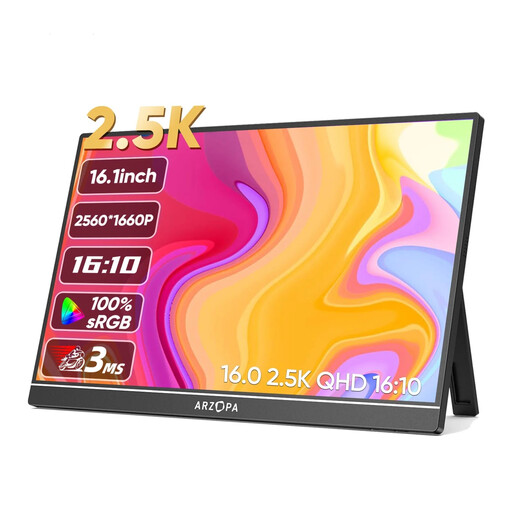 No image available
Described as a portable second screen with USB-C and HDMI connections.
2,560 × 1,600 pixels, IPS and 16:10, according to the product name. Its stated vertical resolution is lower than the 2,160 pixels of a 4K UHD model.
No, it shouldn’t be your only buying criterion. If your output uses Rec.709, check for a mode designed for it, along with your calibration and software workflow. A P3 figure describes a different aspect of the display.
No, not if several people use the same computer. You only need to check the video and USB connections for both devices if you’re switching between computers. BenQ lists an integrated KVM switch for the PD2706U.
Choose a colour mode that suits your output workflow and make a note of the settings for everyone who uses the workstation. EIZO describes hardware calibration with ColorNavigator for the CS2740; this feature does not replace actually setting up and checking the display.
Check the EU energy label or EPREL entry for the specific model to compare energy use; the energy class alone does not tell you whether a monitor is suitable for video editing. If a fault develops, distinguish your statutory rights from any voluntary guarantee.
Consumers generally have a right to cancel a distance contract; § 355 BGB sets a 14-day period, while § 312g BGB covers exceptions. For ordinary claims relating to defects, § 438 BGB generally sets a limitation period of two years from delivery. These consumer rules do not automatically apply to a company buying equipment for a workstation.