First, set up your workspace so you’re looking as parallel to the window as possible, and control the incoming light. The German Social Accident Insurance (DGUV) recommends this orientation for screen work. You can then choose between an anti-glare everyday or creative monitor and a colour monitor with a suitable calibration workflow. For reliable colour decisions, your output requirements and colour workflow matter; a wide colour gamut alone won’t provide accurate colour matching or protection from glare.
Who should consider this type of monitor?
Viewing references by a window
If you want to make out reference images during the day, the lighting conditions at your particular workspace are key. The German Social Accident Insurance recommends positioning yourself so you look parallel to the window when working at a screen.
Colour-conscious image creators
If you assess colours for editing or output, match the colour mode and calibration workflow to your output requirements. BenQ and EIZO list relevant features for their respective creative monitor models.
Creatives with a small or shared desk
If you need room for both a reference image and your work programme, or you want to connect a laptop, desk space, ergonomics and ports all come into play. Measure the space you have for the complete setup.
What should you look for when buying a monitor for a bright window?
Anti-glare everyday or creative monitor
A good fit if: You mainly view artwork as a visual reference and want to reduce distracting reflections in your workspace.
The trade-off: An anti-glare surface won’t replace adjustable glare protection or a suitable setup. Compare typical brightness, not HDR peak brightness.
Colour monitor for image editing or print preparation
A good fit if: You make critical colour decisions based on a reference and can match the colour mode and calibration to your output requirements.
The trade-off: Calibration features and a wide colour gamut won’t solve glare from a window. A high maximum brightness also isn’t automatically the recommended brightness for everyday work.
Reposition your workspace or control the light first
A good fit if: Sunlight falls directly on your screen or eyes and you want to address the cause of poor visibility.
The trade-off: Repositioning your desk or adding shading takes space or requires changes to the room, but a monitor specification alone can’t replace it. The DGUV recommends looking parallel to the window when working at a screen.
| What matters |
What to check when buying |
Who it matters most to |
| Visibility by a window |
Anti-glare properties and typical brightness; also consider direct light and monitor positioning. |
If I want to see reference images clearly in daylight, visibility comes first for me; around 36% of consumers would prioritise this. |
| Colour reproduction |
Check that the colour gamut, colour mode and calibration workflow meet your output requirements. |
If I need to assess colours for editing or print, I need a suitable, repeatable workflow; around 29% of consumers would make colour control their main concern. |
| Space and positioning |
Check the footprint with the stand or hood, as well as the resolution and adjustment options you want. |
If I need to fit both a reference image and my work setup on the desk, the complete setup matters to me; around 21% of consumers would prioritise space and ergonomics. |
| Connectivity and power |
Check that the video connection and USB-C power delivery meet your laptop’s requirements; compare energy figures on a like-for-like basis. |
If I want to connect the monitor to my laptop and use it as planned, the connections and power need to suit my setup; around 14% of consumers would put this first. |
Which buying mistakes should you avoid?
-
Confusing HDR peak brightness with typical working brightness
HDR peak brightness doesn’t automatically reflect typical use. For example, ASUS lists 400 cd/m² HDR peak brightness and 350 cd/m² typical brightness for the PA279CRV; EIZO distinguishes between maximum and recommended brightness for the CG2700X.
Compare brightness figures measured on the same basis, and deal with direct glare in your workspace first.
-
Assuming a wide colour gamut guarantees accurate print matching
A colour monitor may include features to support a consistent workflow, but its suitability for critical colour decisions also depends on your output requirements and calibration.
Decide on your output requirements first, then check the colour mode you need and the calibration process.
Setting up your output process can take extra time. Depending on your workflow, you may also need calibration accessories.
-
Checking only the screen size, not the space it takes up
The stand and extra accessories can take up more room than the screen itself. The BenQ SW272U has different depths with its stand and with its shading hood.
Measure the space needed for the exact setup and accessories you plan to use.
Which monitor brands are worth considering?
The examples below refer to specific model ranges and their documented features. They don’t amount to a general assessment of the brand or indicate availability at Joybuy.
BenQ
The PhotoVue SW272U is designed for colour workflows, combining documented calibration features with a shading hood.
- BenQ lists typical brightness of 400 nits, 99% Adobe RGB and 90 W USB-C Power Delivery for the SW272U.
- These manufacturer specifications don’t confirm how clearly you’ll see the screen at your particular window. The shading hood also needs extra depth.
EIZO
According to its German data sheet, the ColorEdge CG2700X is designed for tasks including image editing, design and print.
- EIZO lists an integrated calibration sensor, maximum brightness of 500 cd/m² and recommended brightness of 120 cd/m².
- Maximum brightness isn’t a recommendation to assess colours at that level all the time, and it doesn’t tell you how the monitor will cope with direct sunlight.
ASUS
The ProArt PA279CRV combines an anti-glare 27-inch 4K screen with colour modes and USB-C.
- ASUS lists typical brightness of 350 cd/m², HDR peak brightness of 400 cd/m² and 96 W USB-C Power Delivery.
- HDR peak brightness shouldn’t be confused with typical brightness, and doesn’t show whether the monitor will prevent glare at your particular window.
LG
The UltraFine 27UP850K-W is a 4K option for reference images and connecting a laptop.
- LG lists 95% DCI-P3 (typical), USB-C with up to 90 W and height adjustment for this model.
- LG lists the calibration software as a separate download. Check what measuring hardware your workflow also requires.
Dell
The UltraSharp U2723QE is an example of a 4K USB-C hub monitor with an anti-glare screen.
- Dell lists brightness of 400 cd/m² and 98% DCI-P3 for this model.
- Dell lists the U2723QE as unavailable on its German product page. This applies to this model only and says nothing about other UltraSharp models or Joybuy stock.
Joybuy monitors for viewing reference artwork by a window
This Joybuy selection includes 27-inch monitors for reference images and work programmes, with 4K/UHD, QHD or Full HD resolution. Ports and colour features vary by model.
 No image available
INNOCN CB27U1 27-inch 4K UHD
A good fit if you display references as part of a colour-conscious workflow and want to connect a laptop via USB-C.
3840 × 2160 pixels; anti-glare surface; 400 nits typical brightness; 99% Adobe RGB; DeltaE < 1; USB-C with 90 W Power Delivery.
View at Joybuy
 No image available
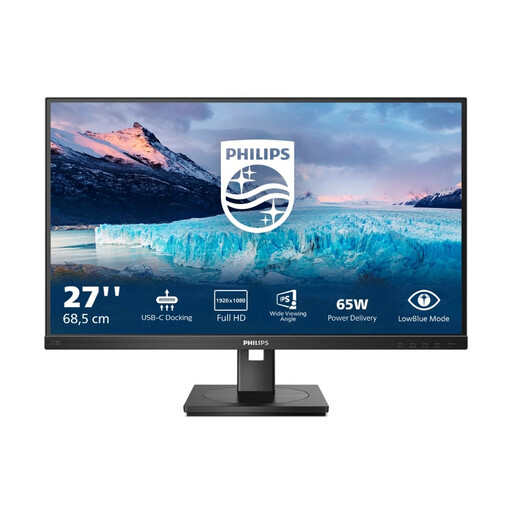
Philips 273S1 27-inch Full HD IPS
A good fit for a laptop workspace if you need USB-C docking and ergonomic adjustment.
1920 × 1080 pixels; USB-C with up to 65 W Power Delivery; RJ45; height, tilt, swivel and pivot adjustment.
View at Joybuy
 No image available
Philips 276B9 27-inch QHD IPS
A good fit if you want to connect a laptop via USB-C and adjust the monitor ergonomically to suit your workspace.
2560 × 1440 pixels; 350 cd/m²; USB-C with up to 65 W Power Delivery; height, tilt, swivel and pivot adjustment.
View at Joybuy
 No image available
MSI PRO MP275QPDGDE 27-inch WQHD
A good fit for a laptop workspace if docking features and displaying several windows at once are important to you.
USB-C with 98 W Power Delivery; PIP/PBP; daisy-chain support; integrated KVM switch.
View at Joybuy
Frequently asked questions about monitors by a bright window
Will a brighter monitor alone help with a bright window?
Not reliably. Incoming and reflected light can make the screen harder to see. First check the monitor’s position and whether you can control the sunlight, then compare the anti-glare properties and typical brightness of the specific model.
How should I position my workspace by a window?
For screen work, the German Social Accident Insurance recommends looking parallel to the window and being able to control incoming light. Workplace screen setups are subject to relevant health and safety requirements; this doesn’t mean there’s a general obligation to buy a particular product for a private room.
What should I check for laptop connectivity and colour management?
Check that the video connection and charging power meet the requirements of both your laptop and monitor. If you need to assess colours accurately, also check for the right colour mode and the calibration software and measuring hardware your particular workflow requires.
How do I compare power consumption, and what are my rights when buying online in Germany?
The EU energy label for electronic displays shows power consumption in kWh/1000 h. The cost for an individual user depends on factors including usage time and electricity prices. Online consumer purchases generally come with a 14-day right to cancel, subject to exceptions. Your statutory rights against the seller are separate from any voluntary guarantee.


