Illustration and bilingual layouts
If you’re checking artwork, two language versions and interface controls side by side, you’ll need plenty of usable screen space, sharp edges and text that’s easy to read when scaled.


Choose a monitor based on your intended output and how you share the workstation. For illustrations with two text versions, you’ll need a suitable amount of workspace and text that remains easy to read when scaled. For printed cards, colour profiles and, where appropriate, a wider colour gamut also matter. If several computers will share the same peripherals, check that the monitor specifically lists a KVM switch and confirm the connections on both computers – USB-C alone doesn’t guarantee this.
If you’re checking artwork, two language versions and interface controls side by side, you’ll need plenty of usable screen space, sharp edges and text that’s easy to read when scaled.
For specific print outputs, match the monitor’s colour gamut, document profile and soft-proofing settings to the print workflow you’ll be using.
If you switch between computers or seating positions, consider whether the connections are suitable, whether you need a KVM switch and whether the screen can be adjusted.
First decide whether you’ll mainly be working for screens or for print. Then check that the monitor suits your card layout and shared workstation.
| What matters | What to check before buying | Who is this especially important for? |
|---|---|---|
| Room for illustrations and two readable text versions | Test a card layout with both texts and toolbars at your preferred scaling; consider resolution and screen size together. | If I want to check the illustration and both language versions at the same time, I need a suitable amount of workspace and text that’s easy to read. Around 33% of consumers prioritise layout and readability. |
| Colour suited to the intended output | Match the output, colour modes and document profile; for print, also check the profile or specifications required by the print provider. | For my cards, the colour preview needs to match the screen or print output; a wide colour gamut alone doesn’t determine the right profile. Around 25% of consumers put colour and output requirements first. |
| Switching between computers and peripherals | Check explicitly for a KVM switch, and confirm the video, data and charging connections for each computer separately. | If we share a monitor and peripherals between computers, I want to know whether we can switch between them without extra switching equipment. Around 25% of consumers prioritise switching between computers. |
| Positioning and day-to-day use | Check height adjustment, pivot, desk space and reflections where you’ll use it; compare the energy label for the specific model. | For different users, the height and position should be right, with distracting reflections kept to a minimum. Around 17% of consumers focus primarily on positioning and operating details. |
Video transmission, charging a laptop and switching shared peripherals are separate functions. A USB-C port or USB hub does not, by itself, mean the monitor has a KVM switch.
Check the KVM details for the exact model, along with the video and data connections on both computers.
Depending on the connection setup, you may need extra switching equipment, cables or a separate charger.
A monitor’s colour gamut alone can’t guarantee a match with print. The document profile, monitor settings and output process all play a part.
Match the monitor and document profile to the specific print output and the print provider’s requirements.
Profiling and print colour matching may involve extra work.
More pixels won’t tell you whether both text versions will be easy to read at your chosen scaling, or whether the screen will fit comfortably on a shared desk.
Test a real card layout at your preferred font size, and consider the stand, desk space and light in the room.
The DesignVue and PhotoVue ranges cater for different resolution needs and colour workflows.
According to ASUS, the ProArt PA279CRV combines a 27-inch 4K screen with sRGB and Adobe RGB modes, plus USB-C.
The ColorEdge CS2740 is a 27-inch 4K model for colour-focused creative work and compatible print workflows.
The UltraSharp U2725QE is a 27-inch 4K option with a Thunderbolt hub and height-adjustable stand.
The LG UltraFine 27UP850K-W is a 27-inch 4K IPS monitor with USB-C and an adjustable stand.
This selection includes a 27-inch 4K monitor and portable 15.6-inch secondary screens. For bilingual cards, pay particular attention to whether the portable models offer enough screen space and resolution for your layout.
 No image available
A good option to consider for illustrations and bilingual layouts if you’re looking for a 27-inch 4K workspace.
3840 × 2160 pixels, 120 Hz, HDR500, FreeSync, PIP and PBP; USB-C with 90 W, plus HDMI and DisplayPort connections.
Height adjustment and pivot are listed. An integrated KVM switch isn’t specified; colour gamut figures don’t replace matching the monitor to your print workflow.
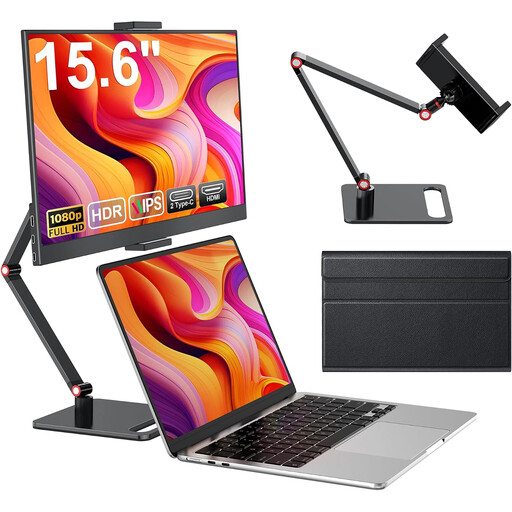 No image available
A portable secondary screen for a laptop; it offers less room for illustrations and two text versions than a 27-inch monitor.
15.6 inches, 1080p, 60 Hz, IPS panel, HDR, built-in speakers, and HDMI and USB-C connections.
A stand is listed. Check that the connections suit your computer and preferred workflow.
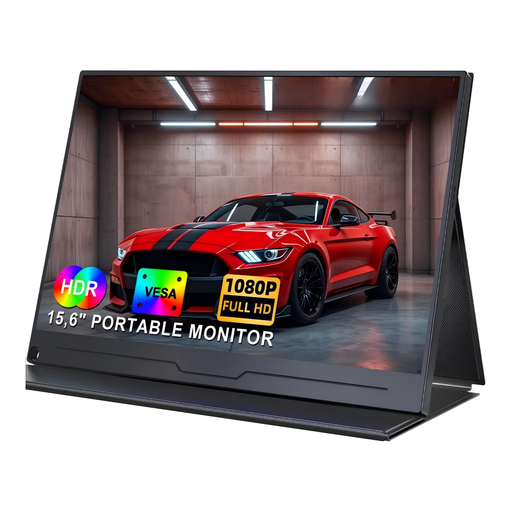 No image available
Designed as a portable secondary screen for a laptop or PC; check that its compact size gives you enough room for your cards and both text versions.
15.6 inches, 1920 × 1080 pixels, IPS panel, HDR and USB-C. VESA mounting is listed.
According to the product description, the cover doubles as a stand. You’ll still need to check that the connection is compatible and that the screen can be positioned suitably at your workstation.
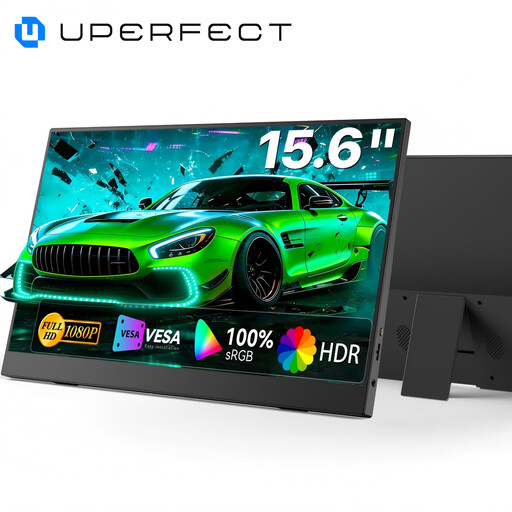 No image available
Could work as a portable secondary screen for digital cards if the listed sRGB coverage is also important to you.
15.6 inches and 100% sRGB are listed, along with USB-C, a built-in stand, speakers and VESA compatibility.
Check the resolution and connections for your specific computer before choosing this monitor for a layout with two text versions.
No. What matters is whether the illustration and both language versions fit on the screen at your preferred scaling. Among comparable 27-inch models, 4K gives you more pixels for edges and details, but it doesn’t guarantee the right text size for you.
First decide on your intended output and use the appropriate document profiles. Adobe recommends sRGB for images on the web, and distinguishes between assigning and converting a profile when changing the output. For printed cards, you should also confirm the required print profile with your print provider; a monitor’s Adobe RGB figure isn’t enough on its own.
No, not just because the monitor has a USB-C port. Check explicitly whether the exact model has a KVM switch and the video and data connections needed for both computers. BenQ lists KVM for the PD2732U; ASUS lists USB-C and a USB hub for the PA279CRV, but the specification referenced doesn’t list a KVM switch.
Adjust the height and position for each user, and avoid distracting reflections. If your employer has set up the workstation, you’ll also need to follow the applicable German workplace health and safety rules. The BAuA distinguishes these from private use outside workplaces.
For consumer purchases, statutory rights against the seller are separate from a voluntary manufacturer’s warranty. The Verbraucherzentrale explains that new goods come with a two-year statutory warranty period. An old monitor shouldn’t go in household rubbish; take it to an appropriate take-back point or recycling centre, as recommended by the German Environment Agency.
EU energy-labelling rules apply to electronic displays; you can check the label for a specific model in EPREL. The label doesn’t set a universal minimum efficiency rating that every buyer has to choose.