Who reviews building plans on screen?

Those checking fine plan details

When you’re checking dimensions, annotations and lines, what matters is whether they’re clear and easy to read in your files at your chosen scaling setting. For AutoCAD 2026 on Windows at 4K resolution, Autodesk recommends a specific graphics card.

Those comparing several documents

If you often have a plan, comments or other documents open at the same time, you’ll need to balance the space for side-by-side views against the room available on your desk.

Laptop users at a dedicated workstation

If you want to connect a laptop to the monitor, the video port and, where relevant, the charging power need to be compatible with your computer.

What should you look for when choosing?

Compact 27-inch 4K monitor

A good fit if: desk space is limited and you usually review plans one at a time.

The trade-off: The same number of 4K pixels is spread over a smaller area than on a 31.5-inch screen; check readability at your chosen scaling setting.

31.5-inch 4K monitor

A good fit if: you want room on your desk for a larger plan alongside tools or annotations.

The trade-off: Check the space it takes up and your viewing distance; ports and features vary by model.

Wide 39.7-inch format

A good fit if: you regularly need two views, or a plan and a schedule of works, side by side.

The trade-off: The Dell U4025QW offers a 39.7-inch screen and 5120 × 2160 pixels, but needs plenty of space; check text size in the software you use.

Monitor for colour and HDR work

A good fit if: you also work on colour-critical visualisations as well as technical plans.

The trade-off: The colour and calibration features listed for the ASUS PA32UCXR don’t demonstrate an advantage when reading dimensions and lines.

What matters to you What to check before buying Who is it important to?
Readability of fine details View your own plans at the intended resolution and scaling setting; also check your computer’s graphics output. If you mainly check dimensions, annotations and lines, readability in your files is what counts. Around 33% of consumers put this first.
Room for other documents Check the windows you need to have open against the monitor’s width and your computer’s output resolution. If you often open a plan alongside related documents, you’ll need to balance the extra screen space against the room available on your desk. Around 27% of consumers prioritise side-by-side views.
Positioning at your workstation Check the stand’s adjustability, space required, reflections and readability from your intended seating position. If you spend long periods reviewing plans at a dedicated workstation, it’s important to position the monitor comfortably. Around 20% of consumers focus mainly on positioning.
Laptop connection Check the video output, supported USB-C or Thunderbolt mode, charging requirements and cables needed. If you want to use your laptop with as few connections as possible, the port and charging power need to be compatible. Around 13% of consumers prioritise the laptop connection.
Colour accuracy for additional work Check whether your workflow requires colour-accurate output; if so, compare the model’s colour modes and calibration options. If you also work on colour-critical visualisations, colour modes and calibration may be relevant. Around 7% of consumers prioritise this type of work.

Common buying mistakes

  • Choosing 4K without considering scaling and graphics output

    More pixels alone don’t guarantee that dimensions will be easy to read. Your computer and software also need to be able to output the resolution effectively.

    Test representative plans at your intended scaling setting and check your software’s requirements. For AutoCAD 2026 on Windows at 4K resolution, Autodesk recommends a specific graphics card.

  • Assuming USB-C is the same as a full laptop dock

    Ports and stated charging power vary by model. USB-C alone doesn’t tell you whether the port supports the video transmission and power supply you need.

    Check your laptop’s output, the charging power required and the monitor’s input. Depending on compatibility, you may also need a separate power adapter or an additional connection.

  • Choosing a wide monitor without checking the space available

    More horizontal space for windows also means a wider monitor on your desk.

    Measure the space available and consider whether you really need to view documents side by side regularly.

  • Assuming colour and HDR features make dimensions easier to check

    The colour and calibration features listed for the ASUS PA32UCXR don’t demonstrate an advantage when spotting errors in technical plans.

    Consider these features mainly if your plan-review work also involves a colour-critical workflow.

A guide to leading monitor brands

Dell

The UltraSharp U3225QE and U4025QW offer different screen formats for reviewing plans.

  • Dell lists a 31.5-inch 4K screen and Thunderbolt docking with up to 140 W for the U3225QE.
  • The 39.7-inch-wide U4025QW offers 5120 × 2160 pixels, but takes up more space on your desk.

BenQ

The DesignVue PD3225U combines a 31.5-inch 4K screen with colour modes and laptop connectivity.

  • BenQ lists features including a CAD/CAM mode, KVM and Thunderbolt 3 with 85 W.
  • The mode isn’t independent evidence of better error detection in building plans; the charging power also needs to suit your laptop.

EIZO

The FlexScan EV3240X is a 31.5-inch 4K office monitor whose applications, according to its German spec sheet, also include CAD.

  • EIZO lists USB-C docking and a maximum charging power of 94 W.
  • Whether you need these features depends on your computer and connected peripherals.

LG

The 27UP850K-W is a 27-inch 4K option for desks with limited space.

  • LG lists an IPS display, USB-C and an adjustable stand.
  • Check your plans at your preferred scaling setting to see whether the smaller screen size works for you.

ASUS

The ProArt PA32UCXR is designed for workflows that also involve colour and HDR work.

  • ASUS lists Mini LED, hardware calibration and a built-in colourimeter for this model.
  • These model-specific features don’t demonstrate a general advantage when reading technical dimensions.

Joybuy monitors for reviewing building plans at home

These Joybuy monitors offer a range of screen sizes, formats and resolutions for reviewing building plans at a dedicated workstation. Compare each monitor’s resolution and display with your own plans and the space available.

TCL 32x3A 32-inch OLED monitor with 4K UHD

TCL 32x3A 32-inch OLED monitor

The stated 32-inch screen size gives you a fixed area for reviewing plans.

4K UHD, 3840 × 2160; OLED+; anti-glare display.

View at Joybuy
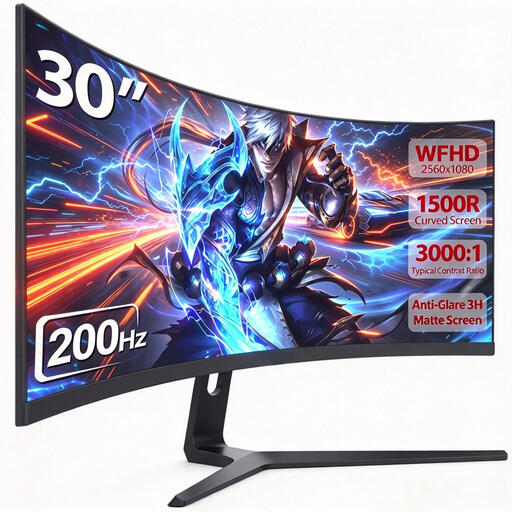
CRUA 30-inch curved ultrawide monitor

CRUA 30-inch curved ultrawide monitor

The 21:9 format may suit you if you want to view a plan alongside other documents; check how readable everything is in your software.

30 inches; 21:9; 2560 × 1080; curved display.

View at Joybuy

Samsung Odyssey G5 G50F 32-inch QHD monitor

Samsung Odyssey G5 G50F 32-inch QHD monitor

If you want to review building plans on a 32-inch screen, check whether the QHD resolution provides the readability you need at your chosen scaling setting.

QHD, 2560 × 1440; IPS.

View at Joybuy

CRUA CR320QB 32-inch curved 4K monitor

CRUA CR320QB 32-inch curved 4K monitor

The stated 4K resolution and 32-inch screen size are useful points of comparison if you want to review plans on a larger display.

UHD, 3840 × 2160; curved VA display; 3000R.

View at Joybuy
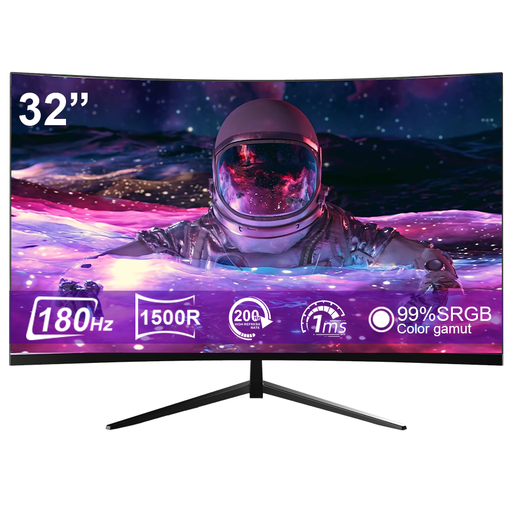
CRUA CR320ZC-H 32-inch curved monitor

CRUA CR320ZC-H 32-inch curved monitor

The stated 32-inch screen size may suit a dedicated workstation; check the resolution and readability against your building plans.

1500R; 180 Hz; 99.99% sRGB.

View at Joybuy

Frequently asked questions

Do I need to buy a 4K monitor for building plans?

No, not necessarily. For AutoCAD 2026 on Windows, Autodesk lists 1920 × 1080 as a conventional display resolution and supports higher resolutions up to 3840 × 2160 under the specified graphics conditions. What matters is whether your plans are readable at your chosen scaling setting.

How should I set up my monitor for longer review sessions?

Position the screen so that your plans are easy to see from your intended seating position, and check the space it takes up and any reflections. The ASR A6 guidance from the Federal Institute for Occupational Safety and Health applies to fixed-screen work in workplaces and teleworking environments; its scope states that it does not apply generally to screen use outside these settings.

How should I clean my monitor?

Follow the care instructions for the specific model, as the right cleaning method may depend on its screen surface.

Are a manufacturer’s guarantee and your statutory rights the same thing?

No. The consumer advice centre distinguishes statutory rights against the seller from a voluntary guarantee offered by the manufacturer or supplier. EU consumer information generally states that consumer purchases come with at least two years of statutory protection against faulty goods; if you’re buying for a business, check the contract terms separately.

Can I return a monitor bought online if my plans are hard to read?

For eligible consumer purchases made at a distance, you generally have a 14-day right to cancel in Germany, and you must notify the other party to the contract; the consumer advice centre highlights this right. It does not automatically apply to business orders and is separate from claims relating to faulty goods.