Designers with limited desk space
You need room for your monitor, input devices and paperwork. So compare the monitor and stand dimensions, not just the screen size.


For an events calendar on a small desk, a 24-inch monitor with a 16:10 aspect ratio can be a space-conscious choice, provided the monitor and stand really do fit. A 25-inch QHD model offers more pixels, but still takes up desk space and may need suitable scaling. If colours need to match a particular output, choosing the right colour mode and workflow matters more than the colour-gamut figure alone.
You need room for your monitor, input devices and paperwork. So compare the monitor and stand dimensions, not just the screen size.
You’re preparing a calendar for a specific digital or printed output, so you’ll need to match the colour gamut and mode to your workflow.
You switch between working on the go and at your desk, and want to check the connections and cabling you’ll need before buying.
Start by measuring your available space, then check that the aspect ratio, readability, colour workflow and connections suit the way you design calendars.
| Consideration | What to check before buying | Who is this important to? |
|---|---|---|
| Desk space | Measure the available width and depth; compare them with the dimensions of the specific monitor, including its stand. | If I need to fit paperwork and input devices on my small desk too, I’ll measure the stand as well. Around 26% of consumers prioritise desk space. |
| Colours that match the output | Establish the target format and required colour gamut; check the colour modes and, where available, measurements for the exact model. | If the calendar colours need to match a specified digital or printed output, I’ll put the colour workflow first. Around 26% of consumers prioritise matching colours to the output. |
| Fine details | Compare the native resolution and screen format; check that operating system scaling is readable at your viewing distance. | If I want to see small appointments and layout details clearly, I’ll check the resolution and text size against my workspace. Around 21% of consumers prioritise the readability of fine details. |
| Working position | Check the height adjustment, tilt and, where available, pivot function on the specific model. | If I’m working on a calendar layout for a long time, I’ll want to position the screen to suit my workspace. Around 16% of consumers prioritise an adjustable working position. |
| Laptop connection | Check whether your laptop supports video output over USB-C and compare its charging requirements with the power delivery of the monitor’s specific port. | If I regularly use the monitor with a laptop, I’ll check that the connection I need supports both video and power. Around 11% of consumers prioritise an easy laptop connection. |
The BenQ PD2506Q has a manufacturer-stated depth of 256.9 mm, including its stand. The screen size alone won’t tell you how much desk space will be left.
Compare the monitor’s width and depth, including the stand, with the space you actually have available.
If the stand takes up too much room, you may need a suitable mount or to rearrange your workspace.
A wide colour gamut is no substitute for checking the mode you’ll actually use for your calendar output. In its review of the BenQ PD2506Q, PRAD rated the sRGB preset more favourably than the DCI-P3 preset.
First decide on the output colour gamut, then check the specifications or measurements for the exact mode you’ll use.
Checking and fine-tuning your colour workflow may mean extra work to create a profile or calibrate the monitor.
A USB hub doesn’t automatically mean that the same port can also carry video signals or charge a laptop.
Check the features of the specific monitor port and compare them with your laptop’s USB-C port.
Depending on the connections and your workspace, you may need a separate power supply or additional cables.
The ProArt PA248QFV is a 24.1-inch, 16:10 option for layout work, provided the monitor and stand fit your desk.
The DesignVue PD2506Q is a 25-inch QHD option for designers weighing up more pixels and USB-C connectivity.
The ColorEdge CS2400R is a 24.1-inch, 16:10 option for designers looking for model-specific colour management features.
The Pro 24 Plus P2425E is a 24-inch, 16:10 monitor with a USB-C hub for a laptop-based workspace.
The 24BQ55WY-B is a 24-inch, 16:10 option with a resolution of 1920 × 1200 pixels for calendar layouts and office work.
The following Joybuy options are monitors in the 24-inch class that could suit calendar work. Check the resolution, dimensions and connections for the specific version of each model.
 No image available
For calendar layouts on a 24-inch screen.
The product name lists FHD, IPS, 99% sRGB, HDMI and VGA, as well as a tilting stand.
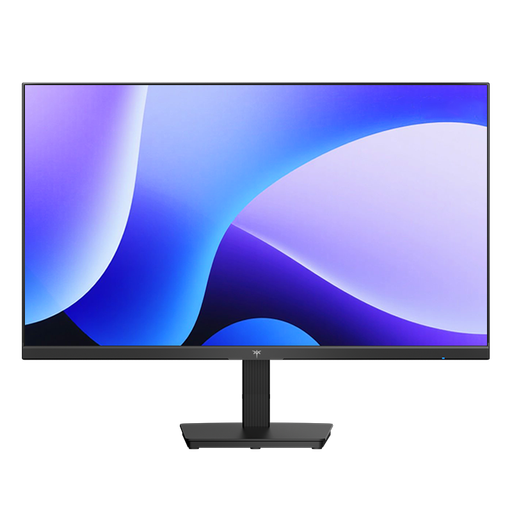 No image available
For calendar layouts on a 24-inch screen.
The product name lists FHD, IPS, 116% sRGB, HDMI and DisplayPort. Before buying, check that the resolution and display suit your workspace.
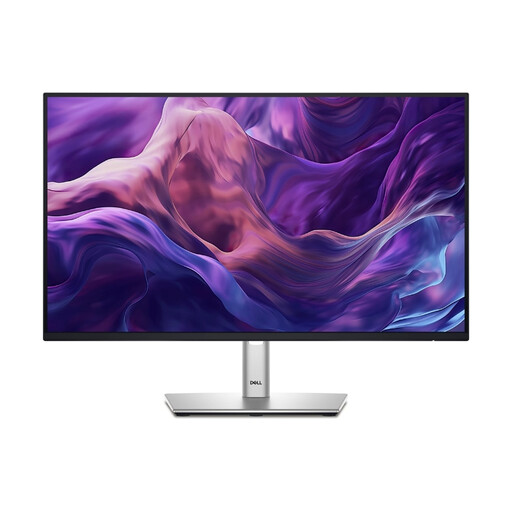 No image available
For calendar work on a laptop when USB-C connectivity matters.
The product name lists 24 inches, FHD, IPS and USB-C. Check that the video and charging features you need work with your laptop.
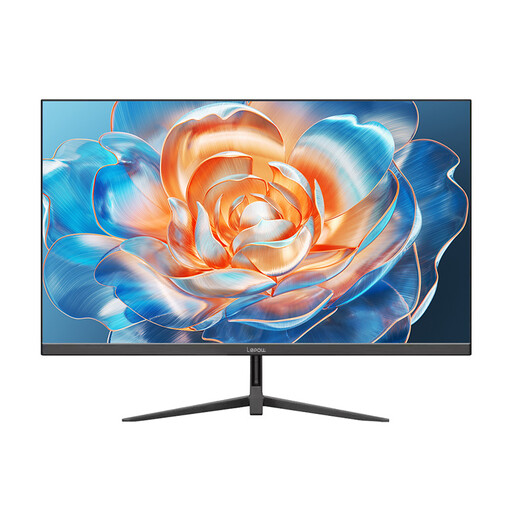 No image available
For calendar layouts on a monitor in the 24-inch class.
The product name lists 100 Hz and HDMI. Check the exact resolution and dimensions before choosing this monitor for your workspace.
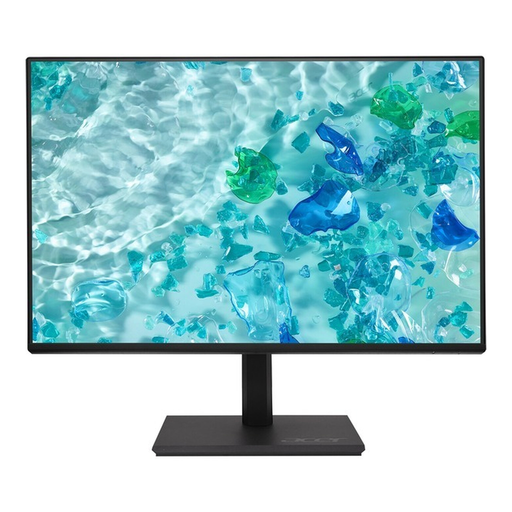 No image available
For calendar work when you need to adjust the screen position to suit your existing workspace.
The product name identifies this as a 24-inch monitor. Before choosing it, check the exact resolution, dimensions and adjustment options of the version you’re considering.
If extra height for page layouts and toolbars matters more to you, compare 24-inch models with a resolution of 1920 × 1200 pixels. If you want more pixels for fine details and have enough desk space and suitable scaling, a 25-inch QHD model such as the BenQ PD2506Q, with a resolution of 2560 × 1440 pixels, could be a good option.
Measure the available width and depth, then compare them with the dimensions of the monitor, including its stand. If you want to use a mount, also check the VESA size, weight capacity and whether your desk can accommodate the mount.
This will only work if your laptop’s USB-C port supports video output and the monitor provides enough charging power. BenQ lists DisplayPort Alt Mode and 65 W Power Delivery for the PD2506Q; Dell lists up to 90 W for the P2425E. Check these specifications against your laptop and the specific monitor port.
For goods bought from business sellers in the EU, the legal guarantee is generally at least two years. Online purchases generally come with a 14-day right to cancel, although legal exceptions may apply. Your Europe and the Council of the European Union explain these consumer rights.
No. The German Environment Agency advises that waste electrical equipment must be collected separately; local recycling centres accept it free of charge. If you want to return it to a retailer, check the conditions that apply there.