Developers working with code and previews
If you want to see your editor, booking form and testing notes all at once, check that your usual text size and window layout fit comfortably on the available screen area.


Choose a monitor based on whether you need to see your code and booking page clearly at the same time, or mainly want to check forms and their keyboard focus. Compare the usable screen area and text scaling, the stand and reflections, and—if you use a laptop—the specific connections. You’ll need to test keyboard accessibility separately on the website’s booking journey.
If you want to see your editor, booking form and testing notes all at once, check that your usual text size and window layout fit comfortably on the available screen area.
If you’re going through a booking journey without a mouse, you need to be able to see the focus indicator throughout the actual process. The W3C Web Accessibility Initiative describes keyboard accessibility, visible focus and a logical focus order as features of the website, not the monitor.
If you’re connecting a laptop or switching between computers, check that the specific monitor has the video and charging connections you need. Its position and the lighting conditions also matter for your workspace.
First, check your workspace layout at a text size that’s easy to read. Then consider desk space, adjustability and—if you use a laptop—the connections you need. Test keyboard navigation separately on the website.
| What you need | What to check before buying | Who is it important to? |
|---|---|---|
| Code and multiple views | Try your usual scaling and window layout; compare the aspect ratio, screen size and resolution of the specific model. | If I want to read my editor and booking preview side by side, the usable screen area at a comfortably readable text size matters most. Around 31% of consumers put code and previews first when choosing a monitor. |
| Visible focus when testing with a keyboard | Check that you can assess the display clearly at your usual brightness and scaling. Then test focus, order and usability on the website itself. | If I’m testing booking steps without a mouse, I need to see which element currently has focus. Around 31% of consumers prioritise checking focus. |
| Ergonomics and reflections | Check that the monitor’s footprint and adjustment options suit your desk, and consider the light sources in your workspace. The German Federal Institute for Occupational Safety and Health’s ASR A6 applies to workplaces and home-working environments within its scope. | If I’m developing and testing for longer periods, I want to adjust the screen position and setup to suit my workspace, while accounting for distracting reflections. Around 23% of consumers place particular importance on ergonomics and lighting conditions. |
| Laptop connection and switching between computers | Compare your laptop’s video output and charging requirements with the monitor’s connections and power specifications. BenQ lists USB-C with DisplayPort Alt Mode and 90 W Power Delivery for the RD240Q; EIZO specifies DisplayPort Alt Mode and up to 70 W on the EV2495’s USB-C upstream port. | If I’m connecting a laptop or switching between computers, I need a compatible signal connection and, where necessary, enough power to charge it. Around 15% of consumers prioritise laptop connectivity. |
Even a high-resolution screen can’t guarantee that a focus indicator will be visible or that every booking step can be reached without a mouse.
Choose a monitor that gives you a clear, readable workspace, then test the entire booking journey separately using a keyboard.
Specifications vary between models. A USB-C port on its own doesn’t tell you whether it supports video or provides enough power to charge your laptop.
Check the connections and power specifications of the specific monitor against your laptop. Depending on the connections available, you may need a separate power adapter or an additional cable.
Reflections also depend on the light sources and where you place the monitor; an anti-glare surface won’t eliminate every problem caused by poor lighting.
Check the space available, adjustment options and lighting conditions where you plan to work and test.
BenQ says its RD series is designed for programming. The RD240Q combines a 24.1-inch screen, a 16:10 aspect ratio and 2560 × 1600 pixels.
The Dell Pro P2425DE is a QHD option with a USB-C hub for development work and laptop use.
According to EIZO, the FlexScan EV2495 combines a 24.1-inch, 16:10 display with docking and switching for two computers.
The ThinkVision T27h-30 is a 27-inch QHD option with USB-C docking, Ethernet and a USB hub.
LG describes the 27-inch LG 27UP850K-W as a 4K model for viewing detailed layouts.
The ProArt PA279CRV is a 27-inch 4K option if you want to assess layout details as well as functionality.
This selection includes monitors for development work, working with multiple windows side by side and checking layout details. You’ll need to test keyboard accessibility on the website itself, independently of the monitor.
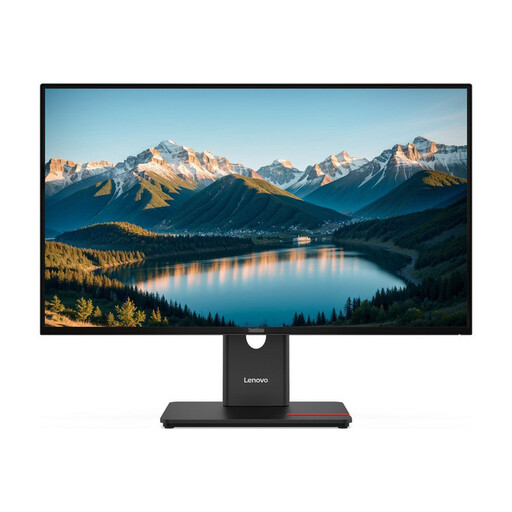 No image available
This could suit you if you want to arrange code and the booking page across a larger workspace.
27 inches, QHD and IPS, according to the product name.
 No image available
Worth considering if you can work with several views side by side and have enough desk space.
40 inches, 5120 × 2160 pixels, IPS and 100 Hz, according to the product name. It also lists USB-C with 65 W Power Delivery and a height-adjustable stand.
A 40-inch ultrawide screen needs plenty of desk space.
 No image available
This could be a good fit if you want to assess layout details on a high-resolution screen.
27 inches, 3840 × 2160 pixels and IPS, according to the product name. It also lists USB-C with 90 W Power Delivery, plus height, pivot and tilt adjustment.
 No image available
This could suit you if you want to arrange several work views on a QHD display.
27 inches, 2560 × 1440 pixels, IPS and 75 Hz, according to the product name. It also lists USB-C with 65 W Power Delivery and a height-adjustable stand.
 No image available
This could be an option if you work with code and a booking preview side by side and want to connect a compatible laptop.
27 inches, WQHD, IPS and 100 Hz, according to the product name. It also lists USB-C with 98 W Power Delivery and KVM.
No. Keyboard accessibility depends on the website and its booking journey. Test the actual controls with a keyboard: according to the W3C Web Accessibility Initiative, functions must be operable through a keyboard interface, and visible focus must be available. Monitor specifications can’t prove this.
First, set a text size and screen position that work for you, then go through the booking journey forwards and backwards without a mouse. For each control, check its focus, order and usability. Custom dialogs and calendars need to be made keyboard-accessible as part of their development.
Not just because of the shape of the port. Check that the specific monitor’s video output and Power Delivery support match your laptop’s capabilities and power requirements. BenQ lists DisplayPort Alt Mode and 90 W for the RD240Q; EIZO lists DisplayPort Alt Mode and up to 70 W on the EV2495’s USB-C upstream port.
EIZO lists a five-year warranty for the EV2495, including an on-site replacement service. Check the terms for the specific model and seller; the warranty alone doesn’t tell you how much you might save.
This depends on several factors, including whether a consumer e-commerce service is being offered and who provides it. The German Accessibility Agency generally classifies self-developed travel booking tools in this category and describes an exemption for micro-enterprises providing services. The BFSG has applied since 28 June 2025. Whether the exemption or other circumstances apply to a particular operator must be assessed in light of its situation. Buying a monitor doesn’t replace checking the website.