For long recordings with multiple audio tracks, a wide timeline workspace is a good choice. If costume details and SDR colours are your priority, a 4K monitor with a suitable colour mode is the more obvious option. A wide 3440 × 1440 display has fewer vertical pixels than a 3840 × 2160 display, and neither type of monitor synchronises separate audio recordings for you. Also check scaling, desk space and your computer’s video and, where relevant, charging connections.
Who are the different monitor options suited to?
Editing with multiple audio tracks
If you’re arranging long carnival recordings and separately recorded audio on the timeline, it’s important to have a clear view of your clips and tools. Adobe explains how to synchronise separately recorded clips in Premiere; Dell lists the U3425WE as a 21:9 display with a resolution of 3440 × 1440 pixels.
Checking costume colours
If you’re assessing colours for a specific output format, choosing the right display mode matters more than simply looking at a large colour gamut figure. Adobe describes Direct Rec.709 as an SDR preset; BenQ lists a Rec.709 mode for the PD2706U.
Editing on a laptop
If your laptop is the heart of your editing setup, the video connection, positioning and, where relevant, charging power need to suit your specific computer. BenQ lists USB-C with 90 W for the PD2706U; Dell describes the S2725QC as a 4K USB-C monitor.
What should you consider when choosing?
First decide whether a clear view of your timeline and audio tracks or a 4K preview for detail and colour is more important to you. Then check that the connections, scaling and footprint suit your editing setup.
| Buying priority |
What to look for |
Who is it important to? |
| Keeping track of the timeline and audio tracks |
Check how your typical project looks at a readable scaling setting. Dell lists the U3425WE as 21:9 with a resolution of 3440 × 1440 pixels; picture how your timeline, track height and preview will fit on your workspace. |
When I’m arranging long clips and separate audio tracks, I want to see the timeline, track height and preview all at once. Around 36% of consumers put an overview of the timeline and audio tracks first. |
| Assessing costume colours for export |
Choose SDR or HDR and decide on your output format. Adobe describes Direct Rec.709 as an SDR preset; then check the monitor mode and calibration process for the specific model. |
When I’m assessing costume colours for a specific output format, I want to choose a suitable display mode. Around 29% of consumers prioritise checking SDR colours. |
| Checking fine image details |
Compare native resolution, screen size and readable scaling. BenQ lists the PD2706U as having a resolution of 3840 × 2160 pixels; the preview area you can actually see also depends on how you arrange your windows. |
When I’m checking costume details, I want a preview that works well alongside my editing windows. Around 21% of consumers put previewing details first. |
| Connecting a laptop to your editing setup |
Check video output via the relevant laptop port, the charging power you need, the cables and the space available. BenQ lists USB-C with 90 W for the PD2706U; check that this suits your computer. |
When I’m editing on a laptop, I need a connection and setup that work with my existing workspace. Around 14% of consumers prioritise laptop connectivity and positioning. |
Common misconceptions when buying a monitor
-
Assuming a wider screen means 4K detail
The 34-inch 21:9 Dell U3425WE considered here is listed with a resolution of 3440 × 1440 pixels. The 27-inch 4K models considered have a resolution of 3840 × 2160 pixels, so a wider timeline workspace doesn’t mean more vertical pixels.
Arrange a typical project at your preferred, easily readable scaling setting and check whether there’s enough room for the timeline, audio tracks and preview.
-
Assuming a large colour gamut figure means a complete colour workflow
Adobe describes different colour workflows for different outputs. Manufacturer claims about colour gamut or calibration apply to specific models and don’t replace choosing the right settings for your export.
First decide on your output format, then check the appropriate monitor mode and your calibration process.
Repeatable colour checks may require extra time to set up the right settings and calibration.
-
Expecting speakers or a high refresh rate to solve separate audio issues
Separately recorded clips are synchronised in your editing software. A monitor with speakers or a high refresh rate won’t do this for you.
Check how to synchronise audio in your editing software, independently of your monitor choice.
-
Planning to use USB-C without checking your laptop
A USB-C port alone doesn’t tell you whether your laptop can output the video signal you need through it, or whether the charging power is right for your device.
Check the port functions, the right cable and the charging power required by the exact versions of your devices. Depending on the connection, you may need a different compatible cable or a separate power supply.
Brands worth considering
BenQ
The DesignVue PD2706U is a 27-inch 4K option for checking SDR colours and connecting a compatible USB-C laptop.
- BenQ lists a resolution of 3840 × 2160 pixels, a Rec.709 mode and USB-C with 90 W for this model.
- The manufacturer’s specifications don’t guarantee the colour accuracy of an individual unit or compatibility with every laptop.
EIZO
The ColorEdge CS2740 combines 4K with a documented hardware calibration workflow.
- EIZO describes the CS2740 as offering 4K and hardware calibration.
- Calibration may require a suitable process; these specifications apply to this model and not automatically to other EIZO ranges.
Dell
The UltraSharp U3425WE is designed for a wide timeline, while the S2725QC is a more compact 27-inch 4K USB-C option.
- Dell lists the U3425WE as 21:9 with a resolution of 3440 × 1440 pixels, and the S2725QC as 4K with USB-C.
- The two models are designed for different uses. A hub or speakers won’t synchronise separate audio recordings in your editing software.
ASUS
The ProArt PA279CRV is a 27-inch 4K option if its colour gamut specifications and USB-C charging power suit your planned workflow.
- ASUS lists 99% DCI-P3 and Adobe RGB coverage, factory calibration and USB-C with 96 W for this model.
- For SDR video, the output and monitor modes you actually use are also important; these are manufacturer specifications.
Monitors and portable extra screens at Joybuy
The selection includes 4K and WQHD monitors for fixed editing setups, as well as portable extra screens for mobile previews.
 No image available
INNOCN CB27U1, 27-inch 4K UHD monitor
For a 4K preview and a fixed editing setup with a compatible laptop connection.
27 inches, 3840 × 2160 pixels, IPS and 120 Hz; USB-C with 90 W, HDMI 2.1 and DisplayPort. The stand is height-adjustable, tiltable, swivelable and rotatable.
Joybuy
 No image available
MSI PRO MP275QPDGDE, 27-inch WQHD docking monitor
For a 27-inch editing setup where laptop docking and flexible screen positioning are important.
WQHD with 2560 × 1440 pixels, IPS and 100 Hz; USB-C with 98 W, RJ45, KVM and daisy chaining. An integrated webcam is listed; the stand can be adjusted for height, tilt, swivel and rotation.
Joybuy
 No image available
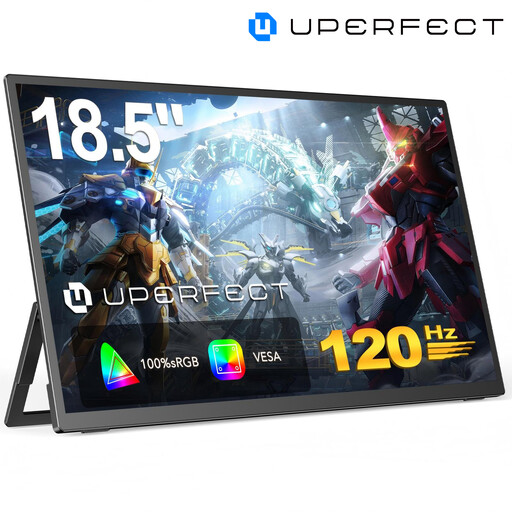
UPERFECT 18.5-inch portable FHD monitor
A portable extra screen for mobile editing previews, if FHD is sufficient for your intended use.
18.5 inches, 1920 × 1080 pixels, matte IPS display and 120 Hz; USB-C and Mini HDMI ports.
Joybuy
 No image available
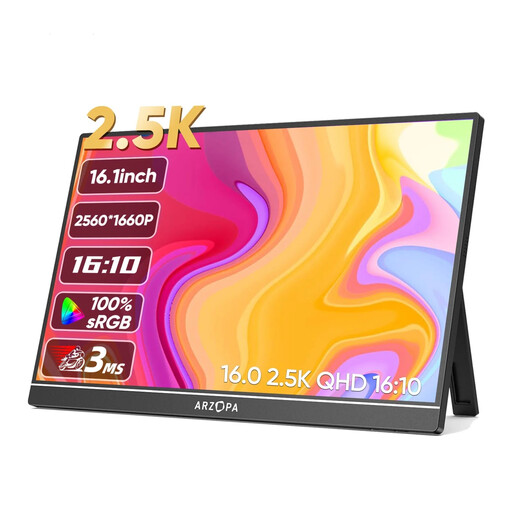
Arzopa Z1RC, portable 16-inch 2.5K monitor
For mobile previews, if a portable 16-inch format and 2560 × 1600 resolution suit your editing workflow.
IPS display with USB-C and HDMI; the listed weight is 810 g.
Joybuy
 No image available
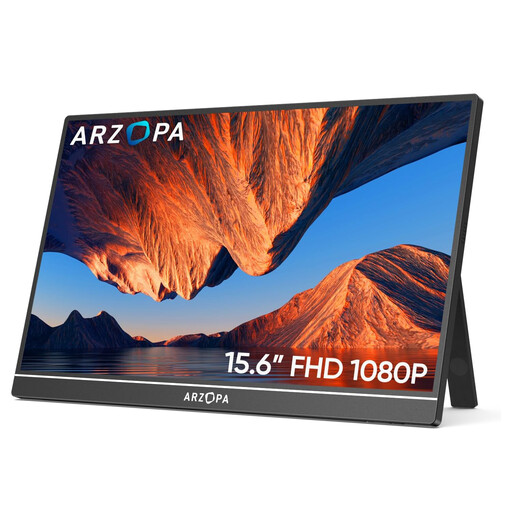
ARZOPA A1, portable 15.6-inch FHD monitor
A portable second screen for a laptop or PC, if a compact FHD preview meets your needs.
15.6 inches, 1920 × 1080 pixels and IPS; USB-C and HDMI. The listed weight is 780 g.
Joybuy
Frequently asked questions
Will a new monitor synchronise my separately recorded audio files?
No, synchronisation takes place in your editing software. Adobe describes manual alignment and a synchronise feature in Premiere; check what’s available in the software you use.
Do I need to buy an HDR monitor for carnival videos?
Not just because the costumes are colourful. First decide whether you’re exporting in SDR or HDR: Adobe describes Direct Rec.709 as an SDR preset, with other settings for different colour workflows.
Is one USB-C cable enough for video and power?
Only if your computer can output a suitable video signal through the port you’re using and the charging power is sufficient. BenQ lists USB-C with 90 W for the PD2706U; also check your cable and computer specifications.
What are your rights in Germany if a newly purchased monitor is faulty?
Your statutory rights against the retailer are separate from any voluntary guarantee. If there’s a fault, you can initially request a repair or replacement; additional conditions apply in special cases, such as second-hand or private sales. The Verbraucherzentrale explains the difference.
What do energy labels and disposal rules mean for monitors in Germany?
Monitors carry an energy label from A to G; further product information is available in the EU database via the label’s QR code. The German Environment Agency points to local collection points for waste electrical equipment. Dispose of an old monitor separately; retailers’ take-back obligations depend on the relevant legal requirements.


