Colour-critical catalogue design
If you assess photos or illustrations for print, your main screen should suit your colour management workflow. The second screen can be used for text, tools or references.


When assessing colours for a specific print job, choose your main monitor for a suitable colour space and calibration options. A wide colour gamut alone is no substitute for the print condition profile or a proof. For typesetting, selecting images and checking references, easy-to-read resolution and a practical setup may matter more. Before buying, check that your computer or dock can run both screens at the resolution you want, and that the connections, desk space and, if needed, laptop charging power are suitable.
If you assess photos or illustrations for print, your main screen should suit your colour management workflow. The second screen can be used for text, tools or references.
When laying out pages, correcting captions and comparing templates, clear text and a sensible arrangement of the two displays are key.
If you connect a monitor to a laptop, check that the computer and, if applicable, the dock support both screens, and that the monitor’s charging power is suitable for your laptop.
A good fit if: you assess photos or illustrations for an agreed print condition and mainly use the second screen for text or tools.
The trade-off: Colour gamut and calibration are no substitute for the right output profile or a proof prepared to match it.
A good fit if: you mainly lay out pages, check captions and compare images.
The trade-off: High resolution alone does not determine a comfortable text size or guarantee accurate print colours.
A good fit if: you often connect a laptop to your workstation and want to combine video, data and power wherever possible.
The trade-off: A USB-C or Thunderbolt port on the monitor alone does not guarantee sufficient charging power or support for two external displays.
For a two-screen exhibition catalogue setup, your choice will depend mainly on whether the main monitor is for assessing print colours or displaying layouts and text. The connection and setup also need to suit your computer.
| What you need | What to check before buying | Who is this important to? |
|---|---|---|
| Assessing print colours | Compare the colour gamut and calibration options of the specific model with the output profile agreed with the printer. EIZO and ASUS quote Adobe RGB figures for certain models; these alone do not prove how the print will turn out. | When I assess images for a specific print job, I want to consider colour gamut, calibration and the print profile together. Around 31% of consumers would prioritise assessing print colours. |
| Readability and layout space | Compare screen size and native resolution together, check text scaling on your own computer, and measure the space available for both screens. | When I want to check pages and captions clearly, resolution, scaling and available space all need to work together. Around 25% of consumers prioritise layout readability. |
| Connections and using two screens | Check that your computer’s video outputs, monitor inputs, any dock and the required USB-C charging power are compatible. | When I want to use two displays with my computer or laptop, I want to know in advance that the whole connection chain supports them. Around 25% of consumers would prioritise connections and running both screens. |
| Ergonomics and everyday use | Check the space available, stand adjustments and energy data for both specific monitors. | When I use two displays at the same workstation every day, I want to be able to position and align them sensibly. Around 19% of consumers prioritise setup and everyday use. |
A high manufacturer-quoted colour gamut coverage figure does not specify the paper, print condition or colour conversion.
First, confirm the required print profile with your printer. Then check the colour gamut and calibration options of the specific main monitor.
The monitor connection, computer output, dock and, if applicable, charging power all need to be compatible.
Check the specifications for the whole connection chain, not just the monitor’s list of ports.
Native resolution, scaling and monitor dimensions all affect how practical your workspace will be.
Measure the space needed for both screens and check your preferred text scaling on the operating system you use.
The ColorEdge CS2740 is an example of a main monitor designed for colour-critical image editing and catalogue design.
According to the manufacturer, the ProArt PA279CRV combines a 27-inch 4K display with features for an adjustable workstation.
The DesignVue PD2706U is described as an option for layout work and viewing digital images, with USB-C.
The UltraSharp U2725QE is a docking-focused 27-inch option for a workstation with a laptop and multiple displays.
The Joybuy products below are work display options for layouts, text and catalogue pages. They are not automatically a substitute for a proofing monitor calibrated to the print condition.
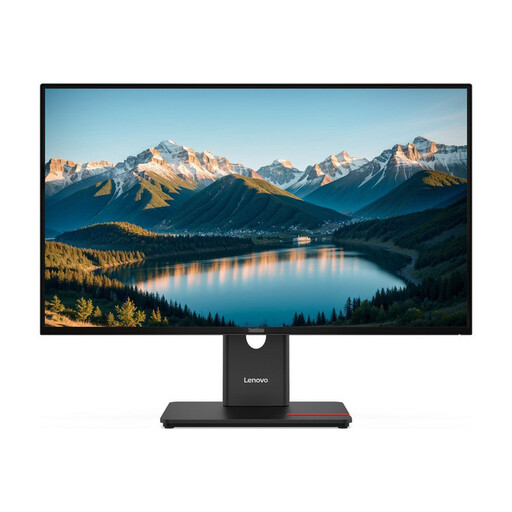 No image available
A QHD option for catalogue layouts and text, if a 27-inch IPS display suits your workspace.
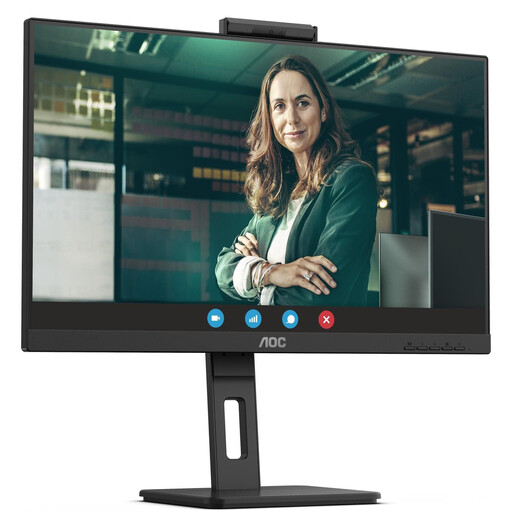 No image available
Worth considering as a QHD work display for layouts and text, if you can check that the listed screen features are compatible with your computer.
The product name specifies a 27-inch, 75 Hz IPS display.
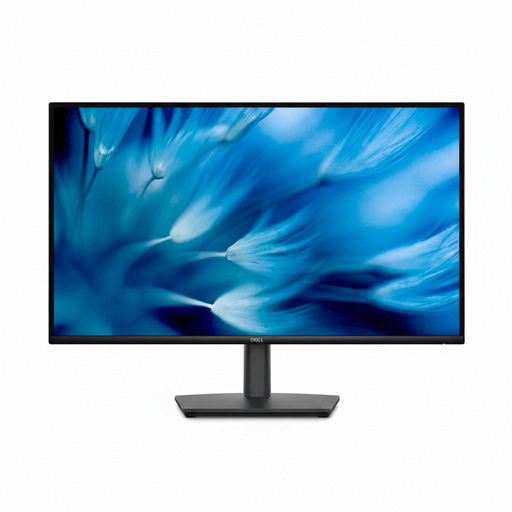 No image available
A WQHD option for catalogue layouts and text, provided the resolution suits your preferred scaling.
The product name specifies a 27-inch IPS display with HDMI and DisplayPort.
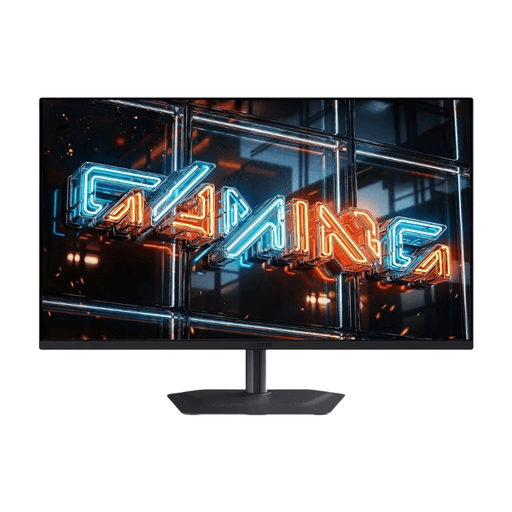 No image available
Could be considered as a large-format layout option if the screen size and desk space suit your workspace.
The product name specifies 32 inches and 3840 × 2160 pixels; this alone does not make it suitable for accurate print colour assessment.
 No image available
A QHD option for layouts and text, if you match the resolution to your preferred scaling.
The product name specifies 27 inches, 2560 × 1440 pixels and 60 Hz.
No. Colour gamut coverage describes a feature of the monitor, not the result for a specific print job. ECI and Adobe InDesign refer to suitable ICC profiles and the relevant output condition, so agree the profile and proof with your printer.
In Display settings, you can identify the screens and arrange them to match their actual positions on your desk. If a display is not detected, check the connections and use the detection function. Microsoft Support explains how to set up displays in Windows 10 and 11; this does not confirm hardware compatibility with every computer.
No. Check whether your computer and, if applicable, your dock support the number of external displays you need, and whether the cables, ports and required charging power are suitable. The monitor’s USB-C port alone does not confirm compatibility.
EU energy labels, with ratings from A to G, apply to covered electronic displays, including computer monitors. The European Commission also refers to additional model data in EPREL. The label makes comparisons easier, but does not prescribe a particular efficiency class for your purchase.
No. For a purchase in Germany, your statutory rights for faulty goods are against the seller; a manufacturer’s warranty is an additional voluntary service subject to its own terms. The Verbraucherzentrale explains the difference. For your purchase, check who your seller is and which warranty terms apply.