What should you look for?
Start by deciding whether you mainly want to read entries side by side, assess photo details or compare colours under controlled conditions. Then choose a resolution, setup and connections to suit your workspace.
| What you need |
What to check when buying |
Who is this most relevant to? |
| Read entries and images side by side |
Screen size, resolution, text scaling and the layout of the windows you use. |
If I’m checking identifiers, fields and reference images at the same time, I need a clear layout rather than having to switch between windows constantly. Around 31% of consumers put this clear side-by-side comparison of entries first. |
| Compare photo details |
The resolution of the photos you have and the monitor’s resolution; the display should remain easy to read at your chosen scaling. |
If I’m comparing shape, glaze or minor damage using existing photos, it also matters whether the source files contain those details. Around 25% of consumers prioritise checking photo details. |
| Assess colours consistently |
The colour space you need, profiling and calibration options, and the consistency of your images. |
If colour tones matter in my documented images, I need a coordinated colour workflow, not just a high colour-gamut specification. Around 19% of consumers put controlled colour reproduction first. |
| Adjust the screen position |
Desk space, the stand, and height and tilt adjustment to suit your workspace. |
If I’m planning longer or varied work sessions, I want to be able to position the screen to suit my desk and seating position. Around 13% of consumers prioritise an adjustable screen position. |
| Connect a laptop |
Your laptop’s video output, the charging power you need, the available ports and the right cable. |
If I want to connect my laptop through the monitor, the video signal and, where applicable, charging power must be compatible with my device. Around 12% of consumers prioritise laptop connectivity. |
Joybuy monitors for visual comparison
The following Joybuy models include a wide workspace, as well as QHD and 4K options for visually comparing entries and photos.
 No image available
INNOCN 40C1U, 40-inch 5K monitor
The wide workspace can be useful if you want to arrange lots of catalogue fields and reference images side by side.
40 inches; 5120 × 2160 pixels; IPS; 100 Hz.
PIP and PBP are listed as features; USB-C with 65 W Power Delivery is mentioned in the product name.
Joybuy
 No image available
INNOCN CB27U1, 27-inch 4K UHD monitor
This 4K option is worth considering if you want to assess fine photo details alongside catalogue entries. Check that everything remains easy to read with your chosen scaling.
27 inches; 3840 × 2160 pixels; IPS; 120 Hz.
PIP and PBP are listed. The product name mentions USB-C with 90 W Power Delivery, as well as HDMI and DisplayPort.
Joybuy
 No image available
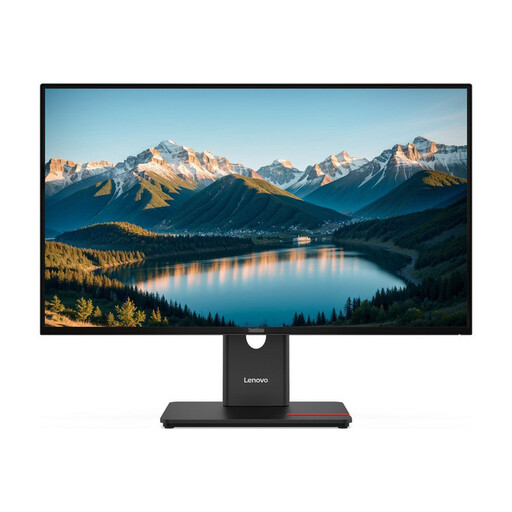
Lenovo ThinkVision T27Q-40, 27-inch QHD IPS monitor
A QHD option for comparing catalogue fields and photos. If very fine image details are a priority, compare it with a 4K resolution.
27 inches; QHD; IPS; Black.
Joybuy
 No image available
Z-Edge AGEX, 27-inch QHD monitor
A QHD option for checking entries and reference photos side by side. For very fine photo details, weigh up the resolution against 4K.
27 inches; 1440p; Fast IPS; 144 Hz.
The product name mentions a height-adjustable stand, FreeSync, HDR10, DisplayPort and HDMI.
Joybuy
 No image available
CRUA 49-inch DQHD monitor, 5120 × 1440 pixels
The wide format could suit you if you want to arrange lots of entries and reference images at once. Check that the screen width works for your workspace.
49 inches; 32:9; 5120 × 1440 pixels; 165 Hz.
The product name mentions a 1500R curve and a height-adjustable stand.
Joybuy
Frequently asked questions
Will a new monitor detect duplicate catalogue entries?
No. A monitor displays records and photos for visual checking; whether entries are duplicates and how to handle them must be decided as part of the cataloguing process. The Library of Congress describes duplicates in bibliographic records, not as a rule for ceramic collections.
Do I need to profile a colour-capable monitor too?
If you want to assess colours consistently, calibration and profiling go hand in hand. The International Color Consortium explains how they work together. Also check that your images and their profiles suit your workflow. A monitor’s colour-gamut specification isn’t enough on its own.
What should I check for longer catalogue sessions?
Check whether you can adjust the screen height and tilt to suit your desk and seating position, and whether reflections are distracting. The DGUV explains that ASR A6 applies to regularly used screen workstations within a workplace; it isn’t a blanket requirement for every private collection.
Will USB-C work with any laptop?
No, a USB-C port alone doesn’t guarantee a suitable connection. Compare your laptop’s video output, charging requirements and available ports with the specifications of the specific monitor, and remember to check which cable you’ll need.


