When entering data in custom fields, it’s important to have a monitor that’s easy to read, with a resolution and text scaling that work well with your window layout. A 27-inch QHD model may be enough for text-heavy work, while 4K gives you more native pixels for photo detail. If you’re assessing ceramic photographs for a particular colour or print purpose, choosing the right colour mode and calibration workflow becomes more important. The ports and charging power also need to suit your laptop. Custom fields are provided by your catalogue software, not your monitor.
Who needs which type of monitor
Working with multiple records at once
If you keep an object list, data-entry form and reference information open at the same time, a clear workspace matters more than fine-tuning photos. TÜV SÜD recommends an UltraWide screen for viewing several windows at once. Still, check that its format suits your desk and software.
Assessing ceramic photographs
If you’re assessing photographs for a specific screen or print purpose, the colour mode and a suitable calibration process can influence your choice. EIZO, BenQ and ASUS list relevant colour modes for certain models. These manufacturers’ claims don’t replace checking how well a monitor suits your own workflow.
Entering data at different workstations
For long data-entry sessions or frequent laptop connections, adjustability, suitable ports and the actual charging power available are important factors. Lenovo and Dell describe docking or hub features on certain models. Whether they’re suitable depends on your computer’s ports.
What to consider when choosing
| What matters |
What to check before buying |
Who it matters most to |
| Clear workspace |
Test a typical data-entry form, object list and reference image in your planned layout. Consider resolution, scaling and desk space together. |
If I want to read fields and reference images at the same time, finding a window layout that works for me is my main concern; around 36% of consumers prioritise a clear workspace. |
| Displaying ceramic photographs |
Decide what you’ll use the image for, such as on-screen viewing or printing, then check the specific model’s colour mode, profile and, where relevant, calibration method. |
If I’m assessing photographs for a specific output, I pay particular attention to a colour workflow that suits it; around 29% of consumers prioritise photo display. |
| Adjustability |
Check that the height and tilt adjustments suit your seating position, desk space and the actual lighting conditions in your workspace. |
For longer data-entry sessions, I want to be able to position the screen to suit my workspace; around 21% of consumers prioritise adjustability. |
| Laptop connectivity |
Compare your laptop’s video output and charging requirements with the monitor’s ports and cable. If you use two computers, check whether switching between them is an explicitly stated feature. |
If I connect my laptop often or switch between computers, the right connection is essential; around 14% of consumers prioritise laptop connectivity. |
Common misconceptions when buying a monitor
-
4K automatically means more usable screen space
Resolution, screen size and text scaling all work together. A higher number of native pixels doesn’t tell you how many fields you can fit side by side and still read comfortably at your preferred scaling.
Open a typical data-entry form and try it with your usual scaling, rather than comparing resolution figures alone.
-
A wide colour gamut guarantees accurate ceramic colours
Manufacturers’ colour gamut coverage figures alone don’t show whether a particular monitor, file and output destination will work together in your workflow.
First decide what you’ll use the image for, then check the colour mode, profiles and calibration process intended for that specific model.
An additional accessory may be needed for your planned calibration workflow, so check what’s included with the model before you buy.
-
A USB-C port guarantees a one-cable setup
A USB-C port alone doesn’t confirm that your laptop can output the video signal you need or receive enough power from the monitor. BenQ specifies 65 W for the PD2705U, while Lenovo lists up to 100 W for the ThinkVision P27h-30. These model specifications don’t guarantee compatibility with your device.
Check your laptop’s video output, charging requirements and cable against the specifications for the monitor you’re considering.
An unsuitable cable or insufficient charging power for your laptop may mean you need an additional accessory.
-
Custom catalogue fields are a feature of the monitor
Custom data fields and forms are provided by your catalogue software. The monitor displays its interface but doesn’t add these features.
Check the field definitions and form view in your software, then choose a screen that suits the windows you actually need.
Monitor brands to consider
Lenovo
The ThinkVision P27h-30 is a 27-inch QHD model with USB-C docking, designed for a compatible laptop setup.
- Lenovo lists 2560 × 1440 pixels, a USB hub, KVM and up to 100 W charging power for the P27h-30.
- This model has fewer native pixels than the 27-inch 4K models covered here. Its stated charging power doesn’t guarantee compatibility with your laptop.
BenQ
The DesignVue PD2705U is a 27-inch 4K model with an sRGB focus, suited to compatible photo and office workflows.
- BenQ lists an sRGB mode, 99% sRGB and 65 W USB-C for the PD2705U.
- These are the manufacturer’s specifications for this model, not an independent measurement of your device. Check that the charging power suits your laptop.
EIZO
The ColorEdge CS2740 is designed for photo and calibration workflows where defined colour modes matter.
- EIZO lists 4K, an Adobe RGB preset and hardware calibration for the CS2740.
- According to EIZO, its USB-C port delivers up to 60 W. Also check which accessories you’ll need for your planned calibration process.
ASUS
The ProArt PA279CRV combines a 27-inch screen and 4K resolution with colour modes for workflows that go beyond sRGB.
- ASUS lists sRGB and Adobe RGB modes, 99% Adobe RGB, 96 W USB-C Power Delivery and height adjustment.
- The colour gamut figure alone doesn’t show whether a particular unit suits your photo or print workflow.
Dell
The UltraSharp U2725QE is a 27-inch 4K model with a Thunderbolt hub for computers with compatible ports.
- Dell lists 3840 × 2160 pixels, a height-adjustable stand and a Thunderbolt hub for the U2725QE.
- The hub’s usefulness depends on your computer’s ports. The specifications for this model don’t apply to every UltraSharp monitor.
Monitors at Joybuy
This selection at Joybuy includes 4K monitors for catalogue data and object images, including models with sRGB, USB-C or adjustable stands listed in their specifications.
 No image available
MSI PRO MP273UPDE E6, 27-inch 4K UHD IPS
For displaying catalogue fields alongside object images. The product specifications list an sRGB preset and an adjustable stand.
3840 × 2160 pixels, 60 Hz and 10-bit colour depth. The stand can be adjusted for height, tilt, swivel and pivot.
View at Joybuy
 No image available
INNOCN CB27U1, 27-inch 4K UHD
For a workspace where catalogue fields and reference images can be displayed together. USB-C can provide an additional connection if your laptop has compatible ports.
3840 × 2160 pixels, IPS, 120 Hz, 100% sRGB and 99% Adobe RGB according to the product specifications. Also listed are 90 W USB-C Power Delivery and 150 mm of height adjustment.
View at Joybuy
 No image available
KTC M27P6, 27-inch 4K MiniLED, Dual Mode
For displaying catalogue data and object images. The product specifications list USB-C and KVM for compatible devices in your workspace.
4K UHD at 160 Hz or FHD at 320 Hz in Dual Mode. Also listed are 65 W USB-C, KVM, and a stand with height, tilt and swivel adjustment.
View at Joybuy
 No image available
ASUS ROG Swift OLED PG32UCDMR, 32-inch 4K UHD
For viewing catalogue data and object photographs together on a 32-inch screen. Check that the size and stand suit your workspace.
3840 × 2160 pixels, 240 Hz and 99% DCI-P3 according to the product specifications. Also listed are 90 W USB-C Power Delivery and a KVM switch.
View at Joybuy
 No image available
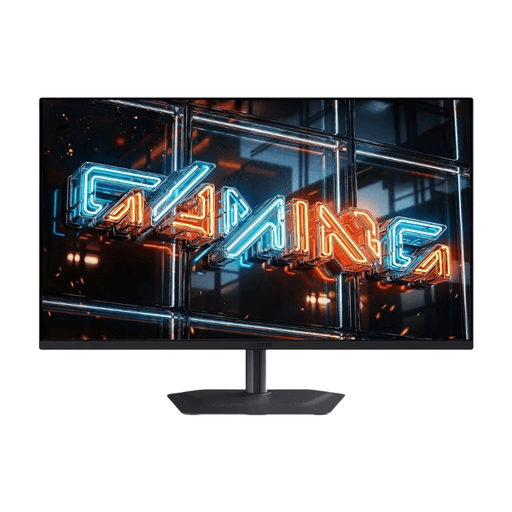
GIGABYTE MO32U24, 32-inch 4K UHD OLED
For displaying catalogue fields and object images on a larger screen. Bear in mind how much desk space you have available.
3840 × 2160 pixels, 10-bit colour depth and 99% DCI-P3 according to the product specifications. The stand is height-adjustable, tiltable, swivelable and rotatable. HDMI, DisplayPort and USB are listed.
View at Joybuy
Frequently asked questions
Can the monitor itself create custom fields for my ceramic objects?
No. Custom data fields are a feature of catalogue software; MuseumPlus, for example, describes flexible data fields and forms. The monitor displays the software interface. So check which field types you need in your software before deciding on screen size.
How should I set up the screen for data-entry forms and photographs?
Open a typical record and a reference photograph, choose text scaling that’s easy for you to read, and position the monitor to suit your actual workspace. For workplace display screen equipment, ASR A6 is also relevant within its scope; it doesn’t apply universally to personal use.
Do I need to calibrate a monitor to assess ceramic photographs?
There’s no general calibration requirement for data entry alone. If you want to make repeatable colour decisions for a specific photo or print workflow, check the colour mode, profile and calibration method. EIZO describes calibration and assigning ICC monitor profiles for ColorEdge.
How can I compare the power consumption of different monitors?
For specific models, compare the EU energy label or EPREL entry. The European Commission lists an A to G efficiency scale for electronic displays, along with information for SDR and, where applicable, HDR.


