Checkout testers who use lots of windows
If you often need the form, browser console and reference view open at the same time, compare the native resolution with the text scaling. What matters is whether the windows remain easy to read side by side.


If you mostly check checkout pages one at a time and have limited desk space, a compact Full HD monitor with an adjustable stand may be enough. If you want to view the checkout preview, code and tools side by side, it’s worth considering QHD and checking readability at your chosen text scaling. USB-C is only useful if your laptop and cable support the features you need. Simulating a mobile view on a monitor is no substitute for testing on a real mobile device.
If you often need the form, browser console and reference view open at the same time, compare the native resolution with the text scaling. What matters is whether the windows remain easy to read side by side.
If you usually check one view at a time, consider how much room you’ll need for your laptop, keyboard and study materials as well as the screen. Compare the full monitor dimensions, including the stand, with the space available on your desk.
If you regularly connect a laptop, check its video outputs and charging requirements. HDMI, DisplayPort and USB-C don’t automatically do the same job.
A good fit if: you mainly check one checkout view at a time and want to save desk space.
The trade-off: 1920 × 1080 pixels give you less native screen space for several tools open at once than QHD. TÜV SÜD recommends Full HD as a guide for screens up to 24 inches.
A good fit if: you often want the preview, console and other windows visible at the same time, and can read them comfortably at your chosen scaling.
The trade-off: Dell lists a resolution of 2560 × 1440 pixels for the 23.8-inch P2425DE; more pixels alone won’t make interface elements larger.
A good fit if: you also assess image details or colour variations in checkout graphics, and have enough desk space.
The trade-off: These extra features aren’t essential for routine form and workflow checks. Check the monitor’s dimensions and scaling options.
When choosing a monitor for testing checkout pages in a student room, it helps to identify which need matters most to you. This breakdown can help you prioritise what to check before you buy.
| Priority | What to check when buying | Who is this important to? |
|---|---|---|
| Screen space for several windows | Compare the resolution, screen size and text scaling for the window layout you have in mind. | If you want to keep the checkout, console and reference window readable side by side, usable screen space matters most. Around 30% of consumers prioritise having several views visible at once. |
| Desk space and adjustability | Check the width and depth, including the stand, and the adjustment options of the specific model. | If your laptop, keyboard and study materials also need to fit on your desk, the overall dimensions are crucial. Around 20% of consumers prioritise the space available. |
| Features to suit your needs | Check whether extra resolution or colour modes are genuinely useful for your tasks. | If you mainly check checkout forms, you won’t want to pay for features that offer no clear benefit for the job. Around 20% of consumers prioritise features that meet their needs. |
| Laptop connection | Check the video output, monitor input and cable; if using USB-C, check the charging requirements too. | If you regularly switch laptops, the connection needs to work with the laptop’s video output and, where relevant, its charging requirements. Around 20% of consumers prioritise an easy connection. |
| Image details and colours | Check whether you need to assess colours and which modes the specific model offers. | If you also check graphics or colour variations, the resolution and suitable colour modes may be relevant. Around 10% of consumers prioritise this extra visual checking. |
A simulated mobile viewport still runs on a desktop and doesn’t fully reproduce mobile hardware.
Use the simulation to help troubleshoot, then check critical checkout steps on a real mobile device too. Google describes Chrome DevTools’ Device Mode as an approximation.
A USB-C port on a monitor doesn’t automatically mean your laptop can output video through it or receive enough power to charge.
Before buying, check your laptop’s video output and charging requirements, as well as the monitor and cable.
If the devices aren’t compatible, you may need extra cables or a separate power supply.
The stand, cables and input devices also take up space in a student room.
Measure the available width and depth, then compare them with the dimensions of the specific model, including its stand.
The GW2490T is a compact Full HD option with an adjustable stand for a permanent desk setup.
The P2425HE and P2425DE offer different resolutions, with both models featuring a 23.8-inch screen and USB-C hub.
The ThinkVision T24i-30 is a Full HD alternative with several standard video connections and an adjustable stand.
The ProArt PA279CRV is aimed at buyers who want to check image details or colour modes as well as checkout flows.
Here you’ll find monitors for testing checkout pages at your desk, or as an extra screen. Before choosing, pay particular attention to the space available, resolution and your laptop’s connections.
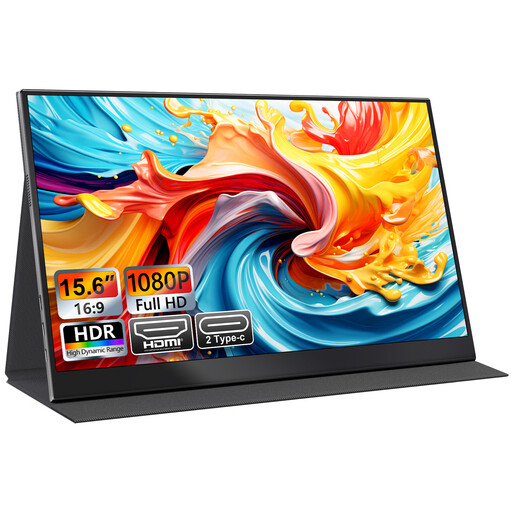 No image available
Designed as an extra screen for a laptop; check that the connections are compatible with your devices.
15.6 inches, 1080p FHD, USB-C and HDMI. The product title also mentions a smart cover stand.
 No image available
Designed for viewing several windows on one screen; check that the stated width, including the stand, will fit on your desk.
40 inches, 5120 × 2160 pixels, IPS and 100 Hz. The title lists HDMI, DisplayPort and USB-C PD65W; the stated width with the stand is 944,1 mm.
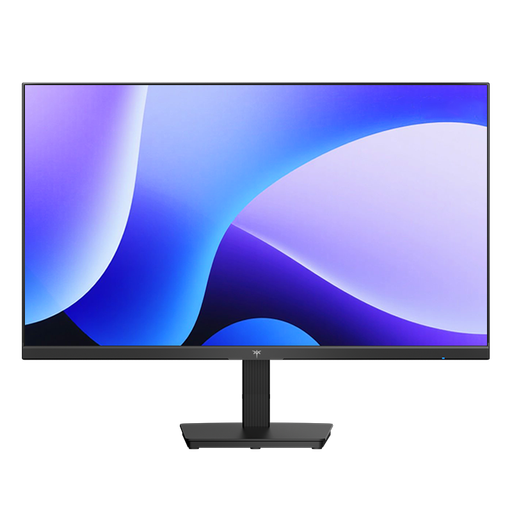 No image available
A compact Full HD option for mainly checking one checkout view at a time; compare the stand and space required with the room on your desk.
24 inches, 1080p Full HD, IPS and 144 Hz. The title lists HDMI and DisplayPort.
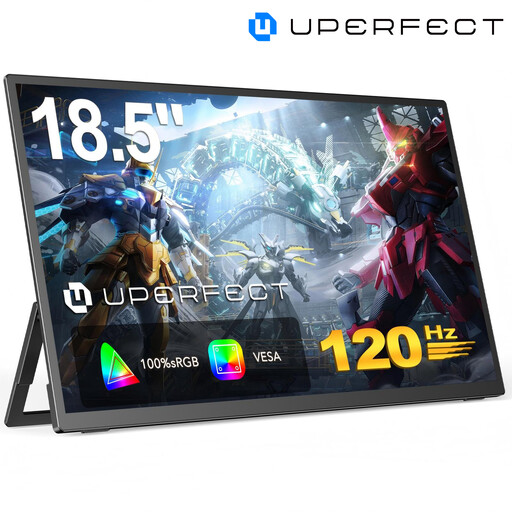 No image available
Described as a portable screen for a laptop or PC; check that the connections are compatible with your devices before buying.
18.5 inches, 1920 × 1080 pixels, 120 Hz and a matt IPS display. The title lists USB-C, Mini-HDMI and VESA compatibility.
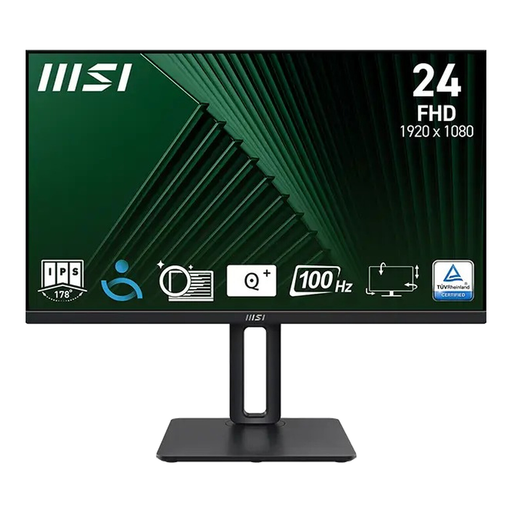 No image available
For checkout views that are usually checked one at a time; compare the stand dimensions with the space available on your desk.
23.8 inches, 1920 × 1080 Full HD, IPS and 100 Hz. The product title mentions a height-adjustable stand.
No. Chrome DevTools can simulate mobile views on a desktop, but Google describes Device Mode as an approximation. You should also use a real mobile device to test critical steps; a higher monitor resolution doesn’t overcome this limitation.
No. Compare your laptop’s video output and charging requirements with the specifications for the specific monitor and cable. Dell lists up to 90 W Power Delivery for the P2425HE; this doesn’t prove compatibility with every laptop.
Check that the stand, height and tilt suit your desk and allow you to view the screen comfortably. Adjust the text size and brightness to suit you. The ASR A6 from the Federal Institute for Occupational Safety and Health applies to workplaces and remote working within its scope; it doesn’t apply universally to a privately used study space.
For electronic displays covered by the scheme, the European Commission describes the EU energy label as using classes from A to G. Compare the information for the exact model on offer rather than assuming its energy consumption from the screen size alone.
The Verbraucherzentrale explains that, in Germany, online purchases generally come with a 14-day right to cancel from the date you receive the goods; you must notify the retailer that you wish to cancel. This applies if you change your mind or the size isn’t right. Your rights if the goods are faulty are separate.