What should you look for?
First decide whether you’ll use your laptop screen plus an external monitor, or two external monitors. Then compare window layout and readability. The connections, mobile testing and setup you need will depend on your specific testing space.
| What matters |
What to check before buying |
Who should consider it? |
| Readable workspace |
Assess screen size, resolution and text scaling together with your own checkout and tools layout. |
If I want to read the checkout, browser tools and notes at the same time, a window arrangement that works for me is key. Around 31% of consumers put a readable workspace first. |
| Independent video output |
Decide whether you’ll use your laptop screen or two external monitors, then check the video outputs, monitor inputs and, if needed, USB-C charging power. |
If I need two separate test views on external screens, my computer must support the connection setup I have in mind. Around 25% of consumers focus on connections and independent video output. |
| Mobile and desktop testing |
Check relevant viewport sizes in your browser and plan to use a real device for important mobile journeys. |
If I compare checkout pages at several viewport sizes, I want to check responsive layouts and work through critical journeys on a mobile device. Around 25% of consumers prioritise this comparison. |
| Positioning and energy information |
Check the space available and stand adjustments for your testing area; compare the EU energy label for the specific monitor. |
If I regularly carry out longer tests, I want both views positioned comfortably and easy to read. Around 19% of consumers pay particular attention to positioning and energy information. |
Joybuy monitors for checkout testing
The Joybuy models below range from additional laptop views to wide, multi-source displays, as well as 4K and portable monitors. For your setup, check that your computer, connections and preferred display configuration work together.
 No image available
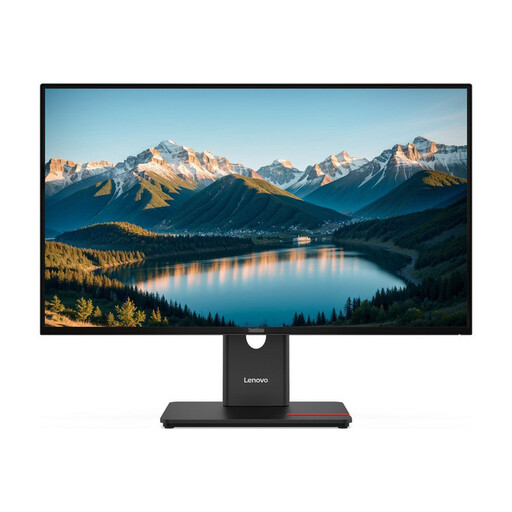
Lenovo ThinkVision T27Q-40, 27-inch QHD IPS
An additional QHD workspace if you plan to use your laptop screen as a second display.
27 inches, 2560 × 1440 pixels, with HDMI and DisplayPort inputs. The stand is adjustable for height, tilt, swivel and pivot.
View at Joybuy
 No image available
INNOCN 40C1U, 40-inch ultrawide
A wide display with PIP/PBP if you want to show multiple sources side by side or at the same time.
40 inches, 5120 × 2160 pixels and a 21:9 format. This model is listed with USB-C featuring 65 W Power Delivery, HDMI and DisplayPort inputs, and a height-adjustable stand; make sure you have enough desk space.
View at Joybuy
 No image available
INNOCN CB27U1, 27-inch 4K UHD
A 4K display with PIP/PBP if you want to show multiple sources on the monitor.
27 inches, 3840 × 2160 pixels and IPS. This model is listed with USB-C featuring 90 W Power Delivery, HDMI and DisplayPort inputs, and a height-adjustable stand.
View at Joybuy
 No image available
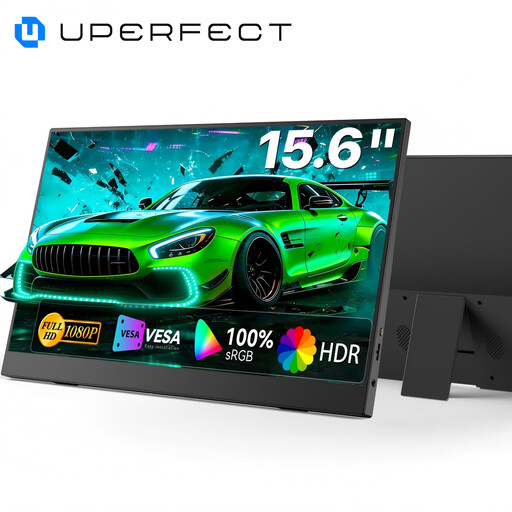
UPERFECT portable monitor, 15.6 inches
A portable extra screen if you want to supplement your laptop display at different workstations.
15.6 inches, with an FHD IPS display, USB-C and Mini HDMI connections. It has a built-in adjustable stand.
View at Joybuy
Frequently asked questions
Do I need two external monitors for two checkout views?
No. Your laptop screen and one external monitor already give you two displays. If you want two external screens, check that your computer and connection setup support both independently, then select extended rather than duplicated mode in your operating system.
Can I reliably test mobile checkout on a large monitor alone?
You can use Chrome DevTools to simulate viewport sizes and responsive layout changes. Google describes device mode as an approximation, not a test on an actual mobile device, so check important journeys on a real device as well.
Does USB-C on a monitor also have to charge my laptop?
No. A USB-C connection alone doesn’t guarantee sufficient power. Check video output and the charging power required for both devices: LG lists 15 W Power Delivery for the 27U631A-B, while EIZO lists up to 94 W for the EV2740X.
What should I consider when positioning and looking after my monitor?
Make room for both displays and adjust the monitor so your work views are easy to read. The ASR A6 sets out requirements for screen work in workplaces and home offices; its scope doesn’t apply universally to private use only.
Which energy label should I look for when buying a monitor?
The European Commission generally classifies computer monitors as electronic displays that carry an EU energy label, showing an efficiency rating from A to G and other information for comparison. Check the label for the specific model rather than assuming its energy use from its size or resolution.


