Designers working with lots of references
When your design, choir details, photos and other references are open at the same time, you need enough room to keep your windows easy to read.


If you want to see your poster design, choir details and several templates side by side, start by comparing the usable screen space at your preferred scaling setting. An ultrawide monitor lets you arrange windows across a wider screen, while a 27-inch 4K monitor offers a different balance of workspace and detail. To match colours to a specific print job, calibration and soft proofing set up for the print conditions are also important. Fogra’s simulation is based on specific print, lighting and viewing conditions.
When your design, choir details, photos and other references are open at the same time, you need enough room to keep your windows easy to read.
If you need to assess poster colours for a specific printing process, plan for calibration and soft proofing as part of your workflow.
When checking type and image details on an external monitor, make sure its resolution, scaling and connections work with your laptop.
A good fit if: You mainly want to arrange your poster design, programme text and image references side by side, and have enough desk space for a wide monitor.
Consider: The Philips 346B1C/00 has a resolution of 3,440 × 1,440 pixels. Compared with the 4K models considered here, it has fewer vertical pixels. These specifications are from Philips and ASUS.
A good fit if: You want to check small type, image edges and poster layouts in detail, while still arranging several windows on screen.
Consider: Check that your chosen scaling setting leaves enough usable space. Resolution alone tells you neither how colour-accurate your specific monitor is nor whether it matches a print.
A good fit if: You regularly assess colours for a specified print condition and include calibration and soft proofing in your workflow.
Consider: Calibration and soft proofing take the right equipment and time. Fogra notes that simulations depend on specific print, lighting and viewing conditions.
| What you need | What to check before buying | Who this matters to |
|---|---|---|
| Space for designs and references | Sketch out your window layout and check it at your preferred scaling setting. Philips lists a resolution of 3,440 × 1,440 pixels for the 346B1C/00; ASUS lists 3,840 × 2,160 pixels for the PA279CRV. | If I want to see my design, choir details and image references at the same time without constantly switching windows, the usable layout is key. Around 36% of consumers put having multiple references on screen first. |
| Assessing colours for print | Confirm the print condition and output profile, and plan for calibration and soft proofing. Fogra describes soft proofing as a simulation for specific print, lighting and viewing conditions. | If my poster colours need to match a specific print job, a colour gamut figure alone isn’t enough to help me decide. For around 29% of consumers, assessing print colours is the main priority. |
| Checking type and image details | Test type, image edges and toolbars at the scaling setting you actually plan to use. ASUS lists a 27-inch screen and 3,840 × 2,160 pixels for the PA279CRV. | I want to make out small type and image details without the interface becoming difficult to read at my chosen scaling setting. Around 21% of consumers prioritise this kind of detail checking. |
| Connecting a laptop | Check your laptop’s video output and charging requirements against the monitor, power supply and cable. ASUS lists 96 W USB-C Power Delivery for the PA279CRV; this needs to be suitable for your specific laptop. | If I want to use my laptop at my desk with as few cables as possible, the video connection and power supply need to work together. Around 14% of consumers prioritise laptop connectivity. |
A wider format and a higher vertical pixel count support different window layouts and ways of viewing detail. The Philips example offers 3,440 × 1,440 pixels; ASUS lists 3,840 × 2,160 pixels for the PA279CRV.
Decide how much room your windows need, then check type and tools at the scaling setting you plan to use.
A manufacturer’s colour gamut figures alone don’t prove that a monitor can simulate a specific print condition. Fogra’s soft proofing is based on specific print, lighting and viewing conditions.
Match the colour profile, calibration and viewing conditions to the print job itself.
Depending on your monitor and workflow, you may need extra calibration equipment and time for soft proofing.
Connections and charging power vary by model. A USB-C port alone doesn’t tell you whether your laptop can receive a video signal and charge sufficiently through it.
Compare the specifications for both devices and the cable you plan to use before making a decision.
If the connections or charging power aren’t suitable, you may need extra cables or a separate power supply.
The ColorEdge CS2740 and CG2700X are options for designers planning a calibration workflow for print colours.
According to ASUS, the ProArt PA279CRV combines a 27-inch 4K display, documented colour modes and a range of connections.
The DesignVue PD2705U is a 27-inch 4K option with documented sRGB and Rec. 709 coverage.
The B-Line 346B1C/00 is an ultrawide option for design work and keeping several sources open side by side.
The Pro P2725QE is a 27-inch 4K option if workspace and a USB-C hub are important to you.
This selection includes wide monitor layouts for keeping several references open, as well as a 27-inch 4K option for checking layout details.
 No image available
Designed for a wide workspace with multiple views; listed specifications include a 40-inch screen, 21:9 aspect ratio and PIP/PBP.
The resolution is 5,120 × 2,160 pixels. Connections include USB-C with 65 W Power Delivery, HDMI and DisplayPort.
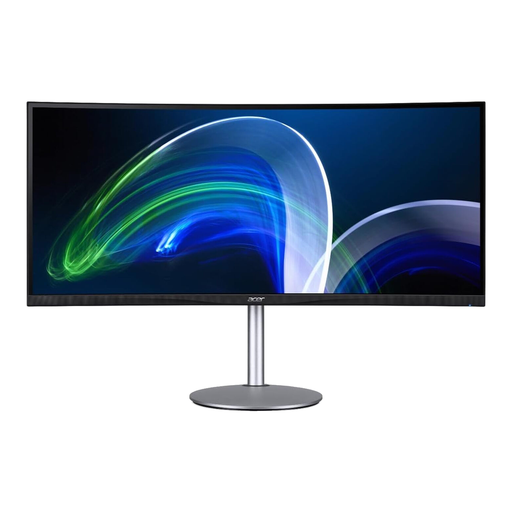 No image available
The 21:9 format is an option if you want to arrange several open references across a wider screen.
The listed resolution is 3,840 × 1,600 pixels. Check whether the vertical pixel count is enough for the detail you need to see.
 No image available
A 27-inch option if you want to check layout details and work with several views side by side.
The listed resolution is 3,840 × 2,160 pixels, with PIP/PBP and USB-C with 90 W Power Delivery. The 16:9 format gives you less horizontal room for arranging windows than an ultrawide screen.
 No image available
The 32:9 format is designed to give you a very wide horizontal layout for multiple references.
The resolution is 5,120 × 1,440 pixels; listed connections include HDMI 2.1 and DisplayPort 1.4. For fine layout details, weigh its vertical resolution against a 4K screen with 2,160 pixels in height. If you plan to wall-mount it, make sure the bracket can support the size and weight of this 49-inch screen.
 No image available
The 21:9 format and PIP/PBP are designed for a wide workspace with multiple views side by side.
The resolution is 3,440 × 1,440 pixels. For fine layout details, weigh its vertical pixel count against a 4K screen with 2,160 pixels in height.
No, a colour gamut figure alone isn’t enough. According to Fogra, a soft proof simulates a specific print condition under specific lighting and viewing conditions. So check the output profile and print condition, then assess colours accordingly.
Compare your laptop’s video output and charging requirements with the connections and power supply of the specific monitor. For example, ASUS lists 96 W USB-C Power Delivery for the PA279CRV; that doesn’t automatically mean it will provide the right power for every laptop.
Allow for the calibration process and the time it takes. EIZO describes the CS2740 as offering hardware calibration with ColorNavigator; according to EIZO, the CG2700X has a built-in sensor for self-calibration. Check which features suit your specific workflow.
No. Your statutory rights for faulty goods are against the seller; a guarantee is an optional extra with its own terms and conditions. The Verbraucherzentrale lists monitors among the products covered by the repair rights in force since 31 July 2026. It also explains that the statutory guarantee period may be extended if a repair to remedy a fault takes place within the first two years.