If you regularly need to view code and a preview side by side, start by looking for a workspace that suits your needs and a clear, easy-to-read display. If you’re designing with colour, a design monitor with clearly specified features may be worth considering; if you use different laptops, look for a model with suitable USB-C power delivery. Measure the available space and check the connections and adjustability against your workspace. A screen preview doesn’t replace testing on a real mobile device, as Chrome for Developers explains in its guidance on device mode.
Which monitors suit which users?
Developers working with a live preview
If you’re editing code and a sign-up form at the same time, and checking both narrow and wide layouts, you’ll need a workspace that’s easy to divide up and text that’s easy to read. Testing on a mobile device is still a separate step: Chrome for Developers describes device mode as an approximation, not as running the page on a real mobile device.
Course page designers
If you’re assessing colours, graphics and typography, check the colour gamut coverage and screen performance specified for the exact model. For example, ASUS lists 100% sRGB for the PA279CRV; this is a manufacturer specification for that model.
Laptop users at different workstations
If you regularly connect and disconnect your monitor, peripherals and laptop, check that the specific model supports video over USB-C, provides suitable power delivery and offers the adjustability you need. BenQ, MSI and ASUS each provide model-specific details.
What should you look for when buying?
First, compare the workspace you need with the space available on your desk. Then check colour performance, laptop connections and positioning to make sure they suit the way you work.
| Buying criterion |
What to check |
Who is it important for? |
| Workspace and readability |
Compare screen size and native resolution; check desk space, window layout and text scaling. |
If I want to see my editor, developer tools and preview at the same time, I need a workspace that’s easy to divide up; around 36% of consumers put workspace first. |
| Colour performance |
Check the sRGB specification for the exact model, and don’t treat manufacturer figures as an independent test. |
If I want to assess the colours and graphics on a course page, I look for clear specifications for the exact model; around 29% of consumers prioritise colour performance. |
| Laptop connectivity |
Check that your laptop’s video output and charging requirements match the monitor’s connections. |
If I regularly connect and disconnect my laptop, I want to know whether video and charging will work with my device; around 21% of consumers put laptop connectivity first. |
| Positioning |
Check the space required, as well as height adjustment, tilt and, where applicable, pivot on the exact model. |
If I want to adjust the screen to suit different working positions, the monitor’s adjustability matters; around 14% of consumers prioritise positioning. |
Monitor buying pitfalls
-
Assuming screen size tells you how much workspace you’ll have
Screen size and pixel layout describe different things. Philips lists a resolution of 3440 × 1440 pixels for its 34-inch 346B1C/00 monitor, while ASUS specifies 3840 × 2160 pixels for the 27-inch PA279CRV.
Before buying, sketch out how you want to arrange your editor, developer tools and preview on screen at the same time, and check text scaling.
A format that doesn’t suit your needs may mean you have to switch between windows more often or add another screen.
-
Assuming USB-C automatically means a one-cable setup
A USB-C port alone doesn’t tell you whether your laptop can output video through it or receive enough power to charge. ASUS lists 96 W Power Delivery for the PA279CRV, while MSI specifies 98 W Power Delivery with DisplayPort Alt Mode for the Modern MD272UPHGDE.
Check the exact port on your laptop and its power requirements against the specifications of your chosen monitor.
Depending on your laptop, you may still need a separate power supply or additional connections.
-
Confusing device simulation with testing on a mobile device
Chrome for Developers points out that device mode doesn’t run your code on a real mobile device.
Also test critical steps in the course sign-up process on a mobile device.
Problems with the sign-up process may mean extra work to put things right.
Key brands at a glance
ASUS
The ProArt PA279CRV is a 27-inch 4K option with clearly specified features for design work and laptop connectivity.
- ASUS specifies 100% sRGB, 96 W USB-C Power Delivery and a height-adjustable stand for the PA279CRV.
- Whether the laptop connection and colour gamut suit your work depends on your device and how you plan to use it.
BenQ
The RD320UA is a larger 4K monitor, while the PD2705U is a 27-inch design option with a different focus.
- BenQ specifies a 31.5-inch 4K display for the RD320UA, and a 27-inch 4K display with 99% sRGB for the PD2705U.
- Coding modes and colour figures are manufacturer specifications for individual models, not a brand-wide performance rating.
MSI
The Modern MD272UPHGDE is a 27-inch 4K option with connections suited to a laptop workstation.
- The German MSI specification sheet lists USB-C with DisplayPort Alt Mode, 98 W Power Delivery, KVM and an adjustable stand.
- Check the exact model suffix and connections on the version being sold; these specifications don’t automatically apply to other MD272UPHG models.
Philips
The B-Line 346B1C/00 is an ultrawide option for arranging windows across a wider workspace.
- Philips specifies a 34-inch screen with a resolution of 3440 × 1440 pixels.
- This format arranges windows differently from a 16:9 4K screen, and doesn’t replace testing narrow layouts on a mobile device.
LG
The UltraFine 27UP850K-W is another 27-inch 4K option, with USB-C and an adjustable stand.
- LG specifies a resolution of 3840 × 2160 pixels, an IPS panel, USB-C and a height-adjustable stand.
- Descriptions of picture quality on the product page are manufacturer information, not an independent assessment for web design.
Joybuy products for code and preview
The following Joybuy products include larger 4K screens, 27-inch 4K models and a 34-inch ultrawide format for arranging code and previews.
 No image available
TCL 32X3A 32-inch OLED monitor
If you’re planning to use a larger screen to view code and previews, the 32-inch format is worth considering.
- 4K UHD, 3840 × 2160 pixels
- OLED+
- 240 Hz; 480 Hz at FHD
View at Joybuy
 No image available
MSI MAG 274UPDFDE E16M 27-inch UHD monitor
If you’re looking for a 27-inch screen for code and previews, this UHD model is a size option worth considering.
- 27 inches, UHD
- Mini-LED, Rapid IPS
- 160 Hz at UHD; 320 Hz at FHD
View at Joybuy
 No image available
Samsung ViewFinity S7 S70H 27-inch 4K UHD IPS monitor
If you want to arrange code and a preview on a 27-inch 4K screen, the specified screen size may suit your needs.
- 27 inches, 4K UHD
- IPS panel
View at Joybuy
 No image available
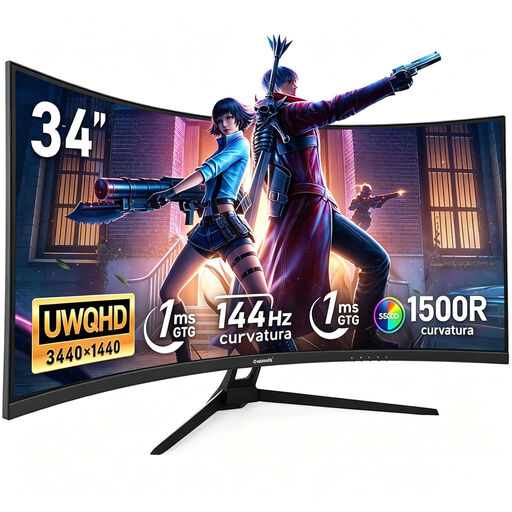
Gawfolk 34-inch curved monitor, UWQHD
If you prefer arranging windows across a wider workspace, the 34-inch ultrawide format offers a different layout from a 16:9 monitor.
- UWQHD, 3440 × 1440 pixels
- 1500R curvature, VA panel
- No speakers
View at Joybuy
 No image available
CRUA CR320QB 32-inch curved 4K monitor
If you want to arrange code and previews on a larger screen, the 32-inch format is a useful factor to consider.
- 4K, 3840 × 2160 pixels
- 3000R curvature, VA display
- HDR10, 100% sRGB
View at Joybuy
Frequently asked questions
Is a large monitor enough to test a course sign-up page on mobile?
No. A monitor preview doesn’t replace testing on a real mobile device. Chrome DevTools can approximate different screen sizes and mobile conditions, but Chrome for Developers points out that device mode doesn’t run the code on a mobile device. So make sure you also test critical steps in the sign-up process on one.
How should I set up my monitor for longer periods of development work?
Set up your screen and workstation so that text and graphics are sharp and large enough for the task and your viewing distance. The German Federal Institute for Occupational Safety and Health covers workstation setup in ASR A6; whether it applies to your particular workstation depends, among other things, on its classification under employment law.
What should I compare when it comes to energy costs and after-sales service?
Compare the EU energy label and product information for the exact models on offer, rather than trying to estimate consumption from screen size alone; the European Commission lists electronic displays among the product groups covered by energy labelling. When you buy as a consumer in the EU, you have minimum legal rights against the seller. Your Europe explains that an additional commercial guarantee cannot exclude or limit these rights.
Which EU rules are relevant to monitors sold in Germany?
Electronic displays are covered by EU energy-labelling and ecodesign rules. The European Commission explains that the label uses an energy efficiency scale from A to G. Ecodesign requirements apply to manufacturers and importers wishing to sell their products in the EU.


