Developers working with a live preview
If you switch between code, the app view and development tools, make sure your window layout stays easy to read at your preferred font size.


Choose a monitor to suit your window layout. If you want to view code and a preview side by side, consider a 27-inch 16:9 model or an ultrawide monitor. For long text, a taller 3:2 format may be a better fit. Check the font size and scaling on your own computer. If you use a laptop, check video output and charging separately. The monitor doesn’t determine where app data is stored – that depends on the app and the computer you use.
If you switch between code, the app view and development tools, make sure your window layout stays easy to read at your preferred font size.
If you read and edit long entries, code sections or documentation, screen height and easy-to-adjust text may matter more than maximum width.
If you connect a laptop, check that the monitor and laptop support video output, peripherals and, where needed, power delivery over your chosen connection.
A good fit if: you can fit your code and preview on screen with legible text, and don’t need the extra detail of 4K or a particularly tall format. The Lenovo ThinkVision P27h-30 is one example, with a resolution of 2560 × 1440 pixels.
Trade-off: Its resolution is lower than that of the 4K models mentioned here. The usable screen area also depends on scaling.
A good fit if: you want to check fine photo or interface details while keeping a conventional widescreen layout. The EIZO FlexScan EV2740X and Dell P2725QE are examples, both with a resolution of 3840 × 2160 pixels.
Trade-off: More pixels don’t automatically mean more legible text or more usable screen space without suitable scaling. Docking features vary by model.
A good fit if: you mainly want to read long sections of code, entries and documentation vertically. According to BenQ, the RD280U has a 28.2-inch screen, a resolution of 3840 × 2560 pixels and a 3:2 format.
Trade-off: Check how your layout works with wide windows side by side. BenQ specifies a 60 Hz refresh rate for the RD280U over DisplayPort or USB-C.
A good fit if: you want your editor, preview and tools open side by side, and have room for a wide monitor. The Philips 346B1C/00 offers a resolution of 3440 × 1440 pixels.
Trade-off: More width doesn’t mean more screen height. Check your window layout, desk space and viewing position.
| What matters | What to look for when buying | Who is it important to? |
|---|---|---|
| Space for code and a preview | Try your usual editor-and-preview layout at your preferred font size, and compare resolution, aspect ratio and the space the monitor takes up. | If I want to read code and an app preview at the same time, the window layout needs to fit on my desk. Around 31% of consumers put this layout first. |
| Screen height and text legibility | Check how long passages of text look at your intended font size and scaling. | If I’m working on long sections of code, travel writing or documentation, I pay particular attention to screen height. Around 23% of consumers prioritise long text views. |
| Photo previews and detail | Check the colour space and picture mode of the specific model, and assess photos at your intended scaling. | If I’m assessing travel photos and interface details, I want to judge how they look on the actual monitor. Around 16% of consumers prioritise photo previews. |
| Laptop and docking | Check that your laptop’s video output, the right input, charging power and, if needed, a hub or network connection are compatible. | If I want to connect my laptop through the monitor, I check video output and power delivery separately. Around 15% of consumers prioritise laptop connectivity. |
| Adjusting your workspace | Check the height adjustment, tilt and, if available, swivel, as well as the stand’s depth and your seating position. | If I work at a screen for long periods, I want to be able to adjust it to suit my seating position and workspace. Around 15% of consumers prioritise adjustability. |
A monitor doesn’t determine where an app stores its entries. A web app can use IndexedDB to store structured data on the client side; storage and backups depend on the app and the computer you use.
Keep your choice of monitor separate from the app’s storage setup. For a web app, you can check saved entries, for example, in the developer tools.
A USB-C port alone doesn’t tell you whether your laptop can output video through it or receive enough power to charge.
Check the documented features of the monitor, laptop and cable before relying on a single-cable connection.
3:2, 16:9 and ultrawide formats arrange screen space differently. A high resolution also doesn’t guarantee that text will be easy to read at your preferred scaling.
Try your usual code, photo and preview layout at your preferred font size, and check that the monitor will fit on your desk.
Your statutory consumer rights apply against the seller; a warranty is a voluntary offer with its own terms and conditions.
Check the seller and warranty terms separately, and keep your proof of purchase.
The FlexScan EV2740X is a documented 27-inch 4K model with USB-C docking, LAN and KVM.
The RD280U is a 28.2-inch option in a taller 3:2 format, suited to long text views.
The Pro P2725QE is one example of a 27-inch 4K monitor with a USB-C hub.
The ThinkVision P27h-30 is a 27-inch QHD option with USB-C docking for a laptop workspace.
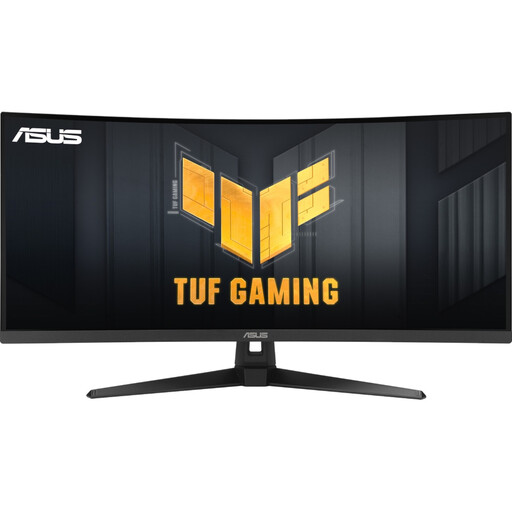
The B-Line 346B1C/00 is a 34-inch ultrawide option for wide window layouts.
The 27BA75QB-B is a 27-inch QHD business model with a height-adjustable stand and USB-C.
The monitors below cover wide window layouts, 27-inch QHD or 4K models, and an option with USB-C docking. Choose a format and font size to suit your workspace, and check your laptop’s connections.
 No image available
The extra-wide format is useful for working with several windows side by side. Check that both code and preview remain legible at your chosen font size.
49 inches, 32:9, 5120 × 1440 pixels and 165 Hz, according to the product title.
The product title specifies a height-adjustable stand.
 No image available
The 21:9 format and 5120 × 2160-pixel resolution provide room for a wide window layout. Check text legibility with your preferred scaling.
The product title specifies an IPS display and 100 Hz.
USB-C with 65 W Power Delivery and a height-adjustable stand are also listed in the product title. Check that the charging power suits your laptop.
 No image available
The 21:9 format and 3440 × 1440-pixel resolution are suited to side-by-side code and preview windows. Check the space available on your desk and how you arrange your windows.
The product title specifies a curved display, 180 Hz and DisplayHDR 400.
 No image available
A 27-inch 4K display may suit a conventional widescreen layout. Check that your text stays easy to read with your chosen scaling.
The product title specifies 4K at 160 Hz or FHD at 320 Hz.
Type-C with 65 W, KVM, and tilt, swivel and height adjustment are listed in the product title. Check that the charging power suits your laptop.
 No image available
WQHD on a 27-inch screen is an option for a conventional development window layout. Check that the resolution suits your font size and preview.
The product title specifies 100 Hz.
USB-C with 98 W Power Delivery, daisy chaining, KVM and a built-in webcam are also listed in the product title. Check that the charging power suits your laptop.
No. Your choice of screen doesn’t determine where the app stores its entries. For example, a web app can use IndexedDB to store structured data, including files, on the client side. You’ll need to check the app and the computer you use to understand how data is stored and backed up.
No, it can’t by itself confirm how the app will work on a real mobile device. Chrome describes Device Mode as an approximation: use it to check viewport sizes, and test important features under the conditions in which they’re intended to be used.
Check your laptop’s video output and charging requirements, the right monitor input and the cable. For the EIZO FlexScan EV2740X, EIZO specifies DisplayPort Alt Mode and a maximum of 94 W at the USB-C upstream port. Other ports and models may differ.
Adjust the screen position and display to suit your seating position and eyesight. The Federal Institute for Occupational Safety and Health notes that an unsuitable combination of workspace, glasses and screen position can contribute to discomfort. ASR A6 has a defined scope and isn’t a general requirement for every home desk.
Compare the EU energy label and product information sheet for the specific model. The European Commission describes efficiency classes from A to G for electronic displays, along with additional consumption information. To compare costs, you’ll also need to take usage time and the specific devices into account.