Working with code and documentation side by side
If you’re programming a lesson planner and comparing local API or project documentation in a second window, enough space and easy-to-read text are essential.


If you need to use code and locally stored documentation at the same time, choose a monitor based on how much usable space it gives you at your preferred text size. For long pages of text, extra screen height may matter more. USB-C docking is only worth considering if your laptop supports video output and the charging power you need.
If you’re programming a lesson planner and comparing local API or project documentation in a second window, enough space and easy-to-read text are essential.
When working through longer sections of documentation or planning, extra screen height or a portrait orientation may be more useful than additional width.
If you regularly use your laptop at a fixed workstation, check the monitor’s ports, charging power and adjustment options before choosing a docking solution.
First, consider whether you mainly need to use several windows side by side, more height for long documents or an easy way to connect your laptop. Then compare the resolution and aspect ratio at the text size you actually want to use.
| Priority | What to check before buying | Who will find this most important? |
|---|---|---|
| Space for side-by-side windows | Try arranging your windows at your preferred text size; compare the aspect ratio, screen size and native resolution together. | If I have code and local documentation open at the same time, I need enough usable width. Around 33% of consumers prioritise space for side-by-side windows. |
| Long documentation pages | Compare a taller aspect ratio or pivot function with a 16:9 display; check text size and scaling. | When I read longer pages of code or documentation, I want text to be easy to read across multiple lines. Around 27% of consumers prioritise readability for long text. |
| Adjusting your workspace | Check height adjustment, tilt, swivel and the space available at your intended workstation. | During longer sessions, I want to be able to adjust the screen position and text display to suit my workspace. Around 20% of consumers prioritise these adjustment options. |
| Laptop connectivity and power consumption | Check that USB-C video output and charging power are compatible with your laptop; compare the specific monitor’s EU energy label. | If I often connect my laptop at a fixed workstation, the monitor and laptop need to work together for video output and power. Around 20% of consumers prioritise laptop connectivity. |
To keep text easy to read, you may need to use scaling. A lower output resolution can make text look blurry.
Try your window layout at the native resolution and a scaling setting that works for you.
Video output and charging power depend on the capabilities of the specific monitor and laptop.
Check video output, Power Delivery, cables and the peripherals you need on both devices.
Your statutory rights apply against the seller; a warranty is an optional extra with its own terms and conditions.
Keep your proof of purchase and read the specific warranty terms, rather than comparing only the advertised duration.
The RD series includes models designed for coding. The RD280U is an example of a 3:2 display with a resolution of 3840 × 2560 pixels.
The ThinkVision P27h-30 combines a 27-inch QHD display with docking ports for compatible laptop workstations.
The ProArt PA279CRV is a 27-inch 4K model with an ergonomic stand and USB-C.
The 27UP850K-W is a 27-inch 4K model with USB-C and an adjustable stand.
The FlexScan range includes office monitors in different formats and resolutions, including QHD and 4K models.
This selection includes monitors for side-by-side windows and laptop workstations; resolution, aspect ratio and docking features vary by model.
 No image available
An option if you want to arrange code and documentation on a high-resolution 27-inch display.
3840 × 2160 pixels, IPS, 120 Hz, HDR500, FreeSync and PIP/PBP. USB-C with 90 W Power Delivery; height-adjustable stand. Your laptop must support charging.
 No image available
A QHD option if you want to work with code and documentation side by side and connect a laptop at your workstation.
2560 × 1440 pixels, 75 Hz, USB-C with up to 65 W Power Delivery and a USB hub. The stand is height-adjustable and supports pivot. Charging power must be suitable for your laptop.
 No image available
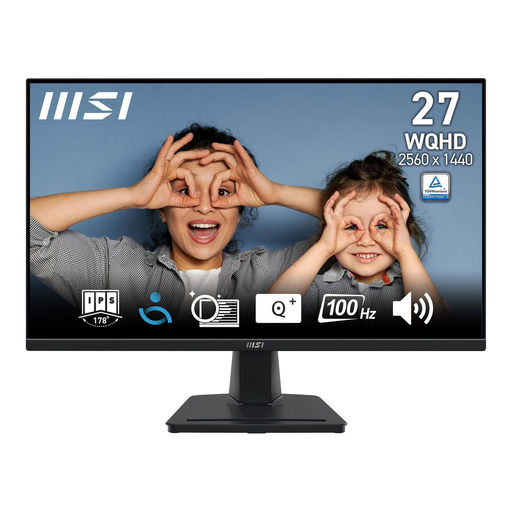
A WQHD option if you want to bring code and offline documentation together on a 27-inch display.
2560 × 1440 pixels, IPS panel, 100 Hz and a tilting stand.
 No image available
A docking option if you want to connect your laptop to the monitor and other peripherals at a fixed workstation.
2560 × 1440 pixels, IPS panel, 100 Hz and USB-C with 98 W Power Delivery. The stand offers height adjustment and pivot; charging requires a compatible laptop.
 No image available
A large-format option if you can arrange several items side by side and have enough desk space.
21:9 aspect ratio, 5120 × 2160 pixels, IPS panel and 100 Hz. PIP/PBP and USB-C with up to 65 W Power Delivery; height-adjustable stand. The 40-inch screen needs plenty of room, and charging power must be suitable for your laptop.
No. What matters is whether your windows remain easy to read at your preferred text size. In Windows, you can adjust scaling and text size. Microsoft generally recommends using the native resolution marked as recommended, as text can look blurry at lower resolutions.
No, the USB-C port alone doesn’t tell you enough. Check that the specific monitor supports video output and Power Delivery, and check your laptop’s supported video input and power requirements. Lenovo lists up to 100 W for the ThinkVision P27h-30, while BenQ lists 90 W for the RD280U.
Adjust the screen position and text size so you can read clearly from your intended viewing distance. Germany’s Federal Institute for Occupational Safety and Health sets out requirements for display screen workstations within the scope of ASR A6, including workplaces and home-based workstations; it does not apply universally to every private workspace.
Compare the specific monitor’s EU energy label, and distinguish your statutory rights against the seller from a voluntary warranty. The European Commission describes the energy-efficiency scale for electronic displays from A to G; the consumer advice centre explains that statutory rights and warranties have different legal bases and terms.
No. ASR A6 sets out its scope for display screen work, including workplaces and home-based workstations; it does not apply universally to a purely private workspace outside these settings. What matters is how and where the workstation is actually used.