If you want to view code and documentation at the same time, start by checking the usable screen space and the text scaling that feels comfortable to read. On a 4K monitor, the usable space also depends on the scaling you choose; more pixels alone do not guarantee a window layout that is easy to read. If you use a laptop, also check that the display output, charging power and ports meet your computer’s requirements. A coding mode is not essential for development or for accessing files saved offline.
Which monitor suits your needs
View code and documentation side by side
If you want to keep both your editor and locally saved documentation in view while developing a book rental app, compare screen space and text scaling. Lenovo and Dell’s German product information lists specific 27-inch QHD and 4K options. The most readable display for you will also depend on your scaling settings.
Use your laptop at a fixed workstation
If you regularly connect your laptop to a monitor, check that the specific model can handle video, provides the charging power you need and supports your peripherals through its available ports. Dell Germany and EIZO Germany list these features for individual models, so compare them with your laptop’s requirements.
Read long passages and adjust your position
If you spend a long time reading code and documentation, look for a text size that’s easy for you to read, a monitor with suitable adjustment options and minimal distracting reflections at your workstation. BenQ describes the RD320UA as having a Nano Matte surface and coding modes, among other features. This does not demonstrate a productivity benefit.
What to look for when buying
Narrow down your options by starting with your main task: first, the view and text size you want, then your laptop connection and monitor setup.
| Priority |
What to check when buying |
Who it matters most to |
| View code and documentation at the same time |
Check your window layout, desk space and scaling on your own computer. |
If I want to read my editor and documentation side by side, usable screen space at a comfortable text size matters to me; around 36% of consumers prioritise a side-by-side view. |
| Read code and longer passages |
Check how text looks at your intended scaling and consider reflections where you plan to set up the monitor. |
If I read long passages of text, I want characters to be easy to make out, rather than choosing based on pixel count alone; around 29% of consumers prioritise text readability. |
| Connect a laptop and peripherals |
Check that video output, the charging power you need, cables and ports work with your specific computer. |
If I want to use my laptop at my desk with a display and, if needed, peripherals, I check that the whole setup is compatible; around 21% of consumers prioritise laptop docking. |
| Position the monitor to suit your needs |
Check height adjustment, pivot, stand footprint or arm mounting, and lighting conditions. |
If I want to adjust the screen position to suit my workspace, I look for the necessary adjustment options and check how much space they take up; around 14% of consumers prioritise adjustability. |
Common misconceptions
-
Having USB-C doesn’t automatically mean full laptop docking
Video output and sufficient power delivery must match your laptop’s capabilities and requirements.
Check the monitor’s full model code for its features and maximum charging power, then compare them with your laptop.
If the available features aren’t enough, you may also need a charger, cable or dock, depending on your setup.
-
4K doesn’t automatically mean more usable screen space
The amount of content you can see at once also depends on your scaling settings and the text size you find comfortable.
Check how your code and documentation look at your intended scaling, rather than comparing pixel counts alone.
-
A coding mode doesn’t prove a productivity boost
A dedicated mode or a particular surface finish is no proof that it will help you work better when coding.
Check readability, reflections, ports and adjustability in your own workspace.
Notable brands and monitor ranges
Dell
Dell’s German product information lists the 27-inch 4K P2725QE and 27-inch QHD S2725DC as USB-C models.
- Dell Germany lists 3840 × 2160 pixels, up to 90 W USB-C power delivery and RJ45 for the P2725QE.
- Docking features vary by model. Check the full model code and your computer’s requirements.
Lenovo
The ThinkVision P27h-30 is a specific 27-inch QHD model with USB-C docking, a hub and Ethernet.
- Lenovo lists charging of up to 100 W and a KVM switch for this model.
- These specifications apply to the P27h-30 and shouldn’t be assumed to apply to other Lenovo monitors.
ASUS
According to ASUS Germany, the ProArt PA279CRV is a 27-inch 4K monitor with USB-C and an adjustable stand.
- ASUS lists 96 W USB-C Power Delivery, as well as pivot and height adjustment for this model.
- Colour gamut specifications don’t demonstrate a particular benefit for coding alone. ASUS also notes that specifications may vary by region.
EIZO
The FlexScan EV2740X is a 27-inch 4K office monitor with USB-C docking and RJ45.
- EIZO Germany lists DisplayPort Alt Mode and up to 94 W for the USB-C upstream port. The model also includes a USB hub and Paper mode.
- Check that the ports and Paper mode meet your specific needs and that the display is easy for you to read.
BenQ
The RD320UA is a 31.5-inch 4K monitor in BenQ’s range of monitors for programmers.
- BenQ lists coding modes, a Nano Matte coating and a flexible arm for this model.
- The manufacturer’s claims about concentration or productivity don’t prove an advantage over standard office monitors. Make sure it will fit on your desk.
Joybuy monitors for coding and documentation
This selection includes 27-inch QHD and 4K monitors, as well as a 40-inch ultrawide model. USB-C charging power and adjustment options are listed for several monitors. Check that they suit your laptop, preferred scaling and available space.
 No image available
Samsung ViewFinity S7 S70H, 27-inch, 4K UHD, IPS
The 27-inch 4K display is an option if you want to arrange code and documentation on one screen.
Listed connections include HDMI 2.0 and DisplayPort 1.2. Check your computer’s ports and your preferred text scaling.
View at Joybuy
 No image available
INNOCN 40C1U, 40-inch, 5120 × 2160, 21:9
The 21:9 format is an option if you want to arrange several items side by side and have enough space on your desk.
Listed features include an IPS panel, USB-C with 65 W Power Delivery, a USB hub, height adjustment, tilt and swivel. The 40-inch format needs a correspondingly large amount of desk space.
View at Joybuy
 No image available
INNOCN CB27U1, 27-inch, 4K UHD, White
The 27-inch 4K resolution is an option if you want to arrange code and documentation on a finely detailed display.
Listed features include an IPS panel, USB-C with 90 W Power Delivery, PIP/PBP, height adjustment and pivot. Check that the scaling and USB-C connection work with your computer.
View at Joybuy
 No image available
Philips 276B9, 27-inch, QHD, IPS
The QHD resolution on a 27-inch screen is an option if you want to arrange code and documentation across a moderately sized workspace.
Listed features include USB-C with up to 65 W Power Delivery, a USB hub and 90° pivot. Check that the charging power and connection features suit your laptop.
View at Joybuy
 No image available
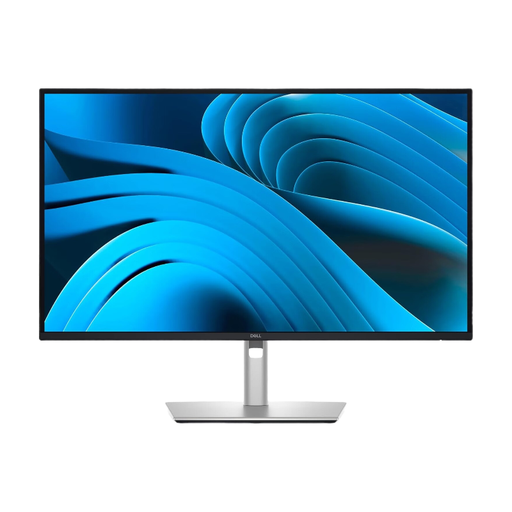
Dell Pro Plus P2725DE, 27-inch, QHD, IPS
The 27-inch QHD resolution is an option if you want to display code and documentation across a moderately sized workspace.
Listed features include USB-C with up to 90 W Power Delivery, a USB hub, HDMI, DisplayPort and pivot. Check that the USB-C features meet your laptop’s requirements.
View at Joybuy
Frequently asked questions
Does the monitor need to support offline documentation?
No. What matters is the monitor’s display and connections. Whether documentation is available without an internet connection depends on whether the necessary files or applications are stored locally on your computer.
How can I check whether a USB-C monitor will provide video and power to my laptop?
Compare the video capabilities of your laptop’s port and its charging requirements with the specific monitor and cable. For the EV2740X, EIZO lists DisplayPort Alt Mode and up to 94 W on the USB-C upstream port. That alone doesn’t confirm compatibility with your laptop.
How should I set up my screen for longer work sessions?
Adjust the height, tilt, text size and lighting so you can read comfortably at your workstation. Germany’s Federal Institute for Occupational Safety and Health sets out requirements for screen work in workplaces and certain home-working environments in ASR A6. These rules don’t automatically apply to every kind of personal use at home.
What are my rights if a monitor bought online is faulty or I want to cancel the purchase?
If a monitor is faulty, your statutory rights against the seller are separate from any voluntary manufacturer’s guarantee. According to the Verbraucherzentrale, consumers buying online generally have a 14-day right to cancel from the date they receive the goods. Conditions and exceptions may apply, so check the details of your individual case.


