For a photo-tagging app, choose a monitor that lets you view code, test results and image previews side by side, all legible at your preferred scaling. You don’t necessarily need 4K. If you also assess photos for colour accuracy, look for a suitable sRGB mode and a consistent colour workflow. A wider colour gamut or hardware calibration matters most when your work involves making those colour judgements; make sure the connections and charging power also suit your computer.
Which monitor is right for you?
Developers with lots of test windows
If you compare code, test results and app previews, a clear window layout and a screen size that suits your workspace are key. Lenovo Germany highlights the benefits of larger displays for keeping several windows visible at once.
Developers who focus on photography
If you also assess image details and how your app displays them, a suitable colour mode and a consistent colour workflow matter more than any single gamut figure. BenQ, ASUS and EIZO describe colour modes and colour-management features for specific models.
Developers working from a laptop
If you want to connect your monitor and peripherals to a laptop, check video transmission, charging power and hub features for your specific combination of devices. BenQ and ASUS list these connections and features for certain models.
What should you look for when buying?
Start with the work you do most often: readable development windows, photos you can assess clearly, or a particular colour-management workflow. Then match the resolution, connections and workspace features to your needs.
QHD office monitor
A good fit if: you mainly read code and test results, and check photos for functionality rather than colour accuracy.
Trade-off: A 27-inch QHD model displays fewer native pixels than the 27-inch 4K models mentioned here.
27-inch 4K with sRGB mode
A good fit if: you check photo and UI details as well as development windows, and text remains legible at your chosen scaling.
Trade-off: A high resolution alone won’t necessarily make text and interface elements easier to read. Check your usual scaling.
Colour management with hardware calibration
A good fit if: you regularly assess photos for colour accuracy and set up a suitable calibration and profiling workflow.
Trade-off: Hardware calibration isn’t necessarily needed for basic functional testing and occasional web image previews.
| Criteria |
What to check before buying |
Who will find this most important? |
| Usable, readable workspace |
Try out the text size and window layout. Compare resolution and screen size together; the Dell U2724DE is a documented 27-inch QHD example. |
If I want to read code, test output and previews at the same time, the window layout needs to work at my chosen scaling. Around 37% of consumers put readable development windows side by side first. |
| Photo display |
Decide whether you’re assessing web and app display or colour-accurate output. Check the colour mode and, where needed, calibration and profiling. |
If assessing photos is central to my app work, a gamut figure alone isn’t enough to help me choose. Around 27% of consumers prioritise a photo display they can assess reliably. |
| Computer connection |
Check video transmission, charging power, cables and hub or KVM features against your specific setup. For example, BenQ lists DisplayPort Alt Mode and 65 W Power Delivery for the PD2705U. |
If I use the monitor with my laptop or two computers, the signal and power supply need to suit my device. Around 18% of consumers put the right computer connection first. |
| Ergonomics and energy use |
Check the monitor’s adjustability, footprint and readability from your seating position, as well as the energy label for the exact model. |
If I spend long hours at my desk, I want to position the screen comfortably and compare the energy use of the specific model. Around 18% of consumers prioritise ergonomics and transparency about ongoing energy use. |
Common buying mistakes
-
Assuming 4K automatically gives you a more usable coding workspace
More native resolution won’t help if text and interface elements are hard to read at your chosen scaling.
Before comparing QHD and 4K, check your usual text size and whether there’s room on screen for code, test results and previews.
-
Taking wide colour-gamut coverage as proof that app colours are accurate
A gamut figure on its own doesn’t tell you whether the colour mode, calibration and output on other devices suit your workflow.
First decide what kind of output you want to assess. Then check for a suitable sRGB mode, and only consider calibration and profiling if your needs call for them. Colour-critical work may require an additional set-up and maintenance process.
-
Assuming USB-C will dock any laptop
Video transmission, data and Power Delivery depend on the features of the specific monitor and connected devices.
Check your computer, cable, video output and required charging power against the details for the exact model. An unsuitable cable or an incompatible charging power may mean you need extra equipment.
Key brands at a glance
BenQ
According to their respective specifications, the DesignVue PD2705U and PD2706U combine a 27-inch 4K screen with documented colour modes. This may be relevant for development windows and photo previews.
- BenQ lists 95% P3 and 100% sRGB for the PD2706U; the PD2705U’s specifications include 65 W USB-C Power Delivery.
- These details apply to the respective models. They don’t confirm identical features or colour accuracy throughout your entire workflow.
Dell
The U2724DE and U2725QE are different points of comparison: a QHD office monitor and a 4K Thunderbolt hub monitor.
- F.A.Z. Kaufkompass rates the U2724DE for office work and lists the U2725QE as a 4K alternative with additional connection features.
- This editorial review doesn’t establish that every model in the range is suitable for colour-critical photo work.
ASUS
The ProArt PA279CRV is a documented 27-inch 4K model with sRGB and other colour modes.
- ASUS lists 99% Adobe RGB and 99% DCI-P3 for this model.
- Gamut figures alone don’t show whether the display is accurate on other devices or within your own colour workflow.
EIZO
The ColorEdge CS2740 is an option if assessing photos requires a repeatable calibration process.
- EIZO documents hardware calibration with ColorNavigator for this model.
- This extra feature isn’t necessarily needed for basic tagging-app functionality tests; colour-critical work still depends on the rest of your colour workflow.
MSI
According to MSI Germany, the Modern MD272UPHGDE combines a 27-inch 4K screen with KVM and PIP/PBP features, which may be useful if you work with two development computers.
- MSI lists 97% DCI-P3 and 94% Adobe RGB for this model.
- These gamut figures come from the manufacturer and aren’t independent measurements. Don’t assume they apply to an identically named international variant without checking.
Joybuy monitors for coding and image previews
This selection from Joybuy includes monitors for coding, automated testing and image previews, with a range of resolutions and connection options. Check the colour workflow, readability and connectivity for each specific model.
 No product image available
MSI PRO MP273UPDE E6, 27-inch, 4K UHD, IPS
An option if you want to view development windows and image previews on a high-resolution 27-inch screen.
27 inches, 3840 × 2160 pixels, IPS, 60 Hz and HDR Ready, according to the product name.
Joybuy
 No product image available
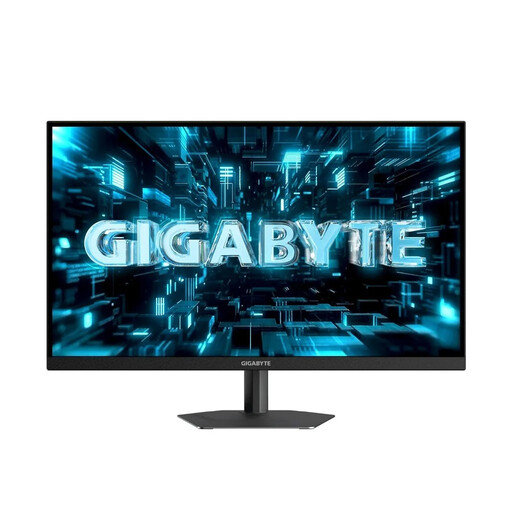
GIGABYTE G27Q26, 27-inch, QHD
A QHD option if you want to arrange code and test results on a 27-inch screen.
2560 × 1440 pixels, SuperSpeed IPS and 260 Hz (OC 275 Hz), according to the product name.
Joybuy
 No product image available
INNOCN 40C1U, 40-inch, 5K ultrawide
A wide-screen option if you want to see several development windows and a preview at the same time.
40 inches, 5120 × 2160 pixels, 21:9, IPS and 100 Hz. The product name also lists USB-C with 65 W Power Delivery and PIP/PBP.
Joybuy
 No product image available
INNOCN CB27U1, 27-inch, 4K UHD, IPS
A 27-inch option if you want to check code, tests and image details on one screen.
3840 × 2160 pixels, 120 Hz and USB-C with 90 W Power Delivery, according to the product name. PIP/PBP and a height-adjustable stand are also listed.
Joybuy
 No product image available
KTC M27P6, 27-inch, 4K MiniLED
A 4K option if you want to view development windows and image previews on a 27-inch monitor.
The product name lists 4K at 160 Hz or FHD at 320 Hz, Fast IPS, USB-C with 65 W Power Delivery and KVM. Height adjustment, tilt and swivel are also listed.
Joybuy
Frequently asked questions
Do I need 4K for automated testing?
No. What matters is whether code, test results and previews remain legible at your chosen text size and window layout. 4K can display more detail, but a documented 27-inch QHD model is another possible starting point.
How should I set up my monitor for longer work sessions?
Adjust the text and graphics to suit your task and viewing distance, then position the screen to suit your seating position. The ASR A6, explained by the German Federal Institute for Occupational Safety and Health, covers screen-based work within its scope of employment law; it isn’t a blanket requirement for every home desk.
What should I know about energy use and faults?
Check the energy label for the specific monitor. For a consumer purchase in Germany, statutory claims for defects generally become time-barred after two years; this is separate from any voluntary manufacturer’s warranty. The German Federal Ministry of Justice sets out the time limit in § 438 BGB.
Are monitors subject to energy labelling and CE requirements?
Yes. The European Commission includes computer monitors under the rules for electronic displays, including energy labelling. Germany’s Federal Network Agency explains that CE marking is the manufacturer’s declaration that the product meets the applicable EU requirements; it isn’t an independent quality mark.
Can I return a monitor bought online if I’m not happy with the display?
According to Germany’s consumer advice centre, online consumer contracts generally come with a 14-day right of withdrawal after you receive the goods. Tell the other party to the contract that you’re withdrawing, and check the terms of your specific purchase.


