For code, spreadsheets and locally stored documentation, start by weighing up how much window space you need and how text looks at your preferred scaling. A 27-inch QHD monitor can be a sensible starting point; 4K gives you more native pixels at the same screen size, while a 3:2 display offers more vertical space. Also check that the ports, laptop charging capacity and stand suit your workspace.
Who uses the monitor?
Developers working with code and documentation
If you often switch between an editor and locally stored documentation, look for clear, readable text and a layout that suits the way you arrange your windows. The Bitkom guide to monitors for public-sector IT procurement covers display criteria and workplace concepts, among other topics.
People checking spreadsheets and interfaces
If you check budget spreadsheets or an app interface alongside your code, weigh up the usable screen space and text scaling for your preferred layout. Dell lists the P2725DE as a 27-inch monitor with 2560 × 1440 pixels, and the P2725QE as a 27-inch monitor with 3840 × 2160 pixels.
Laptop users with a fixed workspace
If you want to connect a laptop to peripherals and position the screen to suit you, check the charging capacity and ports of the specific model, as well as the stand’s adjustment options. Lenovo lists USB-C charging at up to 100 W, Ethernet and a USB hub among the ThinkVision P27h-30’s features.
What should you look for when buying?
27-inch, QHD, 16:9
A good fit if: You want to arrange your editor, spreadsheet and documentation clearly, and don’t specifically need 4K resolution.
Consider: Dell lists the P2725DE at 2560 × 1440 pixels. Try out text size and window layouts on your computer.
27-inch, 4K, 16:9
A good fit if: You want more native pixels for fine text and multiple windows, and your computer and scaling settings can make the most of them.
Consider: Dell lists the P2725QE at 3840 × 2160 pixels. If you use larger scaling, the usable window space may look different.
3:2 monitor for programming
A good fit if: You want to see more lines of code or documentation at once, and have enough desk space for a 28.2-inch monitor.
Consider: BenQ lists the RD280UA at 3840 × 2560 pixels in a 3:2 format. How much of a document you can see also depends on window size and scaling.
| Buying priority |
What to look for when buying |
Who is it important for? |
| Readable code and spreadsheets |
Check the screen size, native resolution and text scaling together on your own operating system. |
If I’m reading code and figures for long periods, text should remain easy to read at my preferred scaling. Around 29% of consumers put readability first. |
| Space for documentation beside the editor |
Recreate your own layout with an editor, local documentation and an app preview, taking the format and scaling into account. |
If I want to keep my editor and local documentation open at the same time, I need a window layout that means I’m not constantly switching between them. Around 23% of consumers prioritise space for multiple windows. |
| Laptop connection and peripherals |
Check the video capability of your laptop port, the charging capacity you need and the monitor’s ports. |
If I want to connect my laptop and peripherals with as few cables as possible, the features need to work with my existing device. Around 18% of consumers prioritise connecting a laptop. |
| Adjustable screen position |
Check the height, tilt, swivel, stand footprint and lighting conditions at your intended workspace. |
If I want to adjust the screen to suit my desk and seating position, the range of adjustments and space for the stand matter. Around 18% of consumers prioritise how the monitor is set up. |
| Purchase and running costs |
Compare the energy label and the ports you need; calculate electricity costs based on how long you use the monitor and your own tariff. |
If I want to weigh up the purchase price and ongoing energy use together, the comparison should reflect how I use the monitor. Around 12% of consumers prioritise keeping costs under control. |
Common misconceptions
-
4K automatically means more usable space for windows
Native resolution alone doesn’t tell you how large text will appear with your chosen scaling. More pixels therefore don’t automatically mean you can comfortably use more windows at once.
Compare QHD and 4K using the text size and window layout you actually want to use on your operating system.
-
USB-C automatically provides full docking capabilities
A USB-C port alone doesn’t tell you whether your laptop can send video and charge at the power you need, or whether it supports the peripherals you want to use.
Check the video capability of your laptop port, the charging capacity you need and the ports on the specific monitor.
If the charging or docking features you want aren’t available, you may still need a separate charger or docking solution.
-
Claims about colour and eye comfort prove you’ll work better at coding
Manufacturer claims about comfort or extra modes don’t automatically prove they’ll benefit the way you work with code and documentation.
Prioritise text clarity, window space and positioning first. Consider any additional comfort claims separately.
Relevant monitor brands at a glance
Dell
Dell offers specific 27-inch options with USB-C hubs in the P2725DE and P2725QE.
- Dell lists the P2725DE at 2560 × 1440 pixels and the P2725QE at 3840 × 2160 pixels.
- Check which resolution and scaling suit the way text looks on your own computer; these specifications apply to the models listed.
BenQ
The RD280UA is a 3:2 monitor that BenQ positions for programming.
- BenQ lists a 28.2-inch display, 3840 × 2560 pixels, a flexible arm and USB-C with 90 W Power Delivery.
- Check that the format and footprint suit your desk. Claims about concentration or eye comfort come from the manufacturer and aren’t independent evidence of an effect.
Lenovo
According to Lenovo, the ThinkVision P27h-30 combines a 27-inch QHD screen with docking features.
- Lenovo lists USB-C charging at up to 100 W, Ethernet and a USB hub.
- Check the ports and charging requirements of your specific laptop. Availability of a particular version may change.
LG
According to LG, the 27UP850K-W is a 27-inch 4K monitor with USB-C and an adjustable stand.
- LG lists a stand that tilts, adjusts in height and swivels for this model.
- Colour and HDR specifications aren’t automatically an advantage for coding and documentation.
HP
The HP E27k G5 is a 27-inch 4K option with USB-C.
- HP lists 3840 × 2160 pixels and USB-C for this model.
- Before buying, check the ports and adjustment options on the specific version.
Joybuy products for this workspace
The following Joybuy products are monitors for coding, spreadsheets and local documentation. Compare the resolution, window layout and laptop connection with your own workspace.
 No image available
TCL 32X3A OLED monitor, 32 inches, 4K UHD, 3840 × 2160
Could be worth considering for code and spreadsheets; check whether the window layout you want will work on a screen of the stated size in your workspace.
Specifications given in the product name: 32 inches, 4K UHD and 3840 × 2160 pixels.
Joybuy
 No image available
INNOCN CB27U1, 27 inches, 4K UHD, IPS
A 27-inch option for code and figures; try out text clarity and window layouts with your computer’s scaling settings.
Specifications given in the product name: 3840 × 2160 pixels, 120 Hz and USB-C with 90 W Power Delivery.
Joybuy
 No image available
Philips 276B9, 27 inches, QHD, IPS
Could be a QHD starting point for code and spreadsheets; compare readability at your preferred text size.
Specifications given in the product name: 2560 × 1440 pixels, 75 Hz and USB-C with 65 W Power Delivery.
Joybuy
 No image available
MSI PRO MP275QPDGDE, 27 inches, WQHD
A WQHD option for code and budget spreadsheets; check that its connectivity features work with your laptop and peripherals.
Specifications given in the product name: IPS, 100 Hz and USB-C with 98 W Power Delivery.
Joybuy
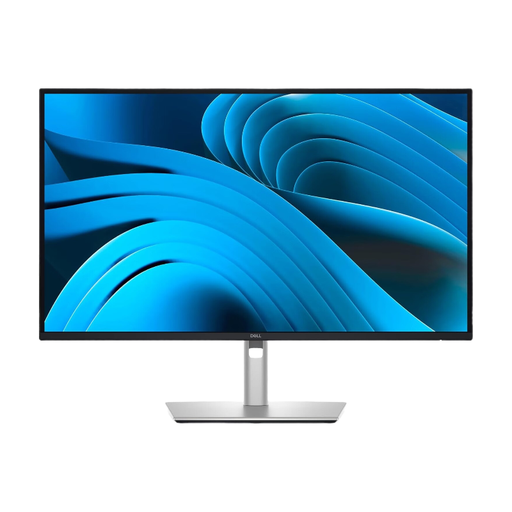 No image available
Dell Pro Plus P2725DE, 27 inches, QHD
Could suit a workspace for code and spreadsheets if QHD works with your preferred text display and window layout.
Specifications given in the product name: 2560 × 1440 pixels.
Joybuy
Frequently asked questions
Do I need a special monitor for offline documentation?
No. Here, ‘offline’ means that the documentation is available locally on your computer, not that you need a monitor with a particular feature. What matters is how your windows are displayed and whether the connection suits your device.
How do I check whether a USB-C monitor will charge my laptop?
Compare the video capability of your laptop’s port and your device’s charging requirements with the specifications of the specific monitor. For example, Lenovo lists up to 100 W over USB-C for the ThinkVision P27h-30; this doesn’t prove compatibility with every laptop.
What should I consider when setting up and maintaining a monitor?
Adjust the height and tilt to suit your workspace, and watch out for distracting reflections. Follow the care instructions for the specific model when cleaning it. ASR A6 applies to workplaces within its scope; it isn’t a general purchasing requirement for private households.
How do I compare monitors’ energy consumption?
Compare the EU energy label and, where relevant, the model information in EPREL for the specific devices. The European Commission describes an A-to-G efficiency scale for electronic displays; the labelling doesn’t require private individuals to choose a particular efficiency class.
Is a manufacturer’s warranty the same as statutory consumer rights?
No. If a product is faulty, you have statutory rights against the seller; a guarantee is an additional voluntary promise governed by its own terms. The Verbraucherzentrale explicitly distinguishes between these rights and promises.


