For mainly text-based catalogue work, a 27-inch QHD monitor can be a good starting point, provided fields and reference windows remain easy to read at your preferred text size. If you want to examine coin photos more closely or edit them with colour accuracy in mind, also check the resolution, colour mode and calibration options. If you use a laptop, consider its video output and charging requirements too. Custom catalogue fields are provided by the software, not the screen, as the OpenNumismat documentation also makes clear.
Which monitor might suit you?
Collectors using lots of catalogue fields
If you work with records, custom field labels and reference windows side by side, look for a workspace where everything remains easy to read at your preferred text size. OpenNumismat describes fields that can be selected and renamed; the fields available depend on the software.
Collectors working with coin photos
If you regularly compare obverse and reverse images or edit photos, image detail matters. For colour-critical work, you should also check that the colour mode and calibration options suit your specific workflow.
Collectors with a laptop-based setup
If you often connect your laptop at your catalogue workstation, check the video output, port, cable and required charging power against the specifications of both devices. Available features vary by model.
What to look for when buying
Start by checking your typical catalogue view at the text size you want to use. This will help you decide whether extra image resolution, an adjustable stand or laptop docking matters for your workspace.
| What matters |
What to check before buying |
Who it matters most to |
| Readable workspace |
Recreate your typical catalogue view at your preferred text size; compare the screen size and resolution of the specific model. |
If I need records, custom fields and references side by side, readable screen space matters most to me. Around 31% of consumers put space for fields and windows first. |
| Photo detail and colour |
Decide whether you simply view photos or edit them for a specific colour or print workflow; check the resolution, colour mode and, where relevant, calibration options. |
If I examine enlarged coin photos or edit them for a specific output process, I pay particular attention to image detail and suitable colour features. Around 25% of consumers prioritise photos. |
| Screen position |
Check the height and tilt adjustment, as well as the stand’s footprint, against your workspace. |
For longer catalogue sessions, I want to position the screen comfortably and read text with ease. Around 19% of consumers put ergonomics first. |
| Laptop connectivity |
Check the laptop’s video output, the monitor’s port, the cable and the required charging power against the device specifications. |
If I connect my laptop regularly, video and charging need to work with that specific device. Around 13% of consumers prioritise laptop connectivity. |
| Energy and features |
Compare the energy label and product specifications for the exact model; factor in any cables or other equipment needed for your photo workflow. |
If I want to keep energy use and required equipment in mind, I check the details for the specific model. Around 12% of consumers make this overall assessment their top priority. |
Avoid common misconceptions
-
More pixels don’t automatically mean more readable catalogue columns
Larger text or app scaling can use up some of the extra screen space.
Compare your fields, photos and reference windows at the text size you actually want to use. Microsoft Support explains how to adjust text size and scaling in Windows.
-
The monitor doesn’t determine which catalogue fields the software offers
The screen displays the data-entry form, but it doesn’t manage the field types. OpenNumismat documents selectable fields and the option to rename existing ones; this doesn’t mean that any new field types can be created.
Check that the catalogue software you plan to use supports the field types you need before choosing a monitor.
If the software doesn’t support the field types you need, you may have to switch catalogue software.
-
USB-C doesn’t automatically guarantee video and sufficient charging power
Video and charging features vary between monitors and laptops. BenQ lists 65 W Power Delivery for the PD2705Q; EIZO specifies up to 94 W at the upstream port for the EV2740X.
Check the ports, video features, cable and power requirements of the two specific devices.
Depending on the connection, you may need a suitable cable or still have to use the laptop’s separate power adapter.
-
A colour gamut specification isn’t a complete colour workflow
A stated colour gamut doesn’t automatically make images colour-accurate. EIZO points out that a gamut that’s too small or panel uniformity issues can’t simply be fixed through calibration.
Only consider extra colour features if your photo or print workflow needs them, and make sure you have the right calibration and output profiles.
A colour-managed workflow may require extra equipment and time to set up and maintain.
Relevant brands at a glance
Dell
The P2725D is one example of a QHD office monitor for mainly text-based catalogue work.
- Dell lists the P2725D as a 27-inch model with 2560 × 1440 pixels and a 100 Hz refresh rate; it has a height-adjustable stand.
- These specifications don’t prove colour accuracy for photos or guarantee a one-cable laptop setup. Check those requirements separately.
BenQ
The PD2705Q is designed for a QHD workspace with USB-C, while the SW272Q is a separate option for photo workflows focused on colour management.
- BenQ lists USB-C with 65 W Power Delivery for the PD2705Q, and 99% Adobe RGB, hardware calibration and 2560 × 1440 pixels for the SW272Q.
- The SW272Q’s features don’t automatically apply to the PD2705Q. Manufacturer colour gamut specifications aren’t independent measurements.
LG
The UltraFine 27UP850K-W is a 27-inch 4K option with documented USB-C connectivity and an adjustable stand.
- LG lists a resolution of 3840 × 2160 pixels and typically 95% DCI-P3 for this model.
- DCI-P3 isn’t the same as Adobe RGB. Check the features and terms of the specific offer.
ASUS
The ProArt PA279CRV combines a 27-inch 4K display with specified colour modes and USB-C power delivery.
- ASUS specifies a resolution of 3840 × 2160 pixels, 99% Adobe RGB and 96 W USB-C Power Delivery for this model.
- The manufacturer’s specifications for the PA279CRV aren’t test results for other ProArt models, and don’t guarantee compatibility with every laptop.
EIZO
The FlexScan EV2740X is an office and docking option for catalogue work. EIZO’s colour management advice can help you distinguish this use from a photo workflow.
- EIZO lists USB-C docking, up to 94 W at the upstream port and a typical maximum colour gamut of sRGB for the EV2740X.
- Calibration features from other EIZO product ranges can’t automatically be attributed to this model.
Joybuy products for catalogue views
This selection includes monitors for catalogue views with multiple windows, from QHD to wide ultrawide and 4K screens.
 No image available
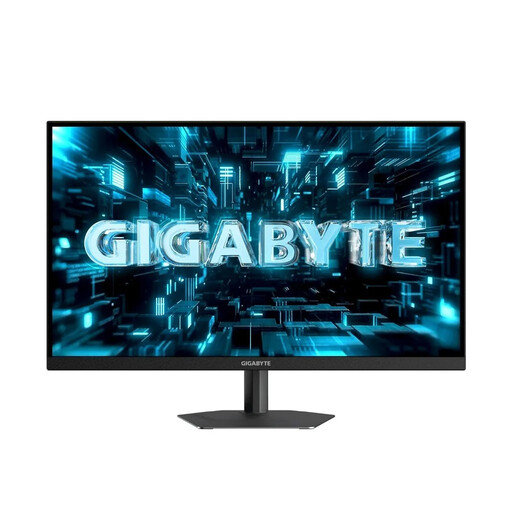
GIGABYTE G27Q26 27-inch QHD monitor
Could suit a catalogue view with records and reference windows, provided the text remains easy to read at your chosen resolution.
27 inches; 2560 × 1440 pixels; IPS; 260 Hz, OC 275 Hz; 1 ms GTG.
View at Joybuy
 No image available
CRUA 49-inch DQHD monitor
Could work if you want to arrange catalogue and reference windows across a very wide screen.
49 inches; 5120 × 1440 pixels; 32:9; 165 Hz; height-adjustable stand.
View at Joybuy
 No image available
INNOCN E34A1R 34-inch curved monitor
Could suit a wide catalogue view with additional content side by side; check that the format and stand work for your workspace.
34 inches; 3440 × 1440 pixels; UWQHD; VA; 21:9; 200 Hz; height-adjustable.
View at Joybuy
 No image available
INNOCN 40C1U 40-inch 5K monitor
Could suit a large workspace with multiple catalogue windows. If you use a laptop, check that the USB-C features are compatible with your device.
40 inches; 5120 × 2160 pixels; IPS; 100 Hz; USB-C with 65 W Power Delivery; height-adjustable.
View at Joybuy
 No image available
KTC M27P6 27-inch 4K MiniLED monitor
Could suit catalogue views and coin photos, provided 4K works with your preferred text and app scaling.
27 inches; 3840 × 2160 pixels; dual mode with 4K at 160 Hz or FHD at 320 Hz; Type-C with 65 W; KVM; height-adjustable.
View at Joybuy
Frequently asked questions
Can I use a monitor to add new fields to my coin catalogue?
No, that depends on the catalogue software. OpenNumismat documents more than 80 selectable fields and the option to rename existing ones; this doesn’t mean that any number of new field types can be created. Check that your specific application supports the field types you need.
Do I need an Adobe RGB monitor for coin photos?
Not just to capture or view photos. For a specific colour or print workflow, the right colour gamut, colour mode and calibration become important; a colour gamut specification alone isn’t a substitute for colour management.
What should I adjust after setting up and connecting the monitor?
Set the screen position and text and app scaling so your catalogue fields are easy to read. You can adjust text size and scaling in Windows; calibration is part of the workflow for colour-critical image work.
What should I check about energy use and my rights if something is faulty?
Compare the energy label for the specific monitor and check which cables or equipment your workflow requires. The European Commission explains energy labelling for electronic displays. When you buy as a consumer in the EU, you have statutory rights against the seller; a voluntary manufacturer’s guarantee doesn’t replace them. The details depend on the applicable law and the specific contract.


