If your window is reflected on the screen, start by considering the monitor’s position, its anti-glare surface and adjustable brightness: a higher refresh rate won’t solve reflections. More resolution can be useful for detailed views or multiple windows, while refresh rate matters for fast motion, provided your computer and connection support it. The monitor displays the simulation but won’t improve the collision calculations themselves; Unity Technologies, for example, describes physics calculations as running in their own time steps.
Who is a monitor for this workspace suited to?
People working beside a bright window
If you can’t position your screen wherever you like, the orientation, light control and surface of the specific monitor all matter. The German Federal Institute for Occupational Safety and Health (BAuA) covers daylight and sun protection in screen-based workplaces.
People reviewing movement
If you’re tracking fast contacts and movements in a simulation, distinguish the monitor’s refresh rate from the software’s calculation frequency. Unity Technologies describes separate, fixed time steps for physics simulations in Unity.
People comparing detailed views
If you need to see the scene, settings and results at the same time, resolution and a clear window layout are important factors. EIZO lists 4K resolution for the EV2740X; also check that the scaling and text size work for your setup.
Which buying considerations matter most?
Anti-glare QHD work monitor
A good fit if: you want to read the simulation, settings and log side by side, and glare by the window is manageable. BenQ lists QHD, an anti-glare coating and 350 nits typical brightness for the GW2790QT; Dell lists QHD at 100 Hz and a height-adjustable stand for the P2725D.
The trade-off: A coating is no substitute for a suitable position or sun protection; check reflections at your own workstation.
4K monitor for detailed views
A good fit if: you assess small labels, multiple windows or detailed stills. EIZO lists 4K, an anti-glare surface and up to 350 cd/m² for the EV2740X; LG lists 4K, an anti-glare surface and 400 cd/m² typical brightness for the 27UP850K-W.
The trade-off: Check that your computer and connection can deliver the 4K output you want, and that scaling remains easy to read; LG lists a maximum of 60 Hz for this model.
QHD monitor with 120 Hz for movement
A good fit if: you want to follow fast movement visually and your computer can output the refresh rate you need. ASUS lists QHD and a variable refresh rate of 120 Hz for the ProArt PA278QGV.
The trade-off: A higher refresh rate doesn’t automatically change the time steps used by collision physics; reflections from the window and the right signal path need to be checked separately.
For consumers assessing collision sequences beside a bright window, the right choice depends mainly on whether reflections, motion, detail or connectivity take priority in their workflow.
| Buying consideration |
What to check before buying |
Who is it most relevant to? |
| Reflections and readability |
Check the surface description, brightness controls and adjustability; assess reflections in the intended position, even in strong daylight. |
If my window is reflected on the screen, I want to consider the surface, brightness and positioning together; around 36% of consumers put reflection control first. |
| Fast movement |
Check that the refresh rate at your chosen resolution matches the inputs and your computer’s output; check the simulation time steps separately. |
When fast contacts occur, I want to follow the movement visually while assessing the software calculations separately; around 29% of consumers prioritise motion handling. |
| Workspace and image detail |
Compare your typical window layout and text size at QHD or 4K, and consider the space available for the monitor. |
If I need the scene and inspection tools visible at the same time, I look for resolution and readable scaling; around 21% of consumers prioritise detail and screen space. |
| Connectivity and setup |
Check the video input, USB-C video support and power delivery if relevant, as well as the energy label and warranty terms for the specific offer. |
I need a suitable connection for my computer and want to know what setup involves; around 14% of consumers prioritise connectivity and operation. |
Which buying mistakes should you avoid?
-
Assuming a high brightness rating means no reflections
A brightness figure alone doesn’t tell you how distracting the reflection of a window will be in your particular setup.
Consider the surface and positioning options together, then assess reflections once the monitor is set up in its intended place.
Moving the monitor or adding sun protection may mean extra setup work.
-
Buying a higher refresh rate to fix incorrect collisions
The monitor’s refresh rate affects what you see on screen; it doesn’t automatically change the time steps used by the physics simulation. Unity Technologies describes physics frequency as a separate setting.
Investigate display issues and calculation issues separately, and check the simulation settings in the software you use.
-
Choosing 4K without checking your own workspace view
More pixels only help if the scene and controls are easy to read and displayed as you want them to be on your computer.
Before buying, check the connections, the resolution you want and the window layout you typically use.
Getting the right output or scaling may involve extra setup work.
Which monitor brands are worth considering?
BenQ
The GW2790QT is a QHD option if an anti-glare surface, ergonomic adjustments and USB-C matter for your particular workspace.
- BenQ lists an anti-glare coating, 350 nits typical brightness, 75 Hz and USB-C with 65 W Power Delivery for the GW2790QT.
- These manufacturer specifications don’t guarantee freedom from reflections in direct sunlight; check the view from your own position by the window.
Dell
The P2725D combines a 27-inch screen, QHD and 100 Hz for a workspace display with a higher refresh rate.
- Dell lists height adjustment and IPS technology for this model.
- If you need USB-C for charging, check before buying whether this feature is included with the specific model.
EIZO
The EV2740X is a 4K office option for detailed views and a flexible workspace setup.
- EIZO lists an anti-glare surface, up to 350 cd/m², USB-C docking and 94 W Power Delivery.
- The screen specifications don’t replace checking how the window is reflected on the display from your position.
ASUS
The ProArt PA278QGV is a QHD option if you want a higher refresh rate for movement alongside your work views.
- ASUS lists a variable refresh rate of 120 Hz, ergonomic adjustments and an ambient light sensor.
- A higher refresh rate doesn’t mean more accurate collision physics.
LG
The 27UP850K-W is a 4K option for detailed views, with an anti-glare surface.
- LG lists 400 cd/m² typical brightness and a maximum refresh rate of 60 Hz.
- The brightness figure alone doesn’t show how noticeable reflections will be beside your own window.
Joybuy monitors for collision simulations
This selection of Joybuy monitors ranges from Full HD through QHD to 4K, with different refresh rates and screen surfaces. For a position beside a window, actual reflections and your computer’s output remain key considerations.
 No image available
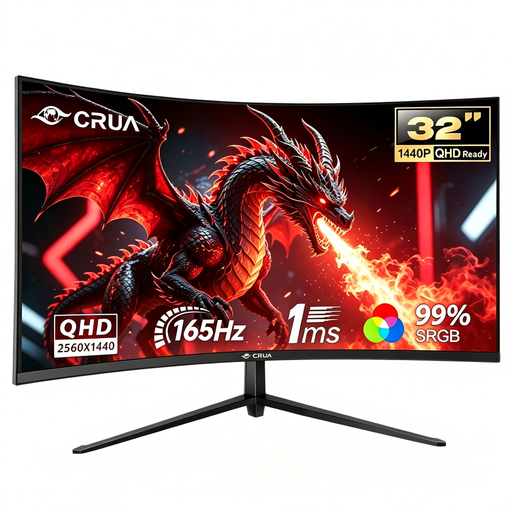
CRUA CR320C-H, 32-inch, QHD, 165 Hz
An option if you’re looking for a QHD display with a high refresh rate for visualising movement.
QHD; 165 Hz; 250 cd/m²; anti-glare surface; tiltable stand.
View at Joybuy
 No image available
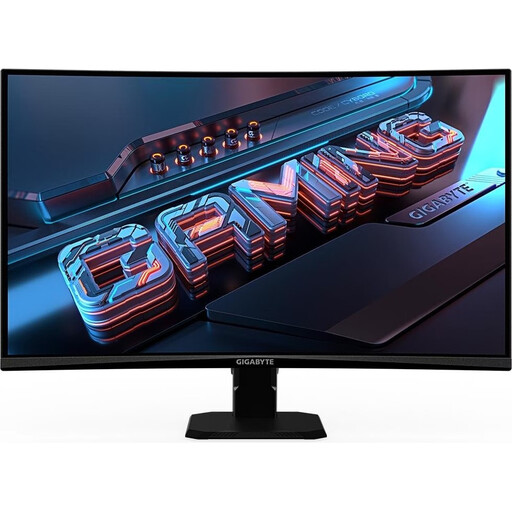
Gigabyte GS27QCA, 27-inch, QHD, 180 Hz
A QHD option for consumers who want to follow fast movement and take an anti-glare surface into account.
QHD; 180 Hz; 250 cd/m²; anti-glare surface; tiltable stand.
View at Joybuy
 No image available
Samsung Odyssey G5 G50F, 32-inch, QHD, 180 Hz
A QHD option for a customised viewing position if you want to weigh up motion handling and reflection control together.
QHD; 180 Hz; IPS; 300 cd/m²; anti-glare surface; height-, tilt- and swivel-adjustable stand.
View at Joybuy
 No image available
CRUA CR320QB, 32-inch, 4K
Its 4K resolution makes this model an option if you want to inspect small image details; make sure your scaling remains easy to read.
4K UHD (3840 × 2160); VA display; 3000R curvature; Adaptive Sync.
View at Joybuy
 No image available
KOORUI MB24V29FS4, 24-inch, Full HD, 120 Hz
A compact option if you want to follow movement visually and take a matte surface into account.
Full HD; IPS; 120 Hz; 250 cd/m²; matte surface; HDMI and VGA; tilt-adjustable. Full HD offers less resolution than QHD for small details or multiple views.
View at Joybuy
Frequently asked questions
Will a 120 Hz monitor improve collision calculations?
No, not automatically. In Unity, physics updates in fixed time steps; the monitor’s refresh rate affects what you see on screen. Check the simulation settings in the software you actually use separately.
What should I check first when setting up beside a bright window?
Check whether the window is reflected on the screen, then adjust the screen position or incoming light if possible. A feature described as anti-glare doesn’t guarantee that direct sunlight won’t be distracting.
Is QHD or 4K better for collision simulations?
QHD may be enough if you can read the scene and tools clearly; 4K is one option for small details or multiple views. With 4K, check that your computer and connection can deliver the output you want and that the scaling remains easy to read.
Can I return a monitor bought online if reflections from the window are distracting?
According to Verbraucherzentrale, consumers who buy online generally have a 14-day right to cancel, starting from receipt of the goods. Check the terms of your specific purchase; cancellation and claims relating to a defect are different rights.


