When comparing reviews, sources and catalogue entries, the right choice depends on whether you mainly need several windows side by side, fine scan details or easy-to-read text. A wide display can make it easier to view items in parallel, a 27-inch 4K model is an option for checking details, and QHD office monitors can suit text-based work. A monitor won’t identify duplicate entries for you: that’s down to your software and review process.
Who might need this type of monitor?
People who compare sources side by side
If you want to keep reviews, source references and possible duplicates in view at the same time, the usable screen space is an important factor. LG lists a 34-inch display in a 21:9 format with a resolution of 3,440 × 1,440 pixels for the 34U650A-B.
People who check scans and details
If you compare small text or image details in digitised documents, consider the resolution and image quality alongside your preferred text size and scaling. Dell lists a resolution of 3,840 × 2,160 pixels for the P2725QE.
People who work at a screen regularly
If you regularly read and edit entries, it’s important to be able to adjust the screen to a comfortable position and view text clearly. Germany’s Federal Institute for Occupational Safety and Health sets out requirements for sufficiently large, clear text and graphics in ASR A6, within the scope of its application.
What to consider when choosing
34-inch ultrawide
A good fit if: you need several text and source windows open side by side, and have enough desk space. LG specifies a 21:9 display with a resolution of 3,440 × 1,440 pixels for the 34U650A-B.
Bear in mind: A wide view can’t replace a suitable text size or the level of detail offered by a 4K display. Check the dimensions and connections of the specific model, too.
27-inch 4K
A good fit if: checking fine details in scans is your priority and your computer supports the resolution. Dell lists 3,840 × 2,160 pixels for the P2725QE.
Bear in mind: More pixels don’t automatically mean larger or more readable windows. Check the text size and scaling at your usual viewing distance.
27-inch QHD with suitable connections
A good fit if: you mainly read text and datasets, and an adjustable screen position or connection to a compatible laptop is important. Dell and Philips each list a resolution of 2,560 × 1,440 pixels for the models mentioned.
Bear in mind: USB-C or Thunderbolt is only useful if your laptop, cable and required charging power are compatible.
When comparing reviews and catalogue entries, the main things to consider are window layout, viewing detail, readable text and, where needed, the connection to your laptop.
| Priority |
What to check when buying |
Who needs this? |
| Reading sources side by side |
Check the format, resolution, dimensions and readability of windows at your preferred text size. |
If I want to compare reviews, sources and catalogue entries at the same time, I need enough readable windows side by side. Around 40% of consumers prioritise side-by-side views. |
| Making out details in scans |
Consider the resolution of the source, the screen resolution and operating system scaling as part of your workflow. |
If small text or image details matter, I want to make sure the source remains clear at my chosen scaling. Around 30% of consumers prioritise checking details. |
| Adjusting text for comfortable reading |
Check the height and tilt adjustments, and how text looks at your usual viewing distance. |
When I work at a screen regularly, I want to be able to adjust the text and screen position to suit my work. Around 20% of consumers prioritise an adjustable setup for reading and working with text. |
| Connecting a laptop |
Check your laptop’s video output and charging requirements against the connections on the specific monitor version. |
If I want to connect my laptop to the monitor, the video output and power supply need to be compatible. For around 10% of consumers, connecting a laptop is the top priority. |
Common misconceptions
-
Confusing screen space with duplicate detection
A monitor displays entries, but it can’t tell you whether two reviews have identical content. Paperless-ngx describes a feature that flags documents with matching content; that’s not the same as automatically assessing reviews worded differently.
First decide which software you’ll use to display the entries and how you’ll distinguish identical files from reviews that are merely similar.
-
Choosing based only on pixel count or screen size
Readability also depends on text size, scaling and viewing distance. A large or high-resolution screen alone won’t guarantee that text is displayed suitably.
Check how a typical review, scan and index field look together at a readable size, and make sure you have enough desk space.
-
Assuming USB-C will work with every laptop
A USB-C port on a monitor doesn’t guarantee that every laptop can output a picture through it or receive enough power to charge.
Check your laptop and cable against the video output and power supply specifications for the exact monitor version.
Relevant brands and model examples
Dell
Two different 27-inch models are worth considering for comparison work: a 4K monitor and a QHD hub monitor.
- Dell specifies a resolution of 3,840 × 2,160 pixels for the P2725QE. For the U2724DE, Dell lists 2,560 × 1,440 pixels, a height-adjustable stand and a Thunderbolt 4 hub.
- The resolution and connections vary between models, so check which version suits your display needs and laptop.
LG
The 34U650A-B UltraWide is an example of a wide 21:9 view for comparing sources side by side.
- LG lists a 34-inch screen and a resolution of 3,440 × 1,440 pixels for this model.
- Whether the wider screen suits you better than a 27-inch monitor depends on your desk space, window layout and text size.
Philips
The Business Monitor 27B2U4601/00 is a QHD option with USB-C for text-based work.
- Philips lists a 27-inch screen, a resolution of 2,560 × 1,440 pixels and USB-C for this model.
- Check the specifications of both devices to see whether the connection will provide enough power for your particular laptop.
Joybuy products for comparing sources
These models include wide-screen options for viewing several sources and a high-resolution choice for checking scan details.
 No image available
INNOCN 40C1U 40-inch ultrawide monitor
The wide view could suit a workflow where you want to display several sources side by side.
40 inches, 21:9 and 5,120 × 2,160 pixels; the product title also mentions IPS, 100 Hz, USB-C with 65 W Power Delivery, and PIP/PBP.
The monitor won’t detect duplicates by itself; that’s down to the software you use and your review process.
Joybuy
 No image available
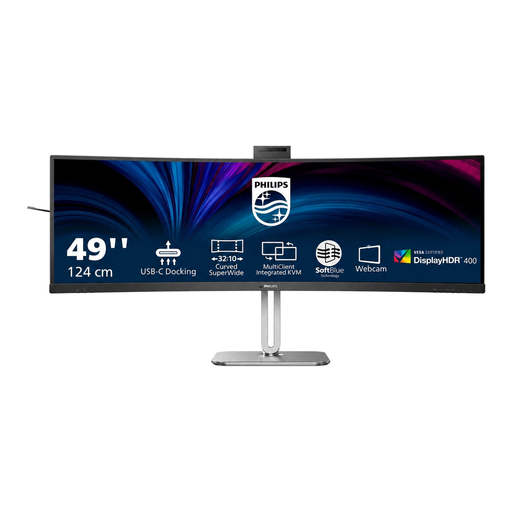
Philips 49B2U6900CH 49-inch monitor
The 32:9 format could suit a workflow that calls for a very wide view, with several sources displayed side by side.
49 inches, 5,120 × 1,440 pixels and Dual QHD; the product description also mentions PBP, a USB-C dock with 100 W Power Delivery, and Gigabit Ethernet.
According to the product description, the monitor should be installed and transported by two people because of its size and weight.
Joybuy
 No image available
INNOCN E34A1R 34-inch curved monitor
The 21:9 format can help you compare several sources in a wide view.
34 inches and 3,440 × 1,440 pixels; the product title also mentions UWQHD, PIP/PBP and a height-adjustable stand.
If you need to check fine details in scans, compare the resolution with your source documents and preferred display settings.
Joybuy
 No image available
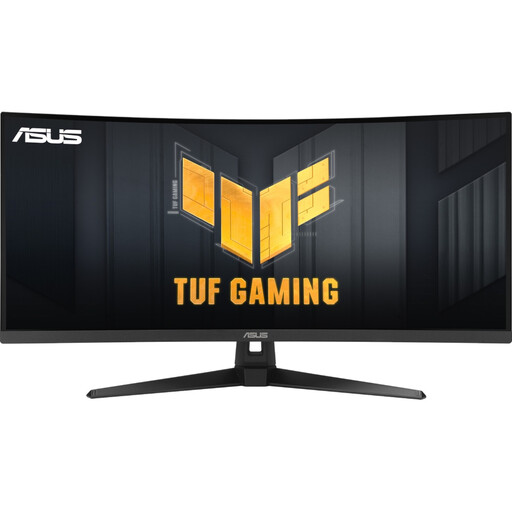
ASUS TUF Gaming VG34VQ3B 34-inch curved monitor
The 21:9 display gives you a wide workspace for side-by-side windows.
34 inches and 3,440 × 1,440 pixels; the product title also mentions UWQHD, 180 Hz, 1 ms MPRT and an ergonomic stand.
Check that the format and resolution suit your window layout and the level of detail in your source documents.
Joybuy
 No image available
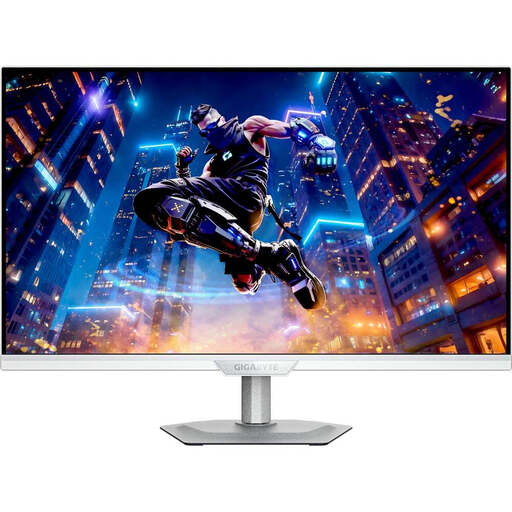
GIGABYTE M27UP ICE 27-inch 4K monitor
The 4K resolution could be useful for examining details in digitised documents.
27 inches and 3,840 × 2,160 pixels; the product description also mentions a KVM switch and a height-adjustable stand.
A 16:9 display offers less horizontal space for arranging windows than an ultrawide format. Consider which window layout matters most for your work.
Joybuy
Frequently asked questions
Will a new monitor automatically find duplicate review entries?
No. A monitor displays entries, but it can’t tell you whether reviews have identical content. Filters, flags and index fields depend on the software you use. For example, Paperless-ngx documents a feature that flags documents with matching content; reviews worded differently still need to be checked appropriately.
What should I check before connecting a laptop to a monitor?
Check your laptop’s video output and charging requirements against the connections and stated power supply of the specific monitor version. Then adjust the text size and screen position to suit your workflow.
How can I compare the running costs of different monitors?
For models sold in the EU, compare the energy label and product information sheet under the same usage conditions. The European Commission uses an A to G scale for monitors and points to EPREL for further model details. To work out a cost in euros for your own use, you’ll also need to consider how long you use the monitor and your electricity rate.


