What should you look for when choosing?
First, decide which resolutions and scaling scenarios you actually need to test. Then compare the connections with your computer, and consider ergonomics or colour modes only if they’re relevant to your test setup and requirements.
| Requirement |
What to check before buying |
Who needs this? |
| Resolution and scaling |
Make a note of the resolutions and scaling scenarios you need; compare the native resolution and screen size with the app views you plan to test. |
If I need to check how my app behaves at different scaling factors or after switching displays, the right test setup matters. For around 33% of consumers, scaling tests are the main priority. |
| Connections and switching computers |
Compare the video inputs, USB upstream, KVM and USB-C Power Delivery of the exact model variant with your computers’ connections and power requirements. |
If I connect several test computers or switch between them, the video connection and, where needed, docking must work with my devices. Around 27% of consumers put computer connectivity first. |
| Adjustability |
Check the height adjustment, tilt, stand footprint and, where applicable, mounting options for the exact variant. |
If I spend a long time at my test station, I want to be able to adjust the screen position to suit my desk. For around 20% of consumers, the working position is the main concern. |
| Colour modes |
Decide which colour mode you need to test, then compare the details for the exact model with your testing method. |
If colour and graphical interfaces are part of my test brief, I need a suitable mode and testing method. Around 20% of consumers prioritise colour testing. |
Joybuy products for desktop app testing
The Joybuy products below cover QHD and 4K options for testing apps at home. Depending on the model, connections, adjustability or specified colour options may also be relevant to your choice.
 No image available
MSI PRO MP273UPDE E6 27-inch 4K UHD monitor
A good fit if a 4K UHD display is among the views you want to test in your setup.
Listed in the product name: IPS, 60 Hz and HDR Ready.
Joybuy
 No image available
INNOCN CB27U1 27-inch 4K UHD monitor
An option if you want to test a 4K scenario and use a compatible USB-C connection with Power Delivery.
Listed in the product name: 3840 × 2160, IPS, 120 Hz, HDR500, PIP and PBP, plus USB-C with 90 W Power Delivery.
Joybuy
 No image available
Philips 276B9 27-inch QHD IPS monitor
Suitable if QHD views are among your planned app test cases. You’ll still need a 4K test setup to test on a 4K display.
Listed in the product name: 2560 × 1440, 75 Hz, USB-C with 65 W Power Delivery and USB hub.
Joybuy
 No image available
MSI PRO MP275QPDGDE 27-inch WQHD docking monitor
A good fit if you’re testing QHD views and KVM or USB-C docking suits your computer setup.
Listed in the product name: 100 Hz, USB-C with 98 W Power Delivery, daisy chain, KVM and built-in webcam.
Joybuy
 No image available
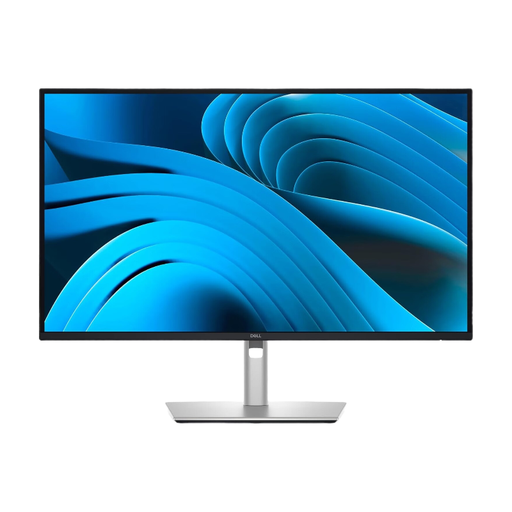
Dell Pro Plus P2725DE 27-inch QHD monitor
For QHD app views; Dell lists the P2725DE as a USB-C hub variant. Check that its connections and the features of the specific model being offered suit your computer.
Listed in the product name: 2560 × 1440 and LCD.
Joybuy
Frequently asked questions
Is a 4K monitor enough to test scaling in my Windows desktop app?
No. Microsoft Learn identifies changes to scaling factors and switching between displays with different scaling as relevant test cases, among others. Define these scenarios and change the settings in practice; the monitor’s resolution alone won’t run the tests.
What should I check when connecting a test laptop?
Compare the laptop’s video output and power requirements with the specifications for the exact monitor variant. EIZO lists USB-C with DisplayPort Alt Mode and up to 94 W power delivery for the EV2740X. A USB-C port alone doesn’t guarantee that video and charging will work as needed.
Does the ASR A6 workplace rule automatically apply to my home desk?
No, not automatically. The Federal Institute for Occupational Safety and Health lists display-screen workstations in workplaces and teleworking stations as covered scenarios, but explicitly excludes use in private settings outside teleworking stations. Whether your specific workstation counts as a teleworking station needs to be assessed separately.
What energy information can I compare when choosing a monitor?
For covered electronic displays, the European Commission describes an EU energy label from A to G, with information including screen size and resolution. You can check model-specific information through EPREL; some displays, such as medical devices, may be exempt.
What are my rights when buying a monitor online?
For a typical online purchase from a business seller in the EU, you generally have a 14-day right to cancel from the date of delivery; exceptions and the terms for return postage should be taken into account. Under EU consumer law, faulty goods are covered by a minimum two-year legal guarantee against the seller. An additional manufacturer’s guarantee doesn’t replace these rights.


