If you regularly switch between computers at a shared desk, check the video and USB connections first. A USB-C hub or KVM can make switching easier, but only if the devices and cables support the necessary features. For desktop app testing, the resolutions and DPI scaling you actually need are also important: a 4K monitor won’t replace testing at other settings. Adjustability and the available desk space must also suit the shared workspace.
Which monitor is right for you?
Teams that switch between computers
If you share a screen and peripherals, check which docking and switching features the specific models offer for the computers you use. Lenovo lists these features for the ThinkVision P27h-30, while Dell specifies a USB-C hub for the P2725DE.
Layout and scaling testers
If you’re testing a desktop app on displays with different scaling factors, consider the target resolutions and operating system settings separately. Microsoft Learn describes switching between displays as a relevant test case for Windows desktop apps.
People sharing a small workspace
If you share a desk, you’ll need to make sure the screen size and footprint fit the space available. EIZO lists the EV2490 as 23.8 inches; Germany’s Federal Institute for Occupational Safety and Health covers requirements for screen-based work within the scope of ASR A6.
What should you consider when buying?
First, decide which test resolutions you need. Then check the connections for switching between computers, and make sure the monitor’s adjustability and footprint suit your shared workspace.
| Buying priority |
What to check |
Who it matters most to |
| Switching computers and connections |
Check the video inputs, USB upstream connections, actual KVM functionality and USB-C charging power required for each computer individually. |
If I use computers or laptops at the same desk with shared peripherals, I want to minimise the need to swap cables. Around 33% of consumers prioritise switching between computers. |
| Resolution and DPI scaling |
Decide which resolutions your app needs to support, then test scaling and switching between displays using the intended operating system settings. Microsoft Learn describes differences in DPI scaling as a potential source of issues for Windows desktop apps. |
If I’m checking a desktop app’s layout and scaling, the monitor needs to suit the intended display environments. Around 27% of consumers prioritise checking how content is displayed. |
| Adjustability |
Check the height adjustment, tilt and, if needed, rotation against different seating positions and the desk. For screen-based work covered by ASR A6, the task and viewing distance are relevant. |
If several people use the screen, I want to be able to adjust its position to suit each person’s seating position. Around 20% of consumers prioritise adjustability. |
| Desk and workspace |
Measure the available width and depth, and check that app windows and testing tools will fit comfortably at the target resolution. |
If my desk is small, the monitor needs to fit alongside my other equipment while still providing enough space for testing. Around 20% of consumers prioritise a compact setup. |
Common misconceptions
-
Assuming a USB-C hub and KVM are the same thing
A USB-C hub and a KVM don’t automatically do the same job. Dell lists a USB-C hub for the P2725DE, while Lenovo explicitly specifies KVM for the ThinkVision P27h-30.
If you want to switch a keyboard and mouse between two computers, check that the specific model has KVM and the required upstream connections.
Depending on your computer setup, you may need additional switching equipment or cables.
-
Assuming 4K replaces testing at other display settings
A 4K display won’t automatically cover other resolutions or scaling factors. Microsoft Learn describes display issues that can occur when switching between displays with different DPI scaling.
Decide which environments you need to test in advance, then test resolution, operating system scaling and switching between displays separately.
-
Overlooking the space needed for a large monitor or monitor arm
A large display or monitor arm needs to fit the desk and leave enough room to move around in a shared workspace. BenQ lists the RD320UA as 31.5 inches and provides the model’s dimensions, but that doesn’t mean it will fit every desk.
Check the desk dimensions, mounting options and clearance needed before ordering.
Relevant brands and models
Dell
The P2725DE is a 27-inch QHD monitor for work, with a USB-C hub.
- Dell lists a resolution of 2560 × 1440 pixels and 90 W USB-C power delivery for this model.
- A USB-C hub doesn’t confirm that KVM is included. Check the connections on the computers you plan to use.
Lenovo
The ThinkVision P27h-30 is a QHD option for a workspace with two computer systems.
- Lenovo lists USB-C docking, Ethernet and KVM for this model.
- Check that these features will work with the computers and cables you plan to use.
ASUS
The ProArt PA279CRV is a 27-inch option for testing at 4K resolution.
- ASUS specifies a resolution of 3840 × 2160 pixels, USB-C with 96 W Power Delivery and height adjustment for this model.
- A 4K display doesn’t replace testing at other resolutions or scaling factors. The colour specifications listed are the manufacturer’s figures for this model.
BenQ
The RD320UA is a larger 4K option for a suitably sized testing workspace.
- BenQ lists the model as 31.5 inches with a resolution of 3840 × 2160 pixels.
- Check that the monitor arm mounting, dimensions and clearance will suit your desk.
EIZO
The FlexScan EV2490 covers a compact Full HD testing scenario.
- EIZO specifies a screen size of 23.8 inches and a resolution of 1920 × 1080 pixels for this model.
- Full HD has fewer pixels than the QHD and 4K models listed here.
Joybuy products
These models cover 4K, QHD and Full HD testing environments, as well as different connection and space requirements.
 No image available
INNOCN CB27U1 27-inch 4K UHD monitor
For testing on a 4K screen, with a height-adjustable stand.
3840 × 2160 pixels; USB-C with 90 W Power Delivery; PIP/PBP for displaying multiple sources at once.
PIP/PBP isn’t a KVM function; KVM is listed as unavailable for this model.
View at Joybuy
 No image available
KTC M27P6 27-inch 4K Mini LED monitor
For testing where 4K and Full HD modes or shared input devices are important.
4K at 160 Hz and Full HD at 320 Hz; USB-C with 65 W; KVM listed.
Using KVM and USB-C depends on compatible computers and connections.
View at Joybuy
 No image available
Philips 276B9 27-inch QHD monitor
For a QHD testing scenario with a USB-C hub and height-adjustable stand.
2560 × 1440 pixels; USB-C with up to 65 W Power Delivery; HDMI and DisplayPort.
USB-C video, data and charging features require a compatible laptop and suitable connection.
View at Joybuy
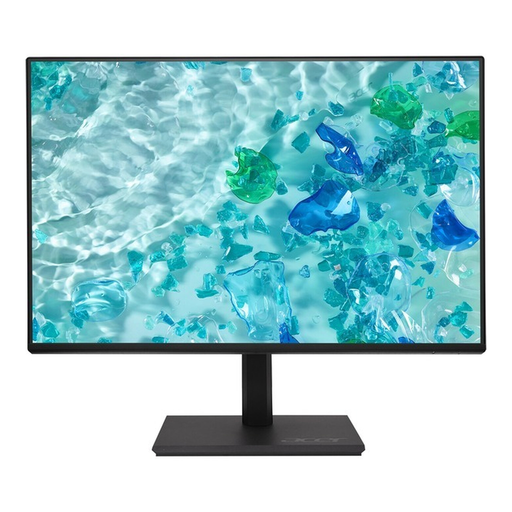 No image available
Acer Vero B247YGbmiqprx 24-inch monitor
For a compact Full HD testing setup with an adjustable stand.
1920 × 1080 pixels; HDMI, DisplayPort and VGA; height adjustment up to 165 mm, plus pivot, swivel and tilt.
View at Joybuy
 No image available
MSI PRO MP275QPDGDE 27-inch WQHD docking monitor
For a WQHD testing setup that needs USB-C docking and KVM.
WQHD; USB-C with 98 W Power Delivery; Ethernet and KVM listed.
Docking and KVM require compatible computers, cables and connections.
View at Joybuy
Frequently asked questions
Is a 4K monitor enough to test scaling in a Windows desktop app?
No. Microsoft Learn describes potential issues when switching between displays with different DPI scaling, as well as when docking and undocking. Test the app at the resolutions and scaling settings you actually plan to use. This guidance applies to Windows desktop apps.
What should I check before connecting a laptop via USB-C?
Check whether the laptop’s port can output a video signal and how much charging power it needs. The monitor must explicitly support the video, data and charging features you want to use over that connection. USB-C alone doesn’t guarantee that every feature will be available.
Is there a recommended monitor size for a shared desk?
The scenario alone doesn’t point to one ideal screen size. For screen-based work covered by ASR A6, factors such as the task and viewing distance help determine whether the display is large and sharp enough. Whether these requirements apply to a particular shared workspace depends on how it’s actually used.
How can I compare energy consumption and my rights if there’s a fault?
Check the EU energy label or EPREL entry for the specific model; the European Commission says these also include energy consumption information. If a product is faulty, your statutory rights against the seller are separate from any voluntary guarantee. Check the terms of the relevant guarantee too.


