Digital tileset designers
If you draw repeating tiles, you’ll want to arrange your canvas, grid, preview and tool palettes clearly. Aseprite documents tilesets as collections of tiles, while Godot describes working with tile atlases.


Choose a monitor based on what matters most for your tileset workflow: a practical working area, reliable colour assessment or the right laptop connections. For colour-critical work, especially if you’re preparing work for print, colour management and possibly calibration become more important. If you use the same space for your laptop and office work, adjustability and the right video and charging connections could be decisive.
If you draw repeating tiles, you’ll want to arrange your canvas, grid, preview and tool palettes clearly. Aseprite documents tilesets as collections of tiles, while Godot describes working with tile atlases.
If you need to assess colour choices across applications or output media, colour management and possibly profiling or calibration are important factors to consider.
If you use the same home-working space for design and office tasks, look for a setup that suits your needs and connections that work with your specific laptop.
When creating digital tilesets at home, working area, colour assessment, ergonomics and laptop connectivity may matter to different degrees. Start by deciding which of these factors has the biggest impact on your workflow.
A good fit if: you do everyday office work as well as creating digital tilesets, and want to consider working area, setup and suitable connections together.
The trade-off: A wide colour gamut or HDR is no substitute for the right colour mode or a correctly set up monitor profile. USB-C alone doesn’t guarantee video output and laptop charging.
A good fit if: you need to assess colours consistently, or your design workflow also involves professional output, such as print.
The trade-off: Specialist calibration features can make your workflow more involved, and aren’t automatically necessary for digital tilesets alone.
| What matters | What to look for when buying | Who is this particularly important for? |
|---|---|---|
| Working area and readability | Check the screen size and native resolution against the space available and the editor view you actually use; check that details and controls are clear at your usual viewing distance. | If I want to see my tileset, preview and tools at the same time, I need a practical working area where details remain legible. Around 30% of consumers put this need for space and readability first. |
| Assessing colour | Decide on your output needs, then check suitable colour modes and profiling or, where appropriate, hardware calibration. Don’t treat manufacturers’ colour-gamut coverage claims as independent measurements. | If colour choices need to remain consistent across applications or output media, I look at the colour mode, profile and, where appropriate, calibration. Around 40% of consumers prioritise reliable colour assessment. |
| Workplace ergonomics | Consider the space available and your viewing distance; check the stand, height adjustment and potential reflections at your intended setup. | If I spend a long time at my screen, I want to be able to position the monitor to suit my desk and seating position. Around 20% of consumers prioritise a well-positioned screen that’s easy to read. |
| Laptop connectivity | Check that your laptop’s video output matches the monitor’s input. If you want a single-cable setup, check video support and the required charging power separately. | If I use the same laptop for design and office work, I want to know whether the planned connection supports both video and charging. Around 10% of consumers prioritise suitable laptop connectivity. |
Colour-gamut coverage, colour mode, calibration and monitor profile each describe different aspects of colour reproduction.
First decide on your output needs, then check which colour modes and profiling process are right for your work.
Colour-critical work may require additional profiling or calibration tools.
The monitor’s connections will support video output and power delivery only if your specific laptop also supports the required features.
Check your laptop’s video output and charging requirements separately against the specifications for the monitor you’re considering.
If your planned single-cable setup doesn’t work, you may need additional cables or a separate charger.
A list by PRAD of professional 27-inch graphics monitors is aimed at the high-end market, not at every digital tileset workflow in particular.
First check whether your output needs call for specialist colour and calibration features. If not, consider versatile home-office monitors too.
The ProArt range includes models for design work, but specifications for a particular model shouldn’t be assumed to apply to other devices in the range.
DesignVue models such as the PD2705U are aimed at digital design tasks, while the Creative Pro PD2732U is designed for additional cross-media colour workflows.
The UltraSharp U2725QE is an option for a combined 27-inch 4K and laptop workstation.
The ColorEdge range is designed for colour-critical imaging and design work.
According to MSI’s German specifications, the Modern MD272UPHGDE is a 27-inch 4K IPS monitor with home-office and creative features.
This selection includes monitors for digital tileset work, with different strengths in working area, resolution and colour-related specifications. Depending on the model, also check the connections you need for your setup and the available positioning options.
 No image available
An option if you’re looking for a 27-inch monitor with a UHD specification and stated colour-gamut figures for your design workflow.
The product title lists Mini-LED and Rapid IPS, along with UHD at 160Hz or FHD at 320Hz.
 No image available
An option if you’re considering a 27-inch 4K UHD monitor with an IPS panel for your editor and tile view.
The product title lists 60Hz and HDR Ready.
 No image available
If you’re looking for an extra-large working area for your tileset, preview and tools, this 40-inch ultrawide model could be worth considering.
The product title lists 5120 × 2160 pixels, IPS, 100Hz, a 21:9 aspect ratio and USB-C with 65 W Power Delivery.
 No image available
An option if you’re looking for a 27-inch 4K UHD monitor with an IPS panel and USB-C for your laptop setup.
The product title lists 3840 × 2160 pixels, 120Hz, HDR500 and USB-C with 90 W Power Delivery, as well as a height-adjustable stand.
 No image available
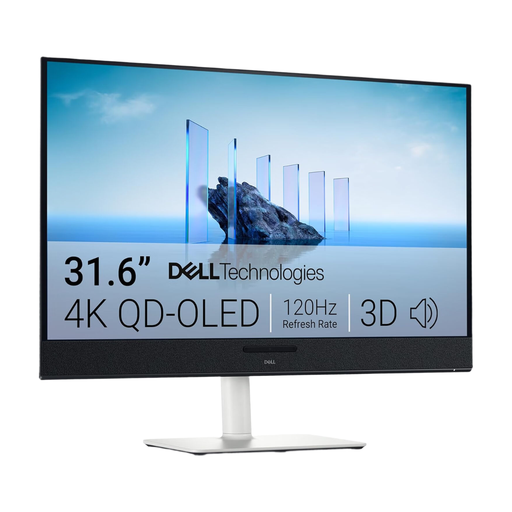
If you’re considering a larger screen for tileset work, this 31.6-inch model is one option.
The product title lists 3840 × 2160 pixels, 4K UHD and a QD-OLED panel.
No. The documented tileset features don’t mean that 4K is a universal requirement. Consider native resolution and screen size alongside readability and the layout of your actual editor workspace. Zoom levels in the editor can help when viewing details.
Choose a colour mode that suits your output needs and create a suitable monitor profile. Adobe distinguishes calibration from profiling and also recommends measurement hardware for colour-critical work. This isn’t a legal requirement or proof of the performance of any particular model.
Compare the EU energy label and model information in EPREL, particularly for monitors of a similar size and resolution. The European Commission explains the energy-efficiency scale for electronic displays.
For a consumer purchase in the EU, Your Europe states that you have a minimum legal guarantee of two years from the date you receive the goods. An additional manufacturer’s warranty doesn’t replace this statutory right.
Take your old monitor to a separate collection point rather than putting it in your household rubbish, for example a recycling centre or suitable take-back point. The German Environment Agency advises against disposing of electrical appliances in household rubbish.