Choose a screen size and text scaling that keep your draft, comments and tracked changes easy to read. If you keep reference documents open alongside your work, extra usable screen space can help. Also check the stand, the space it takes up and, if you use a laptop, video output, charging power and ports individually. You manage how tracked changes are displayed or shared in your document software, not on the monitor.
Which features are right for you?
Reviewing drafts side by side
If you regularly compare your guide with notes or requirements, it’s important to be able to read several windows comfortably. The screen space you need also depends on your chosen text size. Microsoft Support explains how Word displays tracked changes.
Editing long documents
When working through longer passages with tracked changes visible, a clear display and a suitable screen position matter. For workplace screen-based work, the German Federal Institute for Occupational Safety and Health covers requirements within the scope of ASR A6.
Working with a laptop
If you regularly connect a laptop for writing, check video output, the charging power you need and other ports against the specific monitor and laptop before buying. Features vary by model.
What should you look for when buying?
Start by trying your actual document workflow at your preferred text size. Then compare the screen area and stand with the space available, and check the ports if you use a laptop.
| What matters |
What to check when buying |
Who is it important for? |
| Draft and reference materials side by side |
Window layout at your preferred text size; assess screen size and resolution together. |
If you want to read your draft, changes and reference materials at the same time, the usable screen area matters. Around 36% of consumers prioritise reviewing documents side by side. |
| Comfortable reading during long editing sessions |
Check text size, tilt and rotation, as well as the height adjustment you want at your workstation. |
If you edit long passages, text and tracked changes should be easy to see from your desk, and the screen should be easy to position. Around 29% of consumers prioritise adjustable, readable viewing. |
| Connecting a laptop and peripherals |
Check video output, the charging power required, cables and ports for the devices you need against the specifications for the exact model. |
If you want to connect your work laptop and other devices to the monitor, the relevant ports need to be compatible. Around 21% of consumers prioritise laptop connectivity. |
| Space and power consumption |
Allow for the dimensions, including the stand; compare stated energy consumption only on a like-for-like basis. |
If desk space is limited or you want to factor consumption into your comparison, dimensions and the energy label are worth checking. Around 14% of consumers focus mainly on space and power consumption. |
Avoid common misconceptions
-
More pixels automatically mean easier-to-read windows
Native resolution, screen size and text scaling are different factors. A high resolution alone doesn’t tell you how easy your guide will be to read at your chosen text size.
Open your draft and tracked-changes view at your preferred text size and check how they look before deciding based on the pixel count alone.
-
Every USB-C port provides a complete laptop docking solution
Video transmission and Power Delivery are separate features. Charging power can also vary by model.
Check your laptop’s video output, charging requirements and the cables you need against the specifications for the exact monitor.
Depending on the port configuration, you may need an additional compatible cable, power supply or dock.
-
‘No Markup’ means that changes have been dealt with
In Word, the ‘No Markup’ view only hides tracked changes temporarily. This can give the impression that a guide has already been cleaned up.
Before sharing, review changes in your document software and explicitly accept or reject them.
Relevant brands at a glance
Dell
The Dell Pro Plus P2725DE is a specific 27-inch QHD model with a USB-C hub.
- Dell lists a resolution of 2560 × 1440 pixels and USB-C hub features for the P2725DE.
- The P2725H is a different model with a lower resolution. Features of one model don’t necessarily apply to other Dell monitors.
BenQ
The GW2790QT is a specific 27-inch QHD model with USB-C and an adjustable stand.
- For this model, BenQ specifies pivot adjustment, 110 mm of height adjustment, and USB-C with DisplayPort Alt Mode and 65 W Power Delivery.
- The ports and adjustment features listed apply to the GW2790QT, not to the brand as a whole. Eye-care claims come from the manufacturer and aren’t independent evidence of a health benefit.
EIZO
The FlexScan EV2740X is a specific 27-inch 4K model with USB-C docking.
- EIZO specifies a resolution of 3840 × 2160 pixels and up to 94 W over USB-C for the EV2740X. LAN and KVM are also listed as features of this model.
- More pixels alone don’t guarantee a clearer display. Check text scaling and the docking features you need at your own workstation.
Philips
The 27E1N1600AE/00 is a specific 27-inch QHD model with USB-C Power Delivery.
- For this model, Philips lists a resolution of 2560 × 1440 pixels and USB-C functionality.
- Check the exact variant and its technical specifications before buying; refresh rate isn’t used here as a selection criterion.
Lenovo
The ThinkVision T27h-30 is a specific 27-inch QHD model with USB-C docking.
- For part number 63A3GAT1EU, Lenovo lists a resolution of 2560 × 1440 pixels, Ethernet and a USB hub.
- These specifications apply to the variant listed and don’t automatically apply to other ThinkVision models.
Joybuy products for your writing space
This selection includes monitors for viewing documents side by side, adjustable text work and laptop connections. For each model, check that the screen size, text scaling and features suit your space and devices.
 No image available
MSI MAG 274UPDFDE E16M
For a 27-inch writing space with reference materials open alongside your work; check how it looks at your preferred text scaling.
27 inches; UHD/FHD dual mode with 160 Hz in UHD and 320 Hz in FHD; Mini-LED; Rapid IPS; USB-C with 65 W.
Joybuy
 No image available
INNOCN 40C1U
Could suit a wide layout for viewing a draft and reference materials side by side; measure the available desk space first.
40 inches; 5120 × 2160 pixels; 21:9; IPS; 100 Hz; PIP/PBP; USB-C with 65 W. The stated width, including the stand, is 944.1 mm.
Joybuy
 No image available
INNOCN CB27U1
For a 27-inch workspace where you want to view text and reference materials together; check how it looks at your preferred scaling.
27 inches; 3840 × 2160 pixels; IPS; 120 Hz; PIP/PBP; USB-C with 90 W Power Delivery.
Joybuy
 No image available
KTC M27P6
A possible option if you need an adjustable 27-inch screen, laptop connections and the ability to switch between devices.
27 inches; 4K UHD; dual mode with 160 Hz in 4K and 320 Hz in FHD; Mini-LED; USB-C with 65 W; KVM; height-adjustable stand.
Joybuy
 No image available
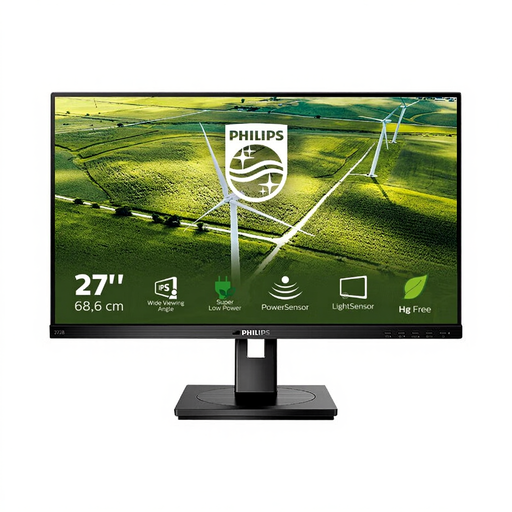
Philips 272B1G
For longer editing sessions, check the adjustment options at your intended workstation. If you open several documents side by side, test whether the resolution works with your chosen text size.
27 inches; 1920 × 1080 pixels (Full HD); IPS; 75 Hz; height adjustment and pivot; USB hub.
Joybuy
Frequently asked questions
Will a new monitor automatically show tracked changes in full?
No. You control how changes are displayed, accepted or rejected in the document software you use. In Word, ‘No Markup’ only hides changes temporarily; it doesn’t remove them.
What should I check when setting up a monitor for long periods of text work?
Check your viewing direction, screen position and any distracting reflections at your actual workstation. For a workplace screen-based workstation, you need to take the requirements of the Workplace Ordinance and the scope of ASR A6 into account; these don’t provide a single set of buying requirements for every home desk.
What do the energy label and warranty mean when buying?
The EU energy label makes it easier to compare monitors; energy consumption is given in kWh per 1,000 hours. For covered purchases of consumer goods within the EU, you’re generally entitled to a statutory guarantee from the seller for at least two years. This is separate from any additional manufacturer’s guarantee.
Do I need special authorisation to use an office monitor in Germany?
There’s no evidence that special personal authorisation is needed to buy and use an office monitor in the usual way. Setting up a workplace screen-based workstation is a separate matter: the Workplace Ordinance and, within its scope, ASR A6 apply to its design.


