Writers working with notes side by side
You’re revising a documentary script and want to read the latest draft alongside comments without constantly switching between windows.


For a documentary script and revision notes side by side, an ergonomically adjustable 27-inch QHD monitor is a sensible starting point. Check the text size and window widths at your desk. A 34-inch ultrawide is a better fit if you regularly need to keep additional sources visible at the same time and have enough desk space. A 27-inch 4K monitor is worth considering if you want higher resolution and are happy to adjust the scaling accordingly. If you use a laptop, make sure its video output, USB-C charging power and cable are compatible with the specific setup.
You’re revising a documentary script and want to read the latest draft alongside comments without constantly switching between windows.
You keep research material or production documents open while writing and have enough desk space for a wider monitor.
You regularly connect your laptop to a monitor at your desk and want to check the video connection and, if needed, charging compatibility in advance.
A good fit if: your two main windows are the script and revision notes, and you have limited desk space.
Things to consider: text size and window layout determine how much readable content you can keep side by side.
A good fit if: you want a higher pixel resolution for text or additional visual material at the same screen size.
Things to consider: higher resolution doesn’t replace the need for suitable text scaling.
A good fit if: you regularly need to see sources or production documents alongside your script and notes.
Things to consider: a wider screen needs more desk space.
Before buying, plan your usual window layout and check that the screen and stand will fit on the available desk space.
| What you need | What to check | Who is this especially important for? |
|---|---|---|
| Space for scripts, notes and sources | Window layout, and the width of the screen and stand | If I need to work with a script, revision notes and sources side by side, I want to know whether the windows will fit on my desk. Around 36% of consumers give top priority to having several windows visible at once. |
| Readable text during longer revisions | Text size, scaling and the width of the text windows | When I’m revising for a while, I want to see the script and comments side by side in a comfortably readable size. Around 29% of consumers put text readability first. |
| Laptop connection and charging | The laptop’s video output, required charging power and cable | If I regularly connect my laptop to a monitor, I want to make sure the video output and charging will work with a suitable cable. Around 21% of consumers prioritise the laptop connection. |
| Adjustability and desk space | Adjustment range, available space and possible reflections | If desk space is limited, I want to plan the stand, viewing position and free space together. Around 14% of consumers make adapting their workspace their top priority. |
A wide format is most useful when you genuinely need to see several windows at once. A 27-inch monitor may already be enough for two text windows.
Sketch out your usual window layout and measure the available desk space before you buy.
A USB-C port on a monitor doesn’t automatically mean your laptop can send video through it and receive enough power.
Check video output, power requirements and cable compatibility for your exact laptop and monitor combination.
Depending on the combination, you may also need a suitable cable or power adapter.
Colour gamut figures describe the characteristics of a particular monitor, but don’t prove that it will help you write or comment on a script.
If you’re only working with text, prioritise readability, window layout and positioning. Colour specifications matter more if you’re actually assessing visual material.
According to BenQ, the BenQ GW2790QT combines a 27-inch QHD screen with USB-C and an adjustable stand, making it an option for text work on a laptop.
The Dell Pro P3425WE offers a wide 34-inch workspace with a USB-C hub, while the Dell Pro P2725QE is a 27-inch 4K alternative.
According to Philips Germany, the Philips 27E1N1600AE/00 is a 27-inch QHD monitor with USB-C Power Delivery.
The LG 34U650A-B is another 34-inch 21:9 option for keeping several windows open.
The ASUS ProArt PA279CRV is a 27-inch 4K option if you need to assess visual material as well as text.
These Joybuy product options include 27-inch QHD, 27-inch 4K and 34-inch ultrawide monitors for scripts, notes and additional windows.
 No image available
For working with scripts and notes on a 27-inch screen if you want 4K resolution.
3.840 × 2.160 pixels, IPS, 120 Hz, USB-C with 90 W Power Delivery and a height-adjustable stand.
PIP/PBP is listed. On a 27-inch 4K screen, the usable text and window size depends on your chosen scaling.
 No image available
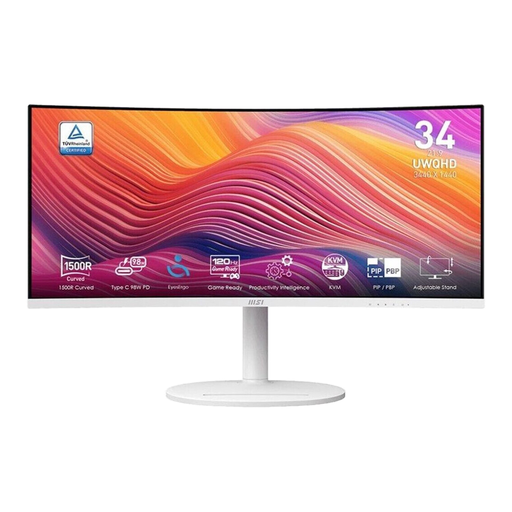
For scripts and additional documents you want to view at the same time on a wider workspace.
34 inches, 21:9 and 3.440 × 1.440 pixels; the model is described as a curved VA monitor with a 120 Hz refresh rate.
The description lists HDMI, DisplayPort, two USB 3.0 ports and a tilting stand. Make sure you have enough room for it.
 No image available
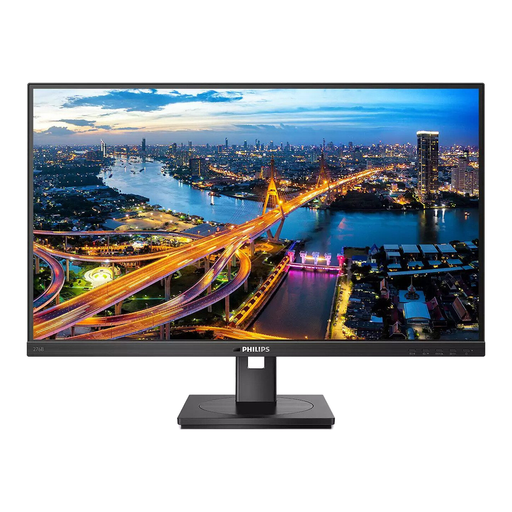
For scripts and revision notes if you’re looking for a 27-inch QHD option for two text windows.
2.560 × 1.440 pixels, IPS, 75 Hz and 350 cd/m².
The stand is height-adjustable, tiltable, swivelable and pivotable; USB-C docking with up to 90 W is listed.
 No image available
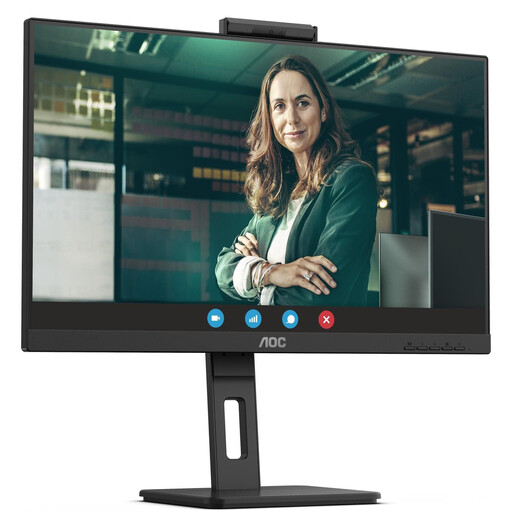
For scripts and notes on a 27-inch screen with QHD resolution.
2.560 × 1.440 pixels, IPS, 75 Hz and 350 cd/m².
USB-C with up to 90 W Power Delivery and a height-adjustable, tilting, swivel and pivot stand are listed.
 No image available
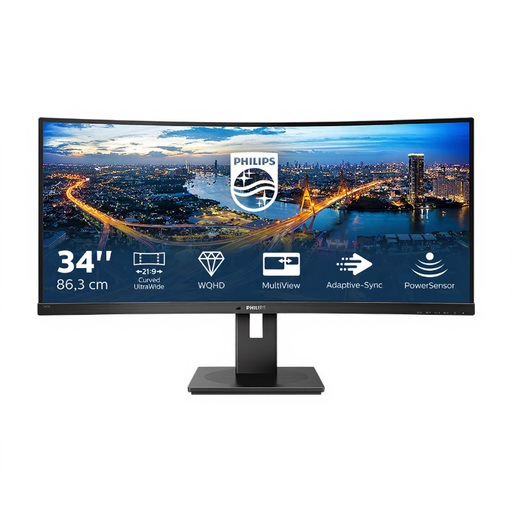
For scripts, notes and other sources you want to display together on a wider workspace.
34 inches, 21:9 and 3.440 × 1.440 pixels; the model is described as a curved VA monitor with a 100 Hz refresh rate.
A USB hub, MultiView PIP/PBP and 180 mm of height adjustment are listed. Make sure you have enough space for the wide screen.
Neither resolution is essential in every case. First, check how wide your usual text windows need to be at a comfortably readable scaling. Philips lists QHD for the 27E1N1600AE/00, while ASUS lists 4K for the PA279CRV.
Only if your laptop, monitor and cable support the required video connection and the charging power suits your laptop. BenQ lists 65 W for the GW2790QT, while Dell lists up to 90 W for the P3425WE; these are specifications for different models.
Check the adjustment range, viewing position and reflections at your actual workspace. The Federal Institute for Occupational Safety and Health explains the requirements for workplaces covered by ASR A6, as of July 2024; it doesn’t apply as a general rule to every home desk.
Compare the energy label and model information rather than assuming power use from screen size alone. The European Commission lists electronic displays on an efficiency scale from A to G.
The Verbraucherzentrale explains that consumers generally have a 14-day right to cancel a standard online purchase; exceptions and the specific contract should be taken into account. If a fault was present when the product was handed over, your statutory rights are against the retailer and generally last for two years. These are separate from any voluntary manufacturer’s guarantee.