For long family videos, first check whether your software can fit the source monitor, timeline and preview on screen at a comfortably readable scale. A 4K monitor can help when you want to inspect high-resolution detail; for repeated colour grading, a suitable colour mode and calibration workflow matter more than resolution alone.
Who might need a particular type of monitor?
Reviewing long family videos
If you’re searching through lots of original clips and setting in and out points, your editing software should let you arrange the source, timeline and preview clearly. Adobe describes the source monitor as the view for playing back and preparing individual clips.
Creating a family archive with colour grading
If you’re matching footage from different eras or cameras, look for a colour mode that suits your output format and settings you can keep consistent. BenQ and EIZO list sRGB and Rec.709 modes for certain models; EIZO also lists hardware calibration for the ColorEdge CS2400R.
Editing on a laptop
If you’re connecting the monitor to a laptop, check that the video signal and charging capacity work with that specific combination of devices. ASUS lists USB-C Power Delivery up to 96 W and 0–130 mm of height adjustment for the PA279CRV; specifications may vary by country.
What should you look for when buying a monitor?
| What to consider |
What to look for |
Who it matters most to |
| Editing overview |
Check how the source monitor, timeline and preview are arranged at a scale that’s easy for you to read. |
If I want to review long clips and keep my software’s views easy to read, the practical layout matters more than the pixel count alone. Around 36% of consumers put a clear overview first when reviewing and editing footage. |
| Colour control |
Check that the colour mode suits your output, and if you grade regularly, look into profiling or calibration options. |
Anyone matching footage from different sources needs settings they can rely on, not just a figure for colour gamut coverage. Around 29% of consumers prioritise suitable colour modes and consistent colour settings. |
| Checking detail |
Compare the native resolution with the resolution of your files, and make sure the scaling is comfortable to use. |
If I want to inspect high-resolution footage for fine detail, native resolution is an important consideration. Around 21% of consumers put detail checking first. |
| Connectivity and adjustability |
Check the video connection, your laptop’s charging requirements and the adjustment options on the specific monitor. |
If you want to connect the monitor to a particular computer and position it comfortably, the connection and your workspace need to work well together. Around 14% prioritise connectivity and adjustability in their editing setup. |
Which misconceptions should you avoid?
-
4K doesn’t automatically mean more usable editing space
Native pixel count and a window layout that’s easy to read day to day are two different things. Scaling affects how much of the screen you can use comfortably at once.
Compare the views directly in your editing software, and take the resolution of your original files into account.
-
Colour gamut figures don’t guarantee suitable colours for editing
Colour gamut coverage figures alone don’t tell you whether the monitor, operating system and editing software are set up appropriately for your workflow.
Check that the colour mode suits your output. Only plan for a calibration workflow if your regular colour grading makes it worthwhile.
Calibration can mean extra setup work and repeat checks.
-
USB-C doesn’t automatically mean single-cable docking
The video signal and charging capacity need to suit the specific laptop and monitor combination.
Check the connection specifications and power requirements for both devices before you buy.
Depending on your laptop, you may still need a separate power supply.
Which brands are worth considering?
BenQ
According to BenQ, both DesignVue models, the PD2705Q and PD2705U, have 27-inch screens, with QHD and 4K resolutions respectively.
- BenQ lists sRGB and Rec.709 coverage and factory colour calibration for both models.
- The PD2705Q has fewer native pixels than the PD2705U. Manufacturer specifications are no substitute for checking how a monitor fits your own workflow.
ASUS
According to its German specification sheet, the ProArt PA279CRV combines a 27-inch 4K screen with colour presets and USB-C.
- ASUS lists Rec.709 and sRGB presets, 96 W USB-C Power Delivery and 0–130 mm of height adjustment.
- The features need to suit your computer and workflow; ASUS notes that specifications may vary by country.
EIZO
The ColorEdge CS2400R is aimed at users who prioritise colour modes and hardware calibration over native 4K resolution.
- EIZO lists a resolution of 1920 × 1200 pixels, sRGB and Rec.709 coverage, and hardware calibration for this model.
- Its resolution offers fewer pixels for checking 4K detail than a 4K monitor. Claims about accuracy come from the manufacturer.
LG
The UltraFine 27UP850K-W is a documented 27-inch 4K option with USB-C and an adjustable stand.
- LG lists 95% DCI-P3 as a typical value and VESA DisplayHDR 400.
- These specifications alone don’t confirm that it’s suitable for a Rec.709 workflow or demanding HDR colour assessment.
Dell
The UltraSharp U2725QE is a documented 27-inch 4K option with a Thunderbolt hub.
- Dell lists 4K, IPS Black technology and a Thunderbolt hub for this model.
- Connectivity only matters if your computer and workflow can make use of it; also check which colour modes you need.
Joybuy products for editing setups
This Joybuy selection includes monitors with QHD, UHD and 5K specifications to suit different editing setups. Compare resolution, screen size and connections with your footage and computer.
 No image available
MSI MAG 274UPDFDE E16M
If you’re looking for a 27-inch monitor for editing views, note the switch between UHD at 160 Hz and FHD at 320 Hz stated in the product name.
The product name also mentions Mini-LED and Rapid IPS.
Joybuy
 No image available
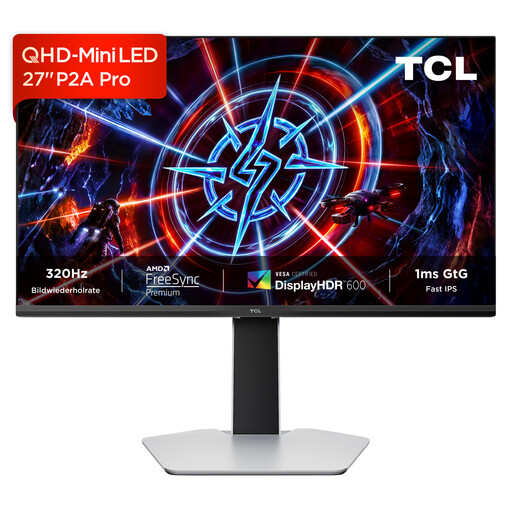
TCL 27P2A Pro
For editing views on a QHD monitor, the product name lists a resolution of 2560 × 1440 pixels.
Other specifications in the product name include a 27-inch screen, Mini LED, 320 Hz and an HFS (IPS) panel.
Joybuy
 No image available
INNOCN 2751S PLUS
If colour work matters as well as QHD editing views, compare the colour and resolution specifications listed in the product name with your output requirements.
The product name lists a 27-inch QHD IPS display, 1152 dimming zones, 99% Adobe RGB and 99% sRGB.
Joybuy
 No image available
INNOCN 40C1U
The 40-inch ultrawide screen listed in the product name could be useful for arranging editing views across a wide area; check that you have enough desk space.
The product name lists 5K resolution at 5120 × 2160 pixels, an IPS display, 21:9, 100 Hz, PIP/PBP and USB-C PD 65 W.
Joybuy
 No image available
KTC H27D9
For a 27-inch QHD editing space, the product name lists a resolution of 2560 × 1440 pixels.
Other specifications in the product name include an IPS panel, 120 Hz, and HDMI and DisplayPort connections.
Joybuy
Frequently asked questions
Do I absolutely need 4K for long family videos?
No. For reviewing footage and setting in and out points, it’s also important that your software’s views can be arranged so they’re easy to read. 4K is another consideration if you want to inspect high-resolution detail on your monitor.
How should I approach colour settings?
Choose a colour mode that suits your output, and keep the settings on your monitor and in your software consistent and easy to check. If you grade regularly, a supported profiling or calibration workflow may be useful; a colour mode or factory specification alone can’t guarantee a particular result.
What should I check before connecting a laptop for editing?
Check that your laptop can output a video signal through the connection you plan to use, and that the stated charging capacity is enough for your device. The USB-C power ratings listed already vary between the models considered here.
What consumer and energy information applies when buying a monitor in Germany?
According to the European Commission, computer monitors covered by the relevant EU rules carry an energy label from A to G. Your Europe explains that when you buy from a trader in the EU, you’re generally entitled to a minimum two-year legal guarantee; this is different from a voluntary manufacturer’s warranty. Online and other distance purchases may also come with a right to cancel, but you should check the terms that apply to your specific purchase.


