When working with long family recordings, first check that the timeline, footage and preview all fit comfortably on screen. A larger or wider display can help, but it will take up more desk space. For colour correction, make sure your workflow is set up for Rec.709 and your clips are correctly labelled. If you edit on a laptop, you’ll also need to check that the monitor supports the right video connection and charging power, and that it can be positioned comfortably. Specialist features for professional colour grading aren’t automatically necessary for everyday editing.
Which features suit your needs?
Reviewing long recordings
If you’re working through lots of clips, a well-organised workspace can help you arrange the timeline, footage and preview clearly. c’t/heise highlights the benefits of wide screens for video editing, while Adobe explains how to customise workspaces in Premiere.
Hobby editors correcting colour
If you’re matching family scenes filmed in different conditions, make sure your workflow takes account of the source and output colour spaces. Adobe explains that the colour spaces of the clips you use must be correctly identified for colour management.
Editing on a laptop
If you edit on a laptop, the video connection, charging function and monitor positioning all need to suit your specific device and workspace. A monitor with USB-C or hub features doesn’t remove the need to check that it’s compatible with your laptop.
What should you look for when buying?
Start with the screen space your editing layout actually needs. Then check the colour workflow and connections before deciding whether you need any extra features.
| What to consider |
What to check before buying |
Who it matters most to |
| Space for the timeline and preview |
Consider screen size, aspect ratio and resolution together with your preferred panel layout. c’t/heise describes the benefits of wide displays for video editing, while Adobe explains how to customise workspaces in Premiere. |
When reviewing long recordings, I want to see the timeline, source footage and preview in my usual layout. Around 36% of consumers put workspace at the top of their list. |
| Colour reproduction for your output |
Check the source and output colour spaces in your editing software, as well as the monitor’s documented colour modes and calibration options. Adobe explains that clips’ colour spaces must be identified for colour management to work correctly. |
When correcting colour, I want the clip labels, monitor and output workflow to work together. Around 29% of consumers prioritise suitable colour reproduction. |
| Laptop connection and positioning |
Check the video output, charging power required, cables and stand against the specifications for your laptop and the specific monitor. |
When editing on a laptop, the video connection and power supply need to suit my device. Fewer cables are only useful if the connection works. Around 21% of consumers put laptop connectivity first. |
| Desk space and features |
Consider your desk dimensions and viewing distance. Only plan for extra features if they suit your editing or colour workflow. |
With limited space, I don’t want to choose a screen size or features I won’t use day to day. Around 14% of consumers weigh up cost and desk space first. |
Common mistakes when buying a monitor
-
Assuming wide colour gamut coverage means colours will automatically be accurate
A colour gamut specification alone doesn’t guarantee that your family videos will be displayed with suitable colours. Adobe notes that the clips’ colour spaces must be correctly identified in your workflow.
First check how your source clips are labelled and which output colour space is set in your editing software. Then compare the colour modes and calibration options available on the specific monitor.
-
Assuming USB-C guarantees video output and enough charging power
Whether a monitor can display a picture and charge a laptop sufficiently depends on the connections and requirements of both devices.
Check your laptop’s video output, the charging power it needs and the cables against the specifications for the specific monitor.
Depending on the combination of devices, you may need a different cable or a separate power supply for your laptop.
-
Choosing a specialist monitor based on its ranking alone
A ranking of graphics monitors over 30 inches doesn’t automatically tell you whether their specialist features are necessary for everyday editing of long family videos. The PRAD list dated 16 October 2026 covers this product category.
Consider what the ranking is designed for, then make your decision based on your own editing and colour workflow.
Notable brands and product ranges
BenQ
The DesignVue PD3205U is one example of a larger UHD workspace with a documented Rec.709 mode.
- BenQ lists the PD3205U as having a 31.5-inch screen, 3840 × 2160 pixels, 99% Rec.709 and USB-C with 90 W Power Delivery.
- These are manufacturer specifications, not an independent colour assessment of the specific device, and they don’t apply to every BenQ monitor.
ASUS
The ProArt PA279CRV is a 27-inch 4K option for those short on desk space who want selectable colour modes.
- ASUS lists sRGB and Rec.709 presets, as well as USB-C Power Delivery at 96 W.
- ASUS notes that specifications may vary by country, so check the exact model variant.
Dell
The UltraSharp U2725QE is worth considering if you’re looking for a 27-inch 4K monitor with laptop hub features.
- Dell describes this model as a Thunderbolt hub monitor with an IPS Black panel.
- Check that the connections on the specific model support the laptop setup you want to use.
LG
The 27UP850K-W is a 27-inch 4K option with USB-C and an adjustable stand.
- LG lists 95% DCI-P3 as a typical value and VESA DisplayHDR 400.
- These specifications are neither an independent colour assessment nor proof that every HDR workflow can be judged accurately for colour on this monitor.
EIZO
The ColorEdge range is relevant if everyday video editing develops into a more demanding colour-grading workflow.
- EIZO lists the CG3100X as having 4096 × 2160 pixels in a 17:9 format and an integrated self-calibration sensor.
- These specialist features aren’t automatically needed for basic editing, and the specifications don’t apply across the entire EIZO range.
Joybuy monitors for video editing
This selection includes large UHD monitors for your timeline and preview, more compact 27-inch 4K models, and a wide 34-inch monitor with UWQHD resolution. Check that the resolution, desk space and laptop connection suit your specific workflow.
 No image available
CRUA CR320QB 32-inch curved 4K monitor
For long recordings, if you’re looking for a large UHD workspace for your preview and timeline.
32 inches, 3840 × 2160 pixels, VA display and 3000R curvature.
The product title lists HDR10 and 100% sRGB. These specifications aren’t an independent colour assessment; check separately whether the display is suitable for your Rec.709 workflow.
View at Joybuy
 No image available
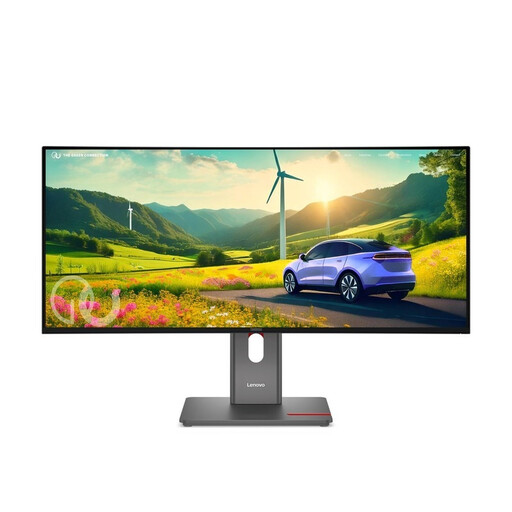
Lenovo ThinkVision P34WD-40 34-inch WQHD monitor
For a wide layout with your timeline and editing panels, if you don’t need UHD 4K resolution.
34 inches, 21:9, IPS and 3440 × 1440 pixels (UWQHD), not UHD 4K; the product title lists 120 Hz.
The product description lists 98% DCI-P3, 99% sRGB, factory calibration, USB-C with up to 140 W Power Delivery and a height-adjustable stand. Laptop compatibility depends on your device.
View at Joybuy
 No image available
MSI MPG 322URXDE QD-OLED 32-inch 4K monitor
For editing on a large UHD screen, if you’d also like USB-C charging and height adjustment.
32 inches, 3840 × 2160 pixels, QD-OLED, USB-C with 98 W Power Delivery and height adjustment.
The product description recommends keeping the OLED Care features enabled to help prevent burn-in. USB-C video output and charging power must be suitable for the connected laptop.
View at Joybuy
 No image available
Samsung ViewFinity S7 S70H 27-inch 4K UHD IPS monitor
For a 4K UHD preview when desk space is limited. At 27 inches, there’s less physical room for your timeline and editing panels than on a larger display.
The product title lists 27 inches, 4K UHD and IPS. The product description lists 99% sRGB, HDR10, HDMI 2.0 and DisplayPort 1.2.
Check that your chosen scaling keeps the controls and timeline easy to read.
View at Joybuy
 No image available
INNOCN CB27U1 27-inch 4K UHD monitor
For a 4K UHD preview and a height-adjustable laptop setup, if a 27-inch screen suits your available desk space.
The product specifications list IPS, 3840 × 2160 pixels, 120 Hz, HDR500 and USB-C with 90 W Power Delivery.
The product specifications state that the stand offers 150 mm of height adjustment. USB-C video output and charging require a compatible laptop.
View at Joybuy
Frequently asked questions
Do I need to buy an especially wide monitor for long family videos?
No, an especially wide monitor isn’t essential. c’t/heise describes the benefits of wide displays for video editing, while Premiere lets you customise and save workspaces. Choose based on your actual software layout, how easy it is to read and the space you have available.
How should I set up colour when editing?
Check in your editing software that the source clips are labelled correctly and that the right working and output colour spaces are selected. Adobe explains that Premiere needs to correctly identify the colour spaces of the clips you use; a monitor’s colour mode alone isn’t a substitute for this check.
What ongoing costs and rights should I consider when shopping online?
Compare energy consumption using the EU energy label, and check the returns options and warranty terms before placing your order. The Verbraucherzentrale states that online orders in Germany generally come with a 14-day right of withdrawal from the date of receipt; exceptions and the terms of the specific contract should also be taken into account.
How should monitors and end-of-life screens be handled in Germany?
Electronic displays are covered by EU energy-labelling and ecodesign requirements. The energy label includes information such as efficiency class, screen size and resolution. The Umweltbundesamt notes that end-of-life display devices in Germany must be collected separately from other waste.


