For an anniversary film with separately recorded audio, your monitor should first suit your editing layout: you need to be able to see the picture, audio tracks and preview clearly at the same time. If you’re creating an SDR version, also check that the monitor mode matches your project settings and intended output. 4K, USB-C or hardware calibration are worthwhile when they suit your footage, computer and workflow.
Which monitor features matter to you?
Editing team working with separate audio tracks
When reviewing and synchronising footage with separately recorded audio, you’ll need enough room for a clearly visible timeline alongside the preview. Adobe explains how to synchronise separate clips in Premiere; a widescreen format can give you more horizontal workspace.
Team producing the final SDR version
When assessing colours and image detail for a specific SDR output, the monitor mode and project settings need to match. Adobe describes Rec.709 as the standard for an SDR workflow; manufacturers’ colour-mode specifications apply to specific models.
Editing across different laptop workstations
If several contributors use different computers, check the video connections, USB-C charging power if needed, and how the monitor can be set up in your shared workspace. Connections and power specifications vary by model.
What should you look for when buying?
Start by comparing the timeline and preview in your usual editing layout. Then decide on your intended output and check that the connections and setup suit the computers you use.
| Buying priority |
What to check |
Who values this? |
| Keeping video and audio tracks in view |
Test the aspect ratio and native resolution with your editing layout; consider how much desk space you have. |
When I’m matching separately recorded audio to the picture, I want the tracks to remain easy to read alongside the preview. Around 36% of consumers prioritise an overview of the timeline and audio tracks. |
| SDR colour and preview |
Match your intended output to the colour mode of the specific model; check the scaling you want for 4K. |
When I’m assessing the final SDR version, the colour mode and project settings need to match. Around 29% of consumers focus on SDR image assessment and a detailed preview. |
| Connections and setup |
Check that your laptop’s video output matches the monitor input; with USB-C, also check the charging power you need. |
When using several computers at my editing station, I need suitable connections and a practical setup. Around 21% of consumers prioritise switching between computers in a shared workspace. |
| Repeatable calibration |
Check whether a calibration process is actually part of your project and what calibration features the model offers. |
When making consistent colour decisions across several sessions, a repeatable calibration process can be important. Around 14% of consumers prioritise calibration. |
Common buying mistakes
-
Choosing a monitor based only on pixel count
A wide 21:9 display and a 16:9 4K model arrange their pixels differently. For separate audio tracks, extra horizontal space can help, while vertical resolution matters for a detailed preview.
Open your usual editing layout and check that the timeline, preview and controls remain easy to read at your chosen scaling. Also consider the desk space available.
-
Assuming colour gamut figures mean the picture is already colour-corrected
A manufacturer’s colour gamut coverage figure doesn’t determine which sequence and output settings you use.
Decide on your intended output first, then match the monitor mode to your editing software settings.
An additional colour management or calibration step can add to your workflow.
-
Expecting monitor speakers to synchronise separate audio
Synchronising separately recorded audio happens in your editing software; monitor speakers won’t do it for you.
Choose a screen that suits your picture and workspace, and treat audio synchronisation as a separate step in your workflow.
Brands to consider
BenQ
The DesignVue PD2705Q and PD2705U combine manufacturer-stated Rec.709 coverage with QHD and 4K UHD resolutions respectively.
- BenQ lists 100% Rec.709 coverage for the PD2705Q and 99% for the PD2705U.
- These are manufacturer specifications for the respective models, not independent measurements of the specific unit.
LG
The 34U650A-B is an example of a wide 21:9 workspace with WQHD resolution.
- LG lists a resolution of 3,440 × 1,440 pixels and typical sRGB coverage of 99% for the 34U650A-B.
- Its resolution isn’t 4K UHD, so a widescreen format isn’t a substitute for a native 4K preview.
ASUS
The ProArt PA279CRV combines a 27-inch 4K display with a Rec.709 preset and USB-C, making it an option for compatible laptop workstations.
- ASUS lists 96 W USB-C Power Delivery and several colour modes for this model.
- Check that video output and charging power suit your laptop, and that the selected colour mode is appropriate for your project.
EIZO
The ColorEdge CS2740 is a 4K model for editing workstations where hardware calibration is genuinely part of the workflow.
- EIZO describes hardware calibration using ColorNavigator for this model.
- Calibration isn’t essential for every club film; it needs to suit your own workflow.
Dell
The Pro P2725D is a 27-inch QHD alternative if a compact editing workstation matters more than a native 4K preview.
- Dell lists a resolution of 2,560 × 1,440 pixels for the P2725D.
- Don’t assume that the P2725D has a dedicated Rec.709 mode; check the specifications for the specific model.
Monitors at Joybuy
This selection includes widescreen ultrawide models, as well as QHD and 4K monitors for editing workstations where you need both the timeline and preview to be easy to use.
 No image available
CRUA 49-inch DQHD monitor, 32:9, 5120 × 1440
If you want to keep video and audio tracks in view side by side, the wide 32:9 format could suit a long timeline. Check the space required and whether your preview will remain easy to see.
49 inches; 5120 × 1440 pixels; 165 Hz; HDMI 2.1 and DP 1.4.
View at Joybuy
 No image available
INNOCN 40C1U, 40-inch, 5K, 5120 × 2160
If you want to arrange the timeline and preview across a wide screen, this 21:9 model could be worth considering. Check that its size and scaling suit your editing workstation.
40 inches; 5120 × 2160 pixels; 100 Hz; USB-C with 65 W Power Delivery.
View at Joybuy
 No image available
INNOCN CB27U1, 27-inch, 4K UHD
If you’re looking for a detailed 4K preview on a 27-inch screen, this model could fit the bill. Test your preferred scaling and the USB-C connection with your laptop.
3840 × 2160 pixels; IPS; 120 Hz; USB-C with 90 W Power Delivery.
View at Joybuy
 No image available
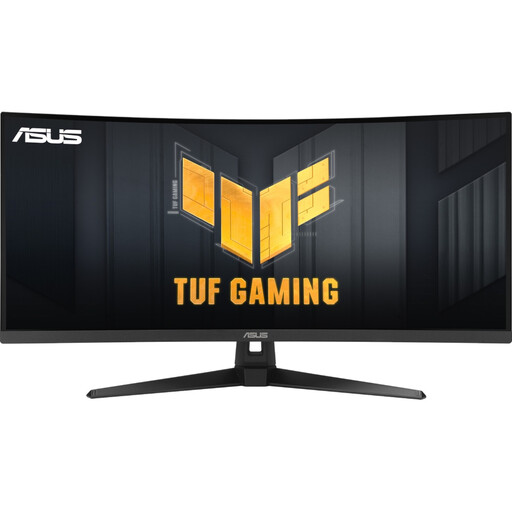
ASUS TUF Gaming VG34VQ3B, 34-inch, UWQHD
If you want more horizontal space for video and audio tracks, the 21:9 format is one option. Check that the curved screen and resolution suit your editing layout.
3440 × 1440 pixels; 180 Hz; DisplayPort, HDMI and USB.
View at Joybuy
 No image available
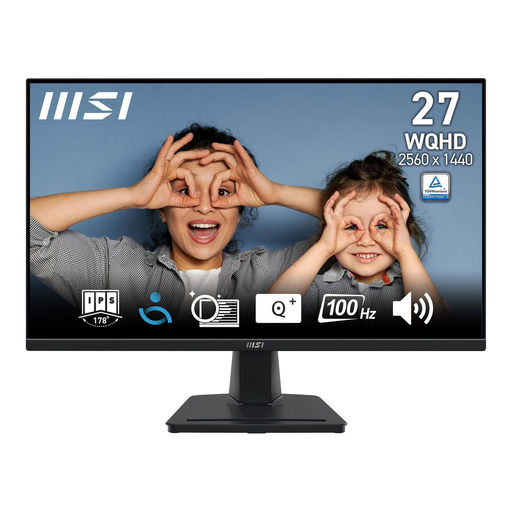
MSI PRO MP275QDE, 27-inch, WQHD
If you’re planning a compact editing workstation with QHD resolution, this 27-inch model could be a good fit. Compare how it looks with your usual timeline layout.
2560 × 1440 pixels; IPS; 100 Hz; HDMI 2.0b and DisplayPort.
View at Joybuy
Frequently asked questions
Will a new monitor automatically synchronise separately recorded audio?
No. You synchronise the audio in your editing software: Adobe explains how to synchronise clips in the Premiere timeline. A monitor can make the audio tracks and preview easier to see, but it won’t match them up for you.
Do I definitely need an HDR monitor for an anniversary film?
Not just because of the subject matter. Decide on your intended output first: Adobe distinguishes between SDR and HDR settings for sequences. An HDR specification on a monitor doesn’t determine which output format your project needs.
Is USB-C enough to connect and charge a laptop with one cable?
Only if your laptop, cable and monitor support the required video transfer, and the charging power is suitable for your computer. BenQ lists DisplayPort Alt Mode and 65 W for the PD2705U; ASUS lists 96 W Power Delivery for the PA279CRV. These are manufacturer specifications for specific models.
What information can help me compare power consumption?
Compare the energy label for the specific monitor on offer. The European Commission describes energy labels and ecodesign requirements for electronic displays; you can’t determine a specific model’s power consumption from screen size or an HDR label alone.


