Artists working with lots of references
If you want to keep your design, toolbars and several image or text references open at once, the usable screen space is what matters most.


If you want to view your design, tools and several templates at the same time, first check whether an ultrawide monitor offers enough usable width. A 27-inch 4K model is another suitable option for small labels and fine lines. To assess a specific print, you’ll also need an appropriate calibration and soft-proofing workflow: a colour-gamut figure alone can’t predict the printed result.
If you want to keep your design, toolbars and several image or text references open at once, the usable screen space is what matters most.
If you need to assess colours for a specific print condition, you should plan for the right colour-management and soft-proofing workflow as well as the monitor.
For small labels, lines and images, native resolution and a scaling setting that you find comfortable to read are important.
A good fit if: You want to keep your board design and several reference windows visible side by side, and you have enough room and viewing distance at your workstation.
The trade-off: The extra width doesn’t replace a native 3,840 × 2,160-pixel view.
A good fit if: Small text, fine lines and image details are your priority, while you still want to arrange several windows on screen.
The trade-off: Check whether the scaling setting you choose is easy for you to read on a 27-inch screen.
A good fit if: You need to assess colours for a specific print condition and want to set up a suitable soft-proofing workflow.
The trade-off: You don’t automatically need specialist features just to work on layouts and arrange references.
| Priority | What to check when buying | Who is this especially important to? |
|---|---|---|
| Room for designs and references | Aspect ratio and dimensions including the stand; try arranging your windows on your own desk. | If I want to see a design and several references at the same time, a wide workspace matters more to me than a native 4K view. Around 36% of consumers prioritise space for multiple windows. |
| Colours for exhibition-board printing | Clarify the print specifications, output profile and conditions for assessing a soft proof. | If the colours of an exhibition board need to be assessed for a specific print, a colour-gamut figure alone isn’t enough for me. Around 29% of consumers prioritise assessing print colours. |
| Fine lines and small text | Check the native resolution and readability at the operating system scaling setting you plan to use. | For small labels and fine drawing details, I want to see everything clearly without compromising the readability of the interface. Around 21% of consumers prioritise checking detail. |
| Connections and setup | Check the computer’s video output and charging requirements against the monitor’s connections and stand footprint. | If I’m adding a monitor to my existing workstation, it needs to work with my computer’s connections and fit my setup. Around 14% of consumers pay particular attention to setup and connection requirements. |
Width and native detail resolution answer different questions: an ultrawide model can fit more windows side by side, while a 4K display offers a different native pixel count.
Try arranging your reference windows, then decide separately whether extra width or a finely detailed view of your board matters more to you.
Fogra describes soft proofing as a simulation of a specific print condition under specific lighting and surrounding conditions. A colour-gamut figure alone therefore doesn’t prove that the finished print will match what you see on screen.
Check the output specifications with your printer and make sure your monitor, colour management and viewing conditions are right for that workflow.
Soft proofing also requires profiling and suitable viewing conditions as part of your workflow.
A monitor’s connections don’t automatically guarantee compatibility with your computer for video, charging and the hub features you need.
Check the full model and your computer separately for video output, charging requirements and the hub features you want.
If the connections aren’t compatible, you may need additional accessories.
According to Philips Germany, the B-Line 346B1C/01 is a 34-inch ultrawide model designed for working with windows arranged side by side.
According to ASUS Germany, the ProArt PA279CRV combines a 27-inch screen with 4K resolution and specified colour modes.
According to BenQ Germany, the DesignVue PD2706U is a 27-inch 4K option with USB-C for design work.
The UltraSharp models mentioned cater for different workstation setups: the 27-inch 4K hub monitor U2725QE and the wider U3425WE.
EIZO describes the ColorEdge CG2700X as suitable for design, illustration and print preparation with colour management, among other uses.
The range includes wide ultrawide models for working with several windows, as well as 27-inch 4K monitors for checking detail. Resolution, connections and other features vary by model.
 No image available
The 21:9 format and PIP/PBP features suit a workspace where you want to view several windows or image sources side by side.
40 inches, 5K at 5,120 × 2,160 pixels, IPS, 100 Hz, USB-C with 65 W Power Delivery and a height-adjustable stand.
 No image available
The 27-inch 4K display is an option if small text and fine drawing details are your priority.
The title lists 4K at 160 Hz or FHD at 320 Hz, USB-C with 65 W, KVM and a height-, tilt- and swivel-adjustable stand. Check which operating mode suits the way you use it.
 No image available
The 21:9 format and PIP/PBP features can suit a wide window layout or displaying several sources at once.
34 inches, 3,440 × 1,440 pixels, VA, 200 Hz and a height-adjustable stand. Its resolution isn’t native 3,840 × 2,160-pixel 4K.
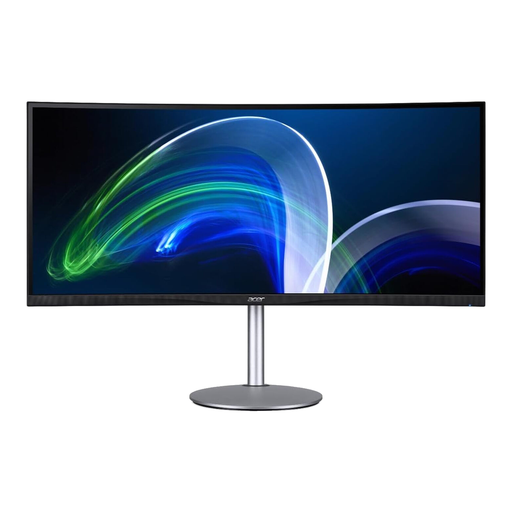 No image available
The 21:9 format is designed to give you a wide workspace for several windows.
37.5 inches, 3,840 × 1,600 pixels and 75 Hz. The resolution isn’t 3,840 × 2,160 pixels.
 No image available
The 27-inch 4K screen is well suited to checking fine lines and small labels; it isn’t an ultrawide format.
3,840 × 2,160 pixels, IPS, 120 Hz, PIP/PBP, USB-C with 90 W Power Delivery and a height-adjustable stand.
No. Fogra describes soft proofing as a simulation of a specific print condition under specific lighting and surrounding conditions. Check the output specifications with your printer and base your colour assessment on them; manufacturer colour-gamut figures alone can’t do this.
Check that your specific laptop’s video output matches the monitor’s input, and separately confirm that the monitor’s power delivery meets your charging needs. A term such as ‘Thunderbolt hub’ describes the monitor’s features, not necessarily its compatibility with your computer.
No. Ultrawide describes a wider aspect ratio for arranging windows; 4K refers to the native pixel count. Decide whether you’d rather have more workspace side by side or a 3,840 × 2,160-pixel view.
Set the print condition and viewing environment, then check the calibration options on the specific monitor. EIZO lists an integrated self-calibration sensor for the CG2700X; that doesn’t mean every model has one.