For exhibition reviews and linked source files, an adjustable QHD monitor is one option if you want text and a few source windows side by side at a comfortable size. Consider 4K if you often check image details or view several items at once. If you use a laptop, also check that its video output and charging requirements match the monitor. Resolution and a stated colour gamut alone aren’t enough for critical colour decisions. Your software, not the monitor, searches and indexes your files.
Which approach is right for you?
Read sources side by side
If you keep an exhibition review, source file and folder open at the same time, usable screen space and comfortable text scaling matter. EIZO describes features for viewing multiple items, while Microsoft Support explains how to arrange windows.
Review images alongside text
If you compare text with exhibition images, consider the level of image detail and the specific colour task. Resolution and a manufacturer’s stated colour gamut alone don’t prove colour accuracy for critical decisions; LG describes the DCI-P3 figure for the 27UP850K-W as a typical value.
Switch between a laptop and other computers
If you regularly connect a laptop or switch between computers, the video output, charging power and, where relevant, KVM features need to suit your devices. Dell and EIZO list different ports and power specifications for their individual models.
What should you look for when buying?
Adjustable QHD monitor
A good fit if: you mainly work with text and want to view a few source windows side by side at a comfortable size.
Consider: the 27-inch QHD examples listed have fewer pixels than the 27-inch 4K models listed; a hub is only useful if its ports suit your devices.
Adjustable 4K monitor
A good fit if: you often review high-resolution images or several sources at once, and text remains easy to read after you’ve adjusted the scaling.
Consider: more pixels don’t replace a suitable text size or viewing distance. If you need to make critical colour decisions, you’ll need to consider your colour workflow separately.
| What matters to you |
What to check before buying |
Who is it important to? |
| Review and sources side by side |
Check window layout, screen size, resolution and scaling against your typical workflow. |
I want to see the review, source and folder at the same time without making the text too small. Around 29% of consumers are likely to prioritise usable screen space. |
| Read long texts |
Check font and operating system scaling, height adjustment and your intended viewing distance. |
When I’m reading long reviews, comfortable text at my desk matters more than fitting as much content as possible on screen. Around 23% of consumers are likely to prioritise readability. |
| Review images and colours |
Distinguish between previewing images and making critical colour decisions, and allow for calibration if needed. |
When I need to compare details in exhibition images, accurate viewing matters; a stated colour gamut alone isn’t enough for critical decisions. Around 18% of consumers are likely to prioritise image detail or colour checking. |
| Adjust the screen position |
Check the stand, height adjustment, lighting at your desk and the space available for a suitable setup. |
During longer sessions, I want to position the screen to suit my workspace. Around 18% of consumers are likely to make an adjustable screen position a priority. |
| Connect a laptop or peripherals |
Check your laptop’s video output and charging requirements against the monitor’s ports; consider KVM only if you want to switch between computers and input devices. |
When I connect a laptop or switch between computers, the ports and charging power need to suit my devices. Around 12% of consumers are likely to prioritise docking or switching between computers. |
Common misconceptions when buying a monitor
-
Assuming 4K means more usable screen space
If you need to increase scaling to make text comfortable to read, your planned layout for reviews and sources may look different from what the pixel count suggests.
Set up your typical windows at your preferred text size before choosing between QHD and 4K.
-
Treating colour gamut coverage as proof of accurate colour reproduction
LG lists 95% DCI-P3 as a typical value for the 27UP850K-W. This isn’t a measurement of the colour accuracy of an individual unit.
Distinguish between an ordinary image preview and tasks where you need to make critical colour judgements.
Critical colour decisions may also require a suitable colour and calibration workflow.
-
Choosing USB-C or a hub without checking your devices
Video, charging and KVM features vary by model and need to suit the computers you use.
Compare your devices’ ports and charging requirements with the full specifications of the monitor you’re considering.
-
Expecting the monitor to find your files
A larger screen can make files easier to see, but it won’t create a file index or repair broken links.
Check indexing locations and file links in your software separately from your choice of monitor.
Key brands to consider
Dell
The UltraSharp U2724DE is a 27-inch QHD option for text work, with a Thunderbolt 4 hub. Dell lists a resolution of 2560 × 1440 pixels, height adjustment and 90 W power delivery for this model.
- The resolution, height adjustment and power delivery specifications apply to the U2724DE.
- Check that the hub’s ports suit your computer and that its stated charging power is sufficient for your laptop.
EIZO
According to its German-language spec sheet, the FlexScan EV2740X combines a 27-inch 4K display with USB-C docking.
- For this model, EIZO lists a resolution of 3840 × 2160 pixels, up to 94 W over USB-C, a network port and KVM.
- How useful the ports are depends on the computers you connect; a stated sRGB colour gamut doesn’t prove the colour accuracy of an individual unit.
LG
The 27UP850K-W is a 27-inch 4K option with USB-C and a height-adjustable stand.
- LG lists 95% DCI-P3 as a typical value for this model.
- The manufacturer’s figure doesn’t prove the colour accuracy of an individual unit or its suitability for a particular laptop.
Philips
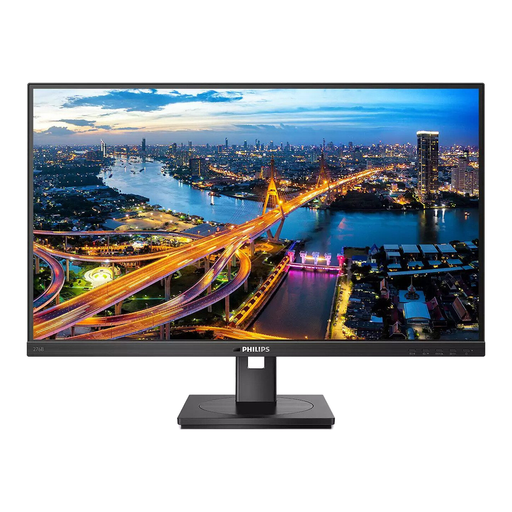
The Business Monitor 27B2U4601/00 is a 27-inch QHD option with an IPS panel and USB-C.
- Philips lists QHD and USB-C for this model.
- The port name alone doesn’t prove that charging power will be sufficient for your laptop; check the full specifications.
Joybuy monitors for text and image work
The Joybuy options below include QHD and 4K models for text work, image detail and viewing multiple items at once. Before choosing, check which resolution, ports and stand features suit your workspace.
 No image available
MSI MAG 274UPDFDE E16M, 27 inches
A possible choice if you review high-resolution exhibition images and want to adjust the screen position.
The product title lists 4K UHD, Mini-LED and Rapid IPS, with 160 Hz in UHD mode and 320 Hz in FHD mode.
The description lists height adjustment, pivot, swivel and tilt.
View at Joybuy
 No image available
INNOCN CB27U1, 27 inches
Could suit side-by-side viewing or checking image details; make sure the ports are compatible with your laptop.
The product title lists 3840 × 2160 pixels, IPS and 120 Hz. The description lists PIP/PBP and USB-C with 90 W Power Delivery.
The description also lists a height-adjustable stand.
View at Joybuy
 No image available
KTC M27P6, 27 inches
Could be a good fit if you use several computers; check that the listed ports and charging power suit your setup.
The product title lists 4K UHD at 160 Hz or FHD at 320 Hz, MiniLED, USB-C with 65 W and KVM.
The title also lists a height-adjustable stand.
View at Joybuy
 No image available
Philips 276B1, 27 inches
A possible option for text and source work if QHD and USB-C docking suit your laptop.
The product title lists QHD, 75 Hz and IPS; the description lists 2560 × 1440 pixels, as well as USB-C docking with 90 W, Ethernet and a USB hub.
The description lists height adjustment, tilt, swivel and pivot.
View at Joybuy
 No image available
INNOCN 40C1U, 40 inches
Could suit viewing multiple items across a wide screen; make sure you have room for the 40-inch format.
The product title lists 5120 × 2160 pixels, IPS, 100 Hz and a 21:9 aspect ratio. The description lists Picture-by-Picture.
USB-C with 65 W Power Delivery, a USB hub and a height-adjustable stand are also listed.
View at Joybuy
Frequently asked questions
Will a new monitor index my exhibition reviews and source files?
No. In Windows, search indexing creates an index of files and properties on your computer; you can choose additional locations to include. Whether reviews and links are indexed correctly depends on the files and the software you use, not the screen resolution. (Microsoft Support)
When should I choose QHD or 4K for text and image work?
QHD may be enough if text and a few source windows fit side by side and remain readable at your preferred scaling. 4K may be worth considering if you often check image details or view several items at once. Just make sure text remains easy to read at your desk.
Does USB-C on a monitor automatically give every laptop a single-cable connection?
No. Check your laptop’s video output and charging requirements against the specifications of the specific monitor. Dell lists 90 W for the U2724DE; EIZO specifies USB-C with DisplayPort Alt Mode and up to 94 W for the EV2740X.
Does a stated colour gamut prove that a monitor reproduces colours accurately?
No. LG describes the 95% DCI-P3 figure for the 27UP850K-W as a typical value; it isn’t a measurement of the colour accuracy of an individual unit. If you need to make critical colour judgements, check separately what colour workflow you’ll need.
What should I check about power consumption and energy labelling?
EU energy-labelling requirements apply to covered computer monitors. Compare the energy label and model-specific information in EPREL; the European Commission also provides information there to help you compare displays.


