For a small student room, a compact, adjustable monitor of around 24 inches is a sensible starting point if you mainly switch between your editor, browser and DevTools. If you want windows to stay visible side by side, consider a 16:10 display or, if you have enough desk space, a 27-inch QHD model. USB-C docking is only useful if your laptop, monitor and cable all support video output and the charging power you need. A larger screen won’t speed up extension development.
Which monitor is right for you?
Developers working with several windows
If you often want to see your editor, browser preview and debugging tools at the same time, look for a clear, easy-to-read window layout. Chrome for Developers explains how to inspect extensions using Chrome DevTools.
Students with a small desk
If you need to make room for your laptop, keyboard and study materials as well as your screen, compare the monitor’s overall dimensions, including the stand, rather than just its screen size. For example, Lenovo lists the ThinkVision T24i-30 as 539.8 mm wide and 199.7 mm deep.
Laptop users looking for docking
If you regularly connect your laptop and want to reduce cable clutter, check the monitor’s USB-C video input, your laptop’s video output and the charging power you need. Connectivity features vary by monitor and model.
What should you look for when buying?
Start by deciding whether you mostly switch between windows or keep them open side by side. Then check how much desk space you have and whether the connections will work with your laptop.
Chrome for Developers explains how to use DevTools when debugging extensions. The right screen layout depends on which windows you want to see at the same time and what font size you can comfortably read.
| What matters |
What to check |
Who should consider it? |
| Windows side by side |
Resolution and aspect ratio; check how your windows look with your preferred scaling. |
If I want to see my editor, browser and DevTools at the same time, a clear layout matters more to me than a high pixel count alone. Around 28% of consumers put having a workspace for side-by-side windows first. |
| Desk space |
Width and depth, including the stand; allow room for your laptop and keyboard. |
If my desk also needs to fit my laptop and study materials, the overall footprint of the monitor matters to me. Around 22% of consumers prioritise a smaller footprint. |
| Laptop connection |
USB-C video input and laptop compatibility; check the charging power and cable. |
If I want to connect my laptop regularly with a single cable, video and power delivery need to work with my device. Around 17% of consumers put this type of connection first. |
| Adjustability |
Check the height and tilt adjustment on the specific model; consider the stand and footprint. |
If I work at a screen for long periods, I want to be able to adjust its position to suit how I sit and the font size I prefer. Around 17% of consumers prioritise adjustability. |
| Purchase and running costs |
Choose only the features you need; compare the energy label and EPREL data for the specific model. |
If I want to stick to my budget and avoid paying for features I don’t need, I compare the practical value of the specifications. Around 16% of consumers put keeping the purchase cost down first. |
Common buying mistakes
-
Assuming USB-C means a full laptop dock
Connectivity depends on the exact model. Dell describes the P2425’s USB-C downstream port as data-only; the P2425HE is a different model, with a USB-C hub and up to 90 W Power Delivery.
Check the full model number and make sure video output, power delivery and the cable meet your laptop’s requirements.
Depending on the connections available, you may also need a different video cable or a separate power supply.
-
Choosing based on screen size alone
Screen size and pixel count alone don’t tell you how easy it is to arrange windows or read text. A larger screen may also take up more desk space.
Check your usual window layout, scaling and the monitor’s external dimensions, including the stand.
-
Confusing a warranty with your statutory rights
A voluntary manufacturer’s warranty has its own terms and is separate from your statutory rights against the seller. The Verbraucherzentrale explains that faulty goods are covered by a statutory two-year guarantee from the date of purchase or delivery.
Keep your proof of purchase and check the warranty terms separately from your statutory rights against the seller.
Key brands at a glance
Dell
The P2425, P2425HE and P2725D offer different combinations of aspect ratio, resolution and connectivity features.
- Dell lists the P2425 as a 24-inch, 16:10 monitor with a resolution of 1920 × 1200 pixels; the P2725D is a 27-inch QHD model.
- According to Dell, the P2425’s USB-C downstream port is for data only. The P2425HE is a separate model with a USB-C hub and up to 90 W Power Delivery.
Lenovo
The ThinkVision T24-40 and T24i-30 are compact Full HD office monitors designed for different connectivity and setup needs.
- Lenovo lists the T24-40 as having a 23.8-inch IPS display and a USB hub. The T24i-30 has an adjustable stand and VESA support, according to Lenovo.
- The 15 W USB-C power output listed for the T24-40 doesn’t guarantee that it will charge every laptop sufficiently. The features of the two models are not interchangeable.
EIZO
According to EIZO, the FlexScan EV2495 combines a compact 16:10 display with USB-C docking.
- EIZO lists a 24.1-inch display, 1920 × 1200 pixels, DisplayPort Alt Mode and up to 70 W from the USB-C upstream port.
- Check your laptop’s requirements to see whether the stated charging power is sufficient; these specifications apply to this model.
Philips
The 24E1N1300A/00 is a 23.8-inch Full HD option with USB-C to consider when comparing compact monitors.
- Philips lists a resolution of 1920 × 1080 pixels and USB-C with Power Delivery for this model.
- Before relying on it as a docking solution, check the exact connection specifications and the charging power your laptop needs.
Joybuy products for your workspace
The Joybuy products below include compact Full HD monitors, monitors with USB-C hubs, larger 27-inch displays and a portable laptop screen.
 No image available
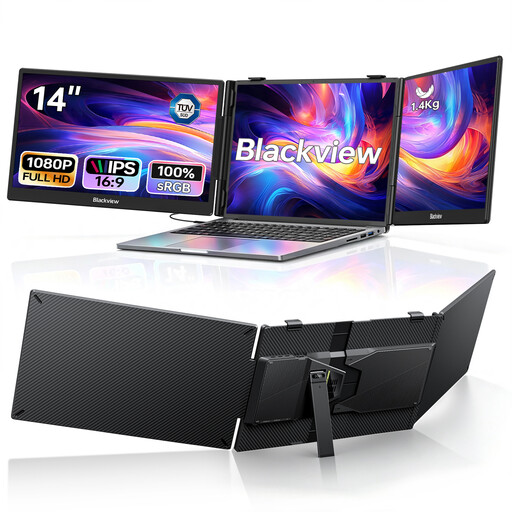
Blackview DCM5 14-inch FHD Dual Portable Monitor
For working on your laptop when you want to see multiple development windows on extra screens.
Two 14-inch IPS screens with 1080p; the product title lists USB-C plug-and-play and 100 W PD. The stated laptop compatibility covers devices from 13 to 17.3 inches.
View at Joybuy
 No image available
INNOCN CB27U1 27-inch 4K UHD Monitor
For a workspace with several windows open at once, if you have enough room on your desk.
27 inches, IPS and 3840 × 2160 pixels; the product title lists USB-C with 90 W PD. Consider the screen size and the right scaling for your workspace.
View at Joybuy
 No image available
KTC M27P6 27-inch 4K MiniLED Monitor
For a high-resolution workspace with several windows, if you have room for a 27-inch display.
The product title lists 4K at 160 Hz or Full HD at 320 Hz, plus USB-C with 65 W. This larger display takes up more desk space than a compact model.
View at Joybuy
 No image available
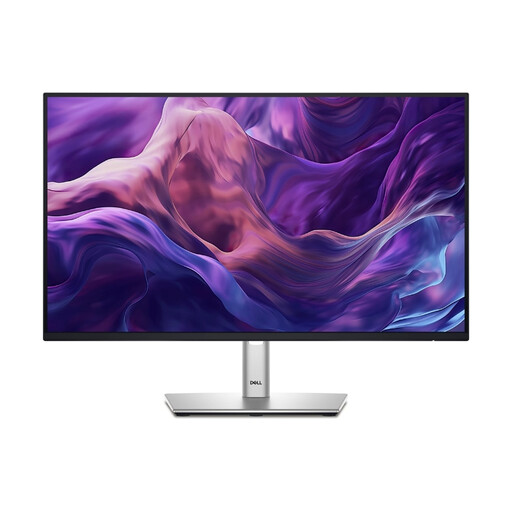
Dell P2425HE 24-inch FHD IPS Monitor with USB-C
For a compact workspace with a compatible laptop that can output video and charge over USB-C.
24 inches and 1920 × 1080 pixels. Dell lists up to 90 W Power Delivery for the P2425HE’s USB-C hub; check that the charging power suits your laptop.
View at Joybuy
 No image available
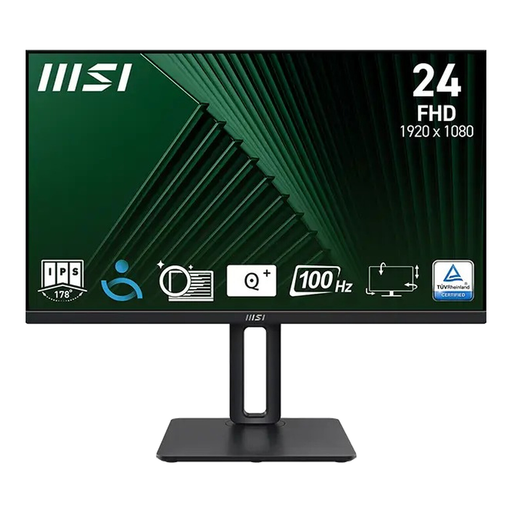
MSI PRO MP245PG 23.8-inch Full HD Business Monitor
For a compact desk, if you switch between development tools while you work and want to adjust your screen’s position.
23.8 inches, Full HD and IPS; the product title lists a height-adjustable stand. Full HD gives you fewer pixels for arranging windows side by side than a higher resolution.
View at Joybuy
Frequently asked questions
Do I need a 27-inch or 4K monitor to test a browser extension?
No. Chrome for Developers doesn’t specify a particular monitor size. Choose based on the windows you want to see at the same time and a scaling level that’s easy for you to read. A compact 16:10 display and a 27-inch QHD monitor take up different amounts of space.
How should I set up a monitor in a student room?
Before setting it up, check the dimensions, including the stand, and adjust the height and tilt to suit your seating position and chosen font size. Avoid distracting reflections where you plan to use it. ASR A6 covers screen-based workstations within its scope under employment law; this doesn’t automatically apply to a private study space.
Can any USB-C monitor display my laptop’s screen and charge it at the same time?
No. It depends on the specific monitor, laptop and cable. Dell describes the P2425’s USB-C downstream port as data-only; EIZO explicitly lists DisplayPort Alt Mode and up to 70 W from the EV2495’s upstream port. Check the video output and charging requirements of your laptop against the monitor’s connection specifications.
How do I compare power consumption, and what happens if a monitor is faulty?
Compare the EU energy label and EPREL data for the specific monitor. To work out your personal costs, you’ll also need to consider how long you use it and your electricity tariff. For faulty goods, the Verbraucherzentrale describes a statutory two-year guarantee against the seller from the date of purchase or delivery. A voluntary warranty is separate.


