For long interviews and multiple audio tracks, you need an editing workspace that’s easy to read at your chosen scaling, plus connections that work with your computer. Editing software synchronises separately recorded audio; the monitor doesn’t. Adobe describes this process for Premiere. For reliable colour decisions, a colour mode suited to your output format and a planned calibration process matter more than an HDR or colour-gamut specification on its own.
Who is this monitor setup for?
Editing interviews and historical footage
When you’re reviewing longer recordings, you’ll want to arrange the preview, timeline and multiple audio tracks clearly. You bring separately recorded audio together in your editing software; Adobe describes this feature for Premiere.
Colour-critical film delivery
When matching different recordings, it’s important to have a screen with settings suited to your output format. Adobe recommends using a colorimeter for objectively accurate colours.
Editing on a laptop
If you want to connect your existing computer, its video output, the cable and, where needed, the power supply must all be compatible. ASUS, BenQ and Dell specify different connection and charging options for the models considered here.
What should you look for?
27-inch 4K graphics monitor
A good fit if: you want to fit the preview and several editing windows on one screen, and use a documented SDR colour mode.
The trade-off: 4K doesn’t guarantee that controls will be easy to read at your chosen scaling, or that colour reproduction is correctly set up.
4K monitor with a focus on connectivity
A good fit if: you often connect a compatible editing laptop or need a built-in hub.
The trade-off: Dell lists a Thunderbolt hub for the U2725QE, but no built-in speakers. You’ll therefore need to plan for video and audio output separately.
Self-calibrating monitor
A good fit if: you regularly assess colour-critical versions and build calibration into your workflow.
The trade-off: EIZO lists a built-in sensor and BT.709 presets for the CG2700X. These features aren’t automatically necessary for occasional rough cuts.
| Priority |
What to check before buying |
Who it matters most to |
| A clear editing workspace |
Compare screen size, native resolution and desk space; check that your editing software is easy to read at the scaling you plan to use. ASUS, BenQ and EIZO list 27-inch 4K models among those considered here. |
If I want to keep the preview, timeline and several tracks in view at once, a clear workspace matters to me. Around 36% of consumers put workspace at the top of their list. |
| Consistent colour |
Check whether the colour mode suits your SDR output format, and whether you’ll measure and calibrate the screen. Adobe recommends using a colorimeter for objectively accurate colours. |
If I’m matching different recordings for colour-critical delivery, I need settings that suit my output format. Around 29% of consumers put colour control first. |
| Separately recorded audio |
Check the synchronisation features in your editing software and plan how you’ll handle audio output. Adobe describes combining separately recorded audio and video clips in Premiere. |
If I need to sync and check separately recorded audio while editing, I look for a suitable software workflow and plan for audio output. Around 21% of consumers prioritise this audio workflow. |
| Connecting to your editing computer |
Check that the input, cable, video signal and required charging power are compatible with your specific computer. ASUS lists 96 W USB-C Power Delivery for the PA279CRV; BenQ lists 65 W Power Delivery over Thunderbolt 3 for the PD2725U. |
If I want to connect my existing laptop, the video signal, cable and, where needed, power supply all have to work together. Around 14% of consumers prioritise connectivity. |
Common selection mistakes
-
Expecting the monitor to synchronise audio
Editing software brings the picture and separately recorded audio together. Dell says the U2725QE has no built-in speakers, so a monitor connection doesn’t replace the need to plan for audio output.
First, check how you’ll manage audio in your software and how you’ll play it back. Then assess the monitor based on workspace, picture quality and suitable connections.
-
Assuming HDR or colour-gamut specifications guarantee accurate colour
A stated colour gamut or HDR support alone doesn’t prove that the display has been correctly set up and measured for your workspace.
First, decide on your output format, then plan the colour mode, measurement and lighting conditions at your editing station together. Adobe recommends using a colorimeter for objectively accurate colours.
A colorimeter may be an additional purchase if you want to make objectively accurate colour decisions.
-
Assuming USB-C guarantees video and enough charging power
Connections and charging specifications vary by model, and don’t automatically tell you whether a particular laptop is compatible.
Before buying, check your computer’s connection, cable, video signal and power requirements against the specifications for the exact monitor model.
Monitor brands to consider
ASUS
The ProArt PA279CRV is a 27-inch 4K example, offering editing space, selectable colour modes and USB-C connectivity.
- ASUS lists a Rec.709 preset and 96 W USB-C Power Delivery for this model.
- The manufacturer’s specifications don’t confirm the colour accuracy of an individual unit or compatibility with every laptop.
BenQ
The DesignVue PD2725U is a 27-inch 4K example with colour modes and Thunderbolt 3 connectivity for a compatible computer.
- BenQ lists Rec.709 and 65 W Power Delivery for this model.
- Check your specific laptop and cable setup; the manufacturer’s specifications aren’t an independent measurement of the colour settings you’ll use.
Dell
The UltraSharp U2725QE is a 27-inch option with a Thunderbolt hub and connections for your workspace.
- Dell documents the built-in hub for this model.
- Dell explicitly states that the U2725QE has no built-in speakers. Its hub features don’t mean it’s suitable for colour-critical review.
EIZO
The ColorEdge CG2700X is a 27-inch 4K option for a workflow that involves regular calibration.
- EIZO lists BT.709 presets, hardware calibration and a built-in sensor for the CG2700X.
- The additional calibration features are most relevant if calibration is genuinely part of your workflow; these specifications don’t automatically apply to other ColorEdge models.
Joybuy products for film editing
Joybuy monitor options for an editing workspace with laptop connectivity.
 No image available
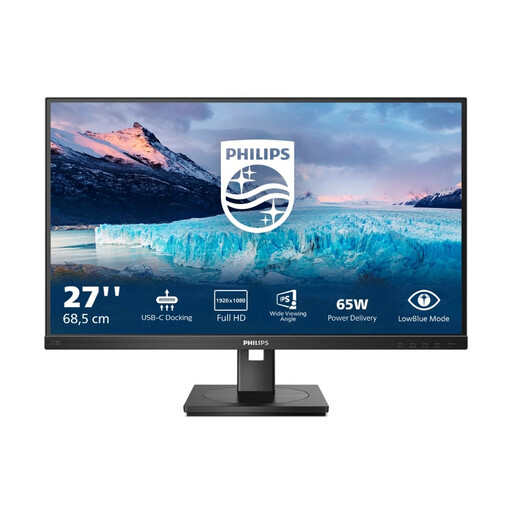
Philips 273S1, 27-inch Full HD IPS monitor with USB-C docking
The 27-inch workspace and USB-C docking are useful for a laptop-based editing setup; the Full HD resolution offers fewer pixels than the 4K screens discussed in this article.
Resolution: 1920 × 1080; refresh rate: 75 Hz.
Connections and features as listed in the product name: USB-C with 65 W, RJ45, USB hub, HDMI, DisplayPort, height-adjustable stand and speakers.
Joybuy
Frequently asked questions
Will a monitor synchronise separately recorded interview audio with the picture?
No, that’s the job of your editing software. Adobe describes combining separately recorded video and audio clips in Premiere. When choosing a monitor, focus instead on a practical workspace and suitable connections.
Do I need to calibrate a new monitor for colour correction?
For objectively accurate colour decisions, Adobe recommends measuring with a colorimeter and choosing settings suited to the lighting conditions in your workspace. A preset colour mode alone doesn’t replace this process.
What should I check before connecting my editing laptop?
Compare the video output on your specific laptop with the monitor’s input, and check the cable and required charging power. ASUS lists 96 W Power Delivery for the PA279CRV and BenQ lists 65 W for the PD2725U; these specifications apply to the models named.
Who should I contact if my monitor is faulty, and where can I take an old one in Germany?
If you bought the monitor from a retailer, your statutory consumer rights are against the seller; this is separate from any manufacturer’s warranty. Take an old monitor to an authorised collection point for disposal, separately from your household rubbish.


