Designers working with lots of references
If you keep your flyer design, photos, event copy and other references open at the same time, it’s important to be able to arrange your windows effectively.


When designing flyers with several references open at once, start by considering whether you need more room for windows or higher resolution for fine detail. A 21:9 monitor prioritises workspace in a different way from a 27-inch 4K model. If you need to assess print colours, you’ll also need a suitable colour workflow using the profile for the specific print job; a colour gamut specification alone doesn’t guarantee a match to the printed result. Also check text scaling, computer connectivity, charging power and how much desk space you have.
If you keep your flyer design, photos, event copy and other references open at the same time, it’s important to be able to arrange your windows effectively.
If you’re checking fine text and preparing colours for a specific print job, assess resolution and your colour workflow separately.
If you often connect a laptop or have limited desk space, consider connectivity, charging power and how the monitor is set up.
When designing flyers with several references, first decide whether workspace, print colour management or checking fine detail matters most to you.
| What you need | What to look for when buying | Who will value this most? |
|---|---|---|
| Room for several references | Compare the aspect ratio, resolution and monitor width, and check how windows are arranged in your design software. | If I keep my design, photos and text open at the same time, I mainly need room to arrange everything. Around 31% of consumers put space for multiple references first. |
| Assessing colours for print | Decide whether you need a preview or colour-accurate assessment for a specific printer and paper type. Then make sure the monitor, document and print profiles work together. | For a specific print job, I want to assess colours using a properly matched workflow rather than relying on a colour gamut specification alone. Around 25% of consumers prioritise print colours. |
| Small text and layout details | Check the resolution, screen size and operating system scaling you want with a typical flyer layout. | If I need to read densely set information clearly, I pay particular attention to text and fine layout details. Around 19% of consumers put this first. |
| Laptop at your design desk | Check the computer’s video output, cable, monitor connection and required charging power together. | My monitor needs to work with the laptop I already have, including for video and power. Around 13% of consumers prioritise the laptop connection. |
| Fitting it on your desk | Check the monitor and stand dimensions, as well as the height, tilt and swivel adjustments, against your workspace. | If I have limited space, the screen and stand both need to fit on my desk. Around 12% of consumers say desk space is their top buying priority. |
The printed result also depends on the output device, the right profile and, in some cases, the paper.
Before making a colour-critical decision, get the printer’s specifications and check your entire colour workflow. Adobe recommends using a profile that matches the output device you’ll actually use.
A wide 21:9 display gives you room for side-by-side windows, while a 27-inch 4K display prioritises pixel density.
Open a typical flyer file alongside several reference windows to decide whether extra width or a more detailed image matters more to you.
A USB-C port or a stated charging wattage on its own doesn’t confirm that your laptop and cable will work together.
Before buying, check your computer’s video output, cable, monitor connection and laptop power requirements.
The UltraWide 34BA85QE-B is worth considering if you mainly need more horizontal workspace for several open files.
This ProArt PA279CRV model combines 27-inch 4K resolution with colour modes and an adjustable stand.
The DesignVue PD2705Q is a 27-inch QHD model designed for sRGB-focused work.
The ColorEdge CS2740 is worth considering if you use a defined colour workflow with hardware calibration.
The UltraSharp U2725QE is a 27-inch 4K option if you also want hub features at your workstation.
This selection includes wide ultrawide monitors for several references open side by side, plus a 27-inch 4K monitor for checking fine detail.
 No image available
The 21:9 format is designed to give you room to view several open items side by side. Check that the monitor will fit on your desk first.
40 inches, 5120 × 2160 pixels, IPS, 100 Hz and a height-adjustable stand. The product description gives its width as 944.1 mm. 65 W USB-C Power Delivery requires a compatible laptop and cable. A colour gamut specification alone doesn’t prove colour-accurate print output.
 No image available
The 32:9 format gives you plenty of width for multiple windows side by side, but make sure you have enough room for it.
49 inches, 5120 × 1440 pixels, 165 Hz and a curved display. The stated colour gamut coverage doesn’t prove colour-accurate print output.
 No image available
The 21:9 format gives you room to lay out your flyer design alongside references. Make sure you have space for the 34-inch display.
3440 × 1440 pixels, VA, 200 Hz and PIP/PBP. The product description focuses on gaming; this doesn’t demonstrate that it supports a colour-accurate print workflow.
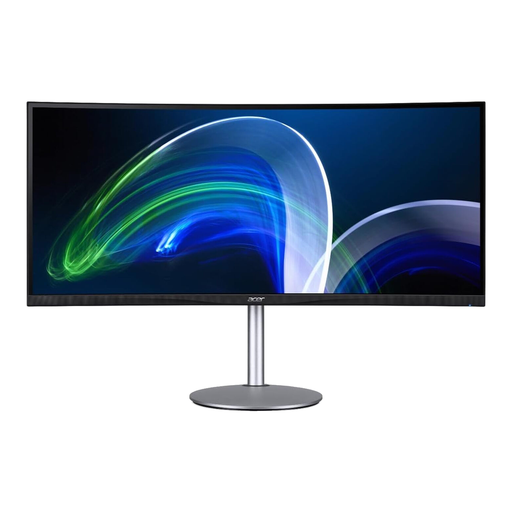 No image available
The 21:9 format and stated resolution provide a wide workspace for multiple windows. Check the dimensions against your own desk setup.
37.5 inches, 3840 × 1600 pixels and 75 Hz. The product description states that the display is curved.
 No image available
The 27-inch 4K resolution is worth considering if checking small text and fine layout details matters more to you than the extra horizontal space of an ultrawide monitor.
3840 × 2160 pixels, IPS, 90 W USB-C Power Delivery and a height-adjustable stand. Your laptop and cable need to be compatible for charging. A colour gamut specification alone doesn’t prove colour-accurate print output.
No. For a specific print job, the document and output profiles also need to match the printing method and, where relevant, the paper. A colour gamut specification alone can’t tell you how the flyer will look when printed.
Only if your laptop, connection and cable support the required video output and provide enough charging power. ASUS lists 96 W Power Delivery for the PA279CRV; EIZO lists a maximum of 60 W for the CS2740. Neither guarantees compatibility with your laptop.
Choose a colour mode that suits your output. For a specific print job, make sure the screen and document display are matched to the appropriate output profile. Adobe InDesign Help recommends using a profile for the output device or paper you’ll actually use.
Yes. The European Commission lists computer monitors as electronic displays that carry an energy efficiency label. Check the label for the specific model if you want to compare its energy efficiency.