Panoramic work at a small desk
If you want to see your image and tools at the same time, measure the space available, including the stand, and compare it with the monitor’s dimensions.


Start by considering the space available on your desk, then think about how much screen area you need alongside your editing tools. A well-positioned all-round monitor may be enough for occasional digital panoramas; if you regularly produce colour-critical prints, colour gamut and a suitable calibration and profiling workflow matter more.
If you want to see your image and tools at the same time, measure the space available, including the stand, and compare it with the monitor’s dimensions.
If you only create panoramas occasionally and also use the screen for your studies, specialist print features should suit the way you actually work.
If you’re judging colours for a planned print, consider colour gamut, calibration and profiling as connected parts of your workflow.
First, check that the screen and stand will fit on your desk. Then compare the resolution, colour workflow and laptop connections with how you plan to use it.
| Consideration | What to check before buying | Especially important if |
|---|---|---|
| Image detail and workspace | Compare the native resolution and screen size; check that your editing software remains easy to read at your preferred scaling. | You want to check transitions in your panorama while keeping toolbars in view, so the right balance of detail and screen space matters. Around 28% of consumers put image detail first. |
| Desk space and positioning | Measure the available desk width and depth, then compare these with the monitor’s dimensions, including the stand. | Your desk is short on space, so the actual fit matters more than screen size alone. Around 22% of consumers prioritise the space available for their monitor. |
| Cost and features | Decide which features you’ll use regularly, then compare specific models and any extra equipment you may need. | You’ll use the screen for your studies and occasional panoramas, and don’t want to pay for features you’re unlikely to use. Around 22% of consumers focus first on costs and unused features. |
| Colour assessment for print | Check the colour gamut you need, along with calibration and profiling options; also consider the lighting where you’ll view your work. | You’re judging colours for a planned print, as a colour gamut figure alone doesn’t make up a complete workflow. Around 17% of consumers prioritise colour accuracy. |
| Laptop connection | Check your laptop’s video output against the monitor’s specified USB-C mode and Power Delivery output. | You want to connect your laptop at your desk with as few cables as possible, so both devices need to support the features you require. Around 11% of consumers put laptop connectivity first. |
Colour gamut coverage alone doesn’t guarantee that your monitor, calibration and output profile will work well together. EIZO points out that calibration can’t fix basic panel limitations such as an inadequate colour gamut or poor screen uniformity.
Decide what you want to print, then check the specific model’s colour gamut and calibration options.
A colour workflow may also require calibration equipment, time for profiling and suitable viewing conditions.
The screen and stand both take up desk space, and the screen size doesn’t tell you whether the monitor will fit where you intend to put it.
Measure the space available and compare it with the manufacturer’s dimensions, including the stand, before ordering.
A USB-C port on its own doesn’t tell you whether it supports a video signal and enough charging power. BenQ specifically lists DisplayPort Alt Mode and 90 W as features of the SW242Q.
Compare the monitor’s connection specifications with your laptop’s video output and power requirements.
Depending on your laptop and existing equipment, you may need a separate power supply or a different way to connect.
The ProArt range is represented here by the PA279CRV, a 27-inch 4K option for image detail and colour work.
The SW242Q combines a more compact 24.1-inch size with specified colour workflow features.
The ColorEdge range includes a more compact option and a model for professional graphics workflows.
The 27UP850K-W is a 27-inch 4K IPS option with USB-C and an adjustable stand.
The UltraSharp U2725QE represents a 27-inch 4K monitor with a range of hub features.
The following Joybuy products vary in screen size, resolution and format for panorama and image editing. Compare their dimensions and connection specifications with your desk and laptop.
 No image available
For you if you want plenty of space for your panorama and tools, and have room for it on your desk.
40 inches, 21:9, IPS and 5120 × 2160; the stand is height-adjustable. The monitor is 944,1 mm wide with the stand attached.
Check the available desk width before buying.
 No image available
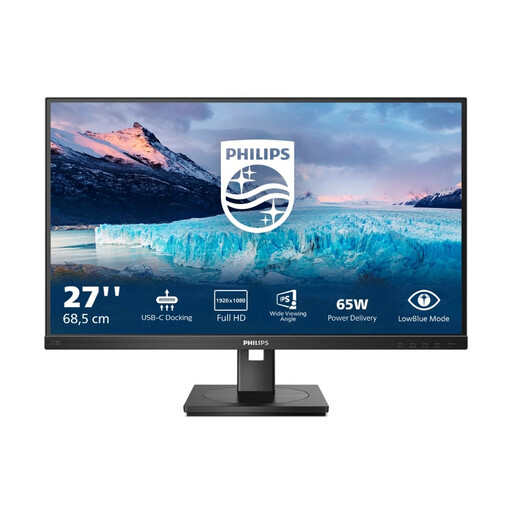
For you if you’re looking for a 27-inch screen with an adjustable stand and USB-C docking.
IPS, 1920 × 1080 pixels, 75 Hz and USB-C with up to 65 W; RJ45 and a USB hub are also listed.
Bear the Full HD resolution in mind if you want to assess fine details in your panorama.
 No image available
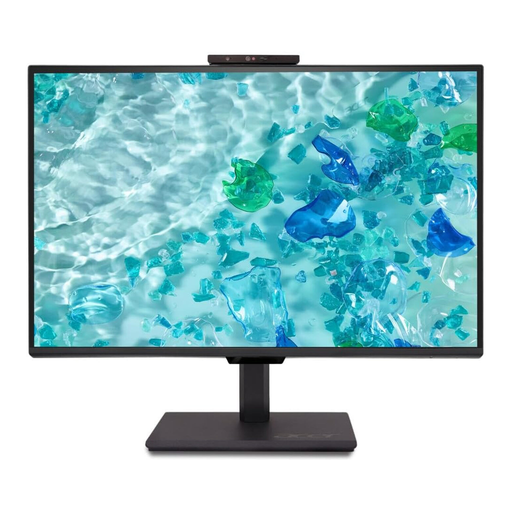
For you if a 24-inch business monitor with a height-adjustable stand and pivot function suits your workspace.
Full HD with 1920 × 1080 pixels; HDMI, DisplayPort and USB ports are listed.
Check whether the resolution gives you the level of detail you need.
 No image available
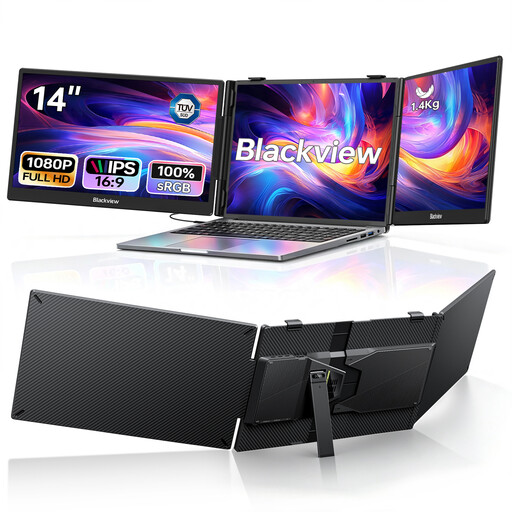
For you if you want to expand your laptop workspace with two foldable extra screens.
Each screen is listed as 14 inches, IPS and 1920 × 1080 pixels. The device is specified as an extension for laptops from 13 to 17,3 inches.
Consider the screen size and resolution of each display when assessing fine image detail.
 No image available
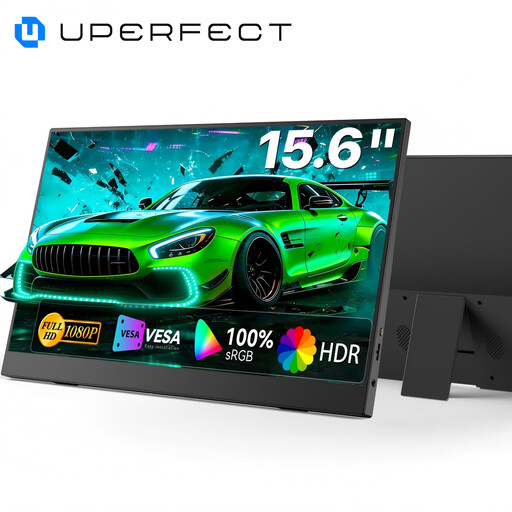
For you if you’re looking for a portable second screen with a built-in stand for a flexible workspace.
Full HD with 1920 × 1080 pixels; product specifications list 100% sRGB, USB-C and Mini-HDMI.
Its compact screen offers less space than a larger desktop monitor.
Not just because of the panorama format. Adobe describes stitching overlapping photos as one step in the process; when choosing a monitor, also consider the level of detail, the interface and the space available on your desk.
First decide what you’re preparing your images for, then check that the monitor is suitable for the colour gamut and calibration you need. EIZO points out that calibration can’t fix an inadequate colour gamut or poor screen uniformity; also consider the lighting in your workspace.
Compare the energy consumption figures for the specific display. The Verbraucherzentrale distinguishes between your statutory rights against the seller if a product is faulty and a voluntary guarantee, each of which has its own terms.
For online consumer purchases in Germany, you generally have a 14-day right to cancel, starting when you’ve received all the goods. The Verbraucherzentrale notes that you must notify the seller that you’re cancelling; this is separate from making a complaint about a fault.