If you want to view your cataloguing form, sources and digital copies at the same time, start by considering how you arrange your windows, how readable the text is at your preferred scaling, and how much desk space you have. A 27-inch 4K model may suit detailed views, but for long periods of data entry or when switching between laptops, adjustability and the right ports may matter more. Your cataloguing software provides custom catalogue fields – not your monitor.
Which monitor is right for you?
Cataloguers working with multiple sources
If you use your cataloguing form alongside bibliographic sources, the way you arrange windows on screen should suit how you work. The Library of Congress describes the MARC 21 format as containing detailed bibliographic records, with individual data elements and input conventions.
People checking item-level details
If you record provenance or other details about an individual book and compare them with digital copies, it’s important that the form is easy to read and images are displayed clearly. The Library of Congress includes ownership and custodial history as item-specific information in the MARC 21 format.
People working through long cataloguing sessions
For extended periods of reading and writing, clear text and a monitor position that suits your workspace are important. Check how your actual cataloguing form looks rather than relying on the resolution alone.
What should you look for when choosing?
Start with your cataloguing software and the views you need open at the same time. Then compare screen size and resolution with the space available on your desk, and check your laptop’s ports if needed.
| Purchasing priority |
What to look for |
Who is this important for? |
| Room for the cataloguing form and sources |
Try your usual window layout in your own software; assess screen size and native resolution together. |
If I keep my cataloguing form and sources open side by side, I want to compare details without constantly switching between windows. Around 29% of consumers would prioritise the screen space available for windows. |
| Readability during long data-entry sessions |
Check field labels at your preferred scaling; assess height and tilt at your intended workstation. |
During long cataloguing sessions, I need clear field names and a position that suits my workspace. Around 24% of consumers would give particular weight to readability and positioning. |
| Digital copies and item-level details |
Check whether the digital copy contains enough detail and whether the image and cataloguing windows work together at your chosen scaling. |
When I compare book pages, covers or other item-level details with catalogue entries, I want to be able to make out the details clearly. Around 23% of consumers would prioritise this image comparison. |
| Laptop docking |
Check the video output, charging requirements and the ports you need for peripherals against the specifications of the monitor you’re considering. |
If I connect my laptop regularly, I want to know whether the monitor’s video and power features are compatible with my device. Around 12% of consumers would consider laptop connectivity first. |
| Limited desk space |
Check how much space the monitor and stand will take up, and try out your preferred window layout. |
If my cataloguing desk is short on space, the monitor needs to fit the area available. Around 12% of consumers would make desk space their main selection criterion. |
Common misconceptions when buying a monitor
-
Assuming custom catalogue fields are a monitor feature
A larger screen can display your cataloguing form, but it can’t add fields to your cataloguing software.
First, check whether your software supports the fields you need and the cataloguing workflow you have in mind. Then choose a monitor that suits the way you want to arrange your windows.
-
Choosing 4K without checking your cataloguing form
A higher pixel count alone doesn’t tell you whether field names and body text will be easy to read at your preferred scaling.
Before you decide, view a typical cataloguing form and a digital copy at the scaling and window layout you plan to use.
-
Assuming USB-C guarantees full laptop compatibility
A USB-C port alone doesn’t confirm that your laptop can output video through it or charge at the available power level.
Compare the specifications of both devices and check that the ports will work with the peripherals you already use.
Notable brands and model examples
ASUS
The ProArt PA279CRV is a documented 27-inch 4K model for workstations where you view digital copies as well as text.
- ASUS lists USB-C with 96 W, height adjustment and pivot for this model.
- The extra pixels don’t guarantee readable input fields at every scaling setting or better catalogue quality.
EIZO
The FlexScan EV2740X is a 27-inch 4K example with docking features, while the EV2490 is a more compact 23.8-inch Full HD model.
- EIZO lists USB-C docking and a Paper mode among the EV2740X’s features.
- The EV2490 has fewer pixels for side-by-side views than the QHD and 4K models mentioned; these differences apply to the specific models.
Lenovo
The ThinkVision P27h-30 is a 27-inch QHD model with USB-C docking for text windows and compatible laptops.
- Lenovo lists a resolution of 2560 × 1440 pixels, a hub, Ethernet and up to 100 W charging for this model.
- It has fewer pixels than the 4K models mentioned; port compatibility also depends on your laptop.
Dell
The UltraSharp U2725QE is a 27-inch 4K model with a hub for workstations equipped to use it.
- Dell lists a USB hub and a height-adjustable stand for this model.
- You may not need the extra features if you mainly enter catalogue text on a PC that stays connected.
LG
The 27UP850K-W is a documented 27-inch 4K IPS model with USB-C.
- LG lists a stand that tilts, adjusts in height and swivels for this model.
- HDR and colour performance claims alone don’t demonstrate that provenance details will be easier to enter or that a digital copy’s colours are accurate.
Joybuy monitors for cataloguing
The Joybuy models listed here range from compact Full HD screens to large-format resolutions suited to multiple views. What matters is your window layout, readable scaling and – if you’re using a laptop – having the right ports.
 No image available
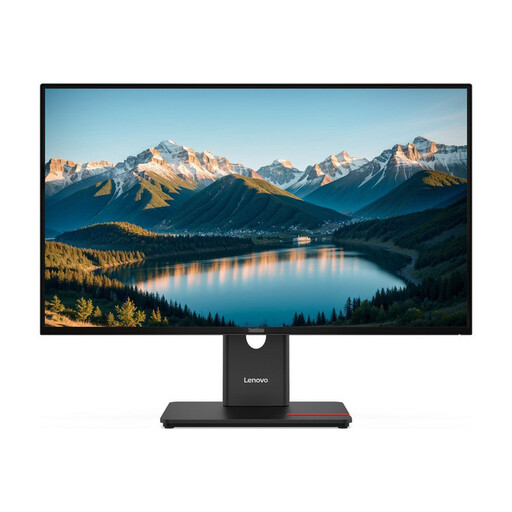
Lenovo ThinkVision T27Q-40, 27-inch, QHD IPS, Black
A QHD option if you want to arrange your cataloguing form and text sources side by side.
27 inches; 2560 × 1440 pixels; IPS; USB-C hub with 15 W Power Delivery; stand with height, tilt, swivel and pivot adjustment.
View at Joybuy
 No image available
MSI MAG 274UPDFDE E16M, 27-inch, UHD, Mini-LED
A 27-inch UHD option if you want to view book pages or cover details alongside metadata.
3840 × 2160 pixels; Mini-LED; dual mode with UHD at 160 Hz or FHD at 320 Hz; USB-C; stand with height adjustment, pivot, swivel and tilt.
View at Joybuy
 No image available
INNOCN 40C1U, 40-inch, 5120 × 2160, ultrawide
This large-format display may suit you if you want several views on screen at once and have enough desk space.
5120 × 2160 pixels; 21:9 aspect ratio; PIP and PBP; USB-C with 65 W Power Delivery; height-adjustable stand.
View at Joybuy
 No image available
KTC H24B9S, 24-inch, Full HD, IPS
A more compact screen may be a good fit if desk space is limited and you mainly use one cataloguing view.
1080p Full HD; IPS; tilting stand.
View at Joybuy
 No image available
MSI PRO MP275QPDGDE, 27-inch, WQHD, USB-C docking
A docking option if you want to connect a compatible laptop and use your cataloguing and source windows on a 27-inch screen.
2560 × 1440 pixels; USB-C docking with 98 W Power Delivery; KVM and USB hub; stand with height, tilt, swivel and pivot adjustment. For a single-cable connection, your laptop’s video output and charging requirements must be compatible.
View at Joybuy
Frequently asked questions
Can I use a monitor to create custom fields for provenance or individual items?
No. The monitor displays the input form; whether you can create and manage fields depends on your cataloguing software. For example, the Library of Congress describes information about ownership history and distinguishing between items in the MARC 21 format. This doesn’t mean your software has a particular feature.
How should I set up my monitor for long cataloguing sessions?
Check that your actual cataloguing form is easy to read with your chosen text and display scaling, then adjust the height and tilt to suit your workspace and lighting. The BAuA describes ASR A6 for screen-based work within its defined scope; this does not mean that private individuals are generally required to buy a particular monitor model.
Does my laptop need to meet specific requirements for a single-cable connection?
Yes. Check your laptop’s video output and charging requirements against the video, USB and power features explicitly listed for the monitor in question. A USB-C connector alone doesn’t guarantee that the two devices will work together.
What rights do you have when buying online, in addition to a manufacturer’s warranty?
If goods are faulty, you generally have statutory rights against the seller; the Verbraucherzentrale describes a two-year period for these. Online purchases also generally come with a 14-day right to cancel, which you must be informed about. A manufacturer’s warranty is an additional voluntary service with its own terms and conditions.
Do private users need a monitor with a specific ASR A6 certification for cataloguing?
ASR A6 does not set a general purchasing requirement for monitors used privately. The BAuA limits its scope to certain workplaces and home-based workstations, and excludes screen-based work outside that scope. For a workplace with employees, the health and safety requirements that actually apply must be assessed.


