Writers using a split-screen editor
If you want to keep your journal and notes or sources open at the same time, the main thing to consider is whether both windows are wide enough at your preferred font size.


For a split-screen journal editor, an adjustable 27-inch QHD monitor is a sensible starting point if you can read both text and notes side by side at your usual font size. If you regularly need wider windows and have enough desk space, a 34-inch ultrawide is worth considering. For a laptop connection, you’ll also need to check that the monitor and cable support video output and provide the charging power your laptop needs. Check the actual window widths at your chosen scaling rather than judging by screen size alone.
If you want to keep your journal and notes or sources open at the same time, the main thing to consider is whether both windows are wide enough at your preferred font size.
For extended writing sessions, clear text, suitable scaling and an adjustable monitor position are important things to consider. The ASR A6 workplace display screen standard applies to its relevant professional settings and does not automatically apply to a personal journalling project.
If you regularly connect your laptop at your writing desk, check that the monitor, laptop and cable support the video output you need and, where applicable, provide the right charging power.
First, check that both windows remain readable at your usual text size. Then consider the space available on your desk and your laptop’s connections.
| What matters | What to look for when buying | Who is this especially important for? |
|---|---|---|
| Room for two editor windows | Check the native resolution, aspect ratio and actual window widths at your usual scaling. | If I want to read my journal and sources at the same time, I need enough width for both windows; around 36 % of consumers say room for two readable editor windows is their main concern. |
| Readability and positioning | Try your preferred font size and scaling; look for height and tilt adjustment. | During long writing sessions, I want to read body text comfortably, even if using a larger font leaves less room in the split-screen editor; around 29 % of consumers prioritise readability and working position. |
| Laptop connection | Check that your laptop’s video output matches the monitor input; check the cable and the charging power required. | If I connect my laptop at my writing desk, the connection needs to work with my device without relying on unsupported charging power; around 21 % of consumers prioritise laptop connectivity. |
| Desk space and energy use | Compare the dimensions, including the stand, with your desk, and check the energy label for the specific model. | If desk space is limited, I mainly want to know whether the monitor and stand will fit; around 14 % of consumers put desk space or running costs first. |
A 27-inch QHD model has a resolution of 2560 × 1440 pixels, while the 34-inch ultrawide format covered here has a resolution of 3440 × 1440 pixels. These figures alone don’t tell you how wide your windows will actually be at your chosen font size. In Windows, you can adjust the size of text and apps; check your split-screen editor again after making a change.
The usable width of each window also depends on resolution and text scaling. An ultrawide monitor also needs enough desk space.
Arrange your editor and notes side by side at your usual font size, and check the monitor’s dimensions, including the stand.
Video output and power delivery require compatible features on the monitor, laptop and cable.
Check the specific connection features and charging power required before relying on a single-cable connection.
Depending on the set-up, you may need a compatible cable, an adapter or a separate power supply.
The F.A.Z. Kaufkompass covered flat monitors up to WQHD and excluded curved models, so its recommendations don’t answer the question of which ultrawide monitor is right for your writing desk.
Use its recommendations for the category of monitors it tested, and assess ultrawide models based on their specific features and your window layout.
The UltraSharp U2724DE is a verified 27-inch QHD option with a Thunderbolt 4 hub for a compatible writing set-up.
The 34WR55QK-B is a curved 34-inch ultrawide for writers looking for more horizontal space for side-by-side windows.
The Business Monitor 27B2U4601/00 is another 27-inch QHD option with USB-C.
The FlexScan EV2795 combines a 27-inch QHD display with USB-C docking for compatible laptop set-ups.
The Joybuy models below are ultrawide monitors designed for wide editor windows. Before choosing one, check your desk space and the screen curvature, as well as the connections you need if you’ll be using a laptop.
 No image available
For a very wide editor layout, provided the 49-inch monitor fits on your desk.
5120 × 1440 pixels, 32:9, 165 Hz, HDMI 2.1 and DP 1.4.
 No image available
A 34-inch ultrawide option for a wider layout; make sure the curvature suits your space and viewing preferences.
3440 × 1440 pixels, 21:9, VA, 200 Hz and 1500R. PIP and PBP are listed in the product title.
 No image available
For a wide editor layout with a laptop connection, if 65 W USB-C power delivery is suitable for your device.
5120 × 2160 pixels, IPS, 21:9, 100 Hz and 65 W USB-C PD. The listed width with the stand is 944,1 mm.
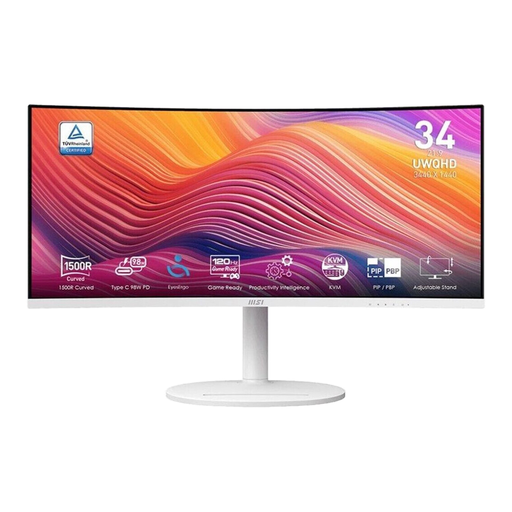 No image available
A 34-inch ultrawide option for side-by-side windows; check whether a curved VA monitor suits your preferences.
3440 × 1440 pixels, 21:9, VA and 120 Hz.
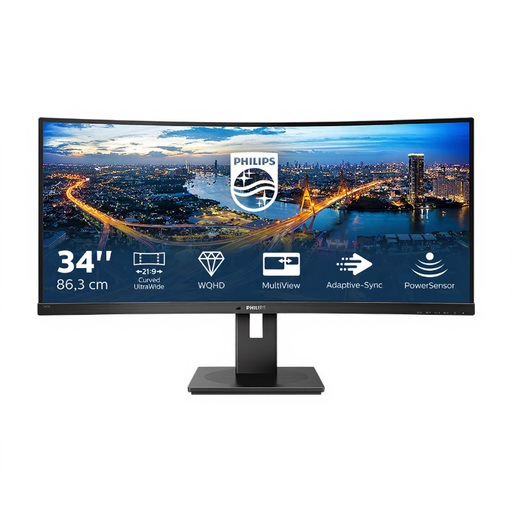 No image available
For a wider window layout, if a curved 34-inch monitor suits your writing desk.
3440 × 1440 pixels, 21:9, VA, 1500R, 100 Hz, 4 ms, HDMI, DisplayPort and USB hub.
Not necessarily: in Windows, you can arrange windows side by side using Snap. LG also describes Screen Split in OnScreen Control; according to LG, the software only supports certain monitors. Check whether your specific model is compatible.
First, set the recommended screen resolution and a text scaling level that’s comfortable for you to read. Then arrange your actual editor windows side by side and check that both remain wide enough.
The European Commission classifies computer monitors under the energy labelling rules for electronic displays. Compare the stated energy consumption of specific models on the same basis. Your personal electricity costs will also depend on how you use the monitor and your electricity tariff.
According to the Verbraucherzentrale, online consumer contracts generally come with a 14-day right to cancel, which must be explained to you. If there’s a fault, statutory rights against the seller should be distinguished from a voluntary guarantee; the relevant conditions depend on your specific circumstances.
ASR A6 sets out requirements for display screen workstations within the scope of the Workplace Ordinance. A personal writing project on its own does not trigger this workplace-related legal obligation, but ergonomic advice can still help when setting up your workspace.