Writers working with a manuscript and an outline
If you switch between your story, section plan and occasional research while writing, it’s important that your windows can all fit on screen while keeping the text easy to read.


If you often need your manuscript and outline on screen at the same time, first check that both fit at your preferred text size. A taller aspect ratio, such as 16:10 or 3:2, gives you more vertical space for documents. QHD may be useful if you want to work with several windows, while USB-C is only an advantage if both your monitor and laptop support the features you need. Your window layout, seating position and laptop connections are what matter most.
If you switch between your story, section plan and occasional research while writing, it’s important that your windows can all fit on screen while keeping the text easy to read.
For longer writing sessions at a fixed workstation, it’s important to be able to position the screen appropriately and keep the text easy to read. The requirements set out by the Federal Institute for Occupational Safety and Health apply only to the specific situations covered by the relevant rules on screen-based work; they don’t automatically apply to writing at home.
If you use your laptop at a desk, check that both the monitor and laptop support the video output and, where needed, power delivery required for your chosen connection.
Start by thinking about how often you’ll want your manuscript and outline visible at the same time. Then check the stand and connections before choosing features you won’t need for writing.
| What you need | What to check | Who it matters most to |
|---|---|---|
| Room for your manuscript and outline | Open both windows using your usual text size and scaling. Compare the aspect ratio and resolution from where you plan to sit. | If I need my manuscript and section plan side by side while writing, I still want the text to be easy to read. Around 36% of consumers say having both texts in view at once is a priority. |
| An adjustable stand | Check the height adjustment, tilt and, if needed, pivot function. Also take windows and lights in the room into account. | During long writing sessions, I want to be able to adjust the screen to suit my seating position and the ambient light. Around 29% of consumers prioritise an adjustable stand. |
| Laptop connections | Check that the monitor supports the required video output and charging power for your laptop. See which features the specific monitor port supports. | If my laptop stays connected at my desk, I want to bring together the connections I need. Around 21% of consumers pay particular attention to laptop connectivity. |
| Desk space and power consumption | Measure the space you have, including the stand, and compare the energy label and product specifications for the models you’re considering. | If desk space is limited, I want to consider the footprint and power consumption before choosing a larger screen. Around 14% of consumers give these factors priority. |
A larger display doesn’t necessarily mean more readable lines of text, or that your manuscript and outline will fit comfortably side by side at your preferred text size.
Open both documents at your preferred scaling and check how they look from where you plan to sit.
USB-C ports can differ in their support for video output and power delivery. The EIZO EV2495 specifications state that its USB-C upstream port supports DisplayPort Alt Mode and up to 70 W of power delivery. These features aren’t available on every USB-C port.
Check your laptop’s requirements against the exact monitor port and what’s included in the box.
Depending on your setup, you may need a compatible cable or a separate power supply.
Sensor features alone don’t prove that a monitor will cost less to run than another model. Philips notes limitations in its PowerSensor calculations.
Compare the specifications for the exact model and use the energy label to check power consumption. Make sure you’re comparing like-for-like conditions.
The GW2490T and RD280U cater to different needs: one is an adjustable 23.8-inch Full HD monitor, while the other is a 28.2-inch model with a 3:2 aspect ratio.
The FlexScan EV2495 is a 24.1-inch 16:10 monitor with USB-C docking.
The Pro P2425DE combines a 23.8-inch QHD display with a USB-C hub.
The Business Monitor 24B2G5200/00 is a Full HD model with light and presence sensors described by the manufacturer.
The ProArt PA279CRV is a 27-inch 4K model for writing desks that may also be used for image editing.
This Joybuy selection includes monitors for viewing text side by side, an adjustable setup and, on some models, connecting your laptop at your desk.
 No image available
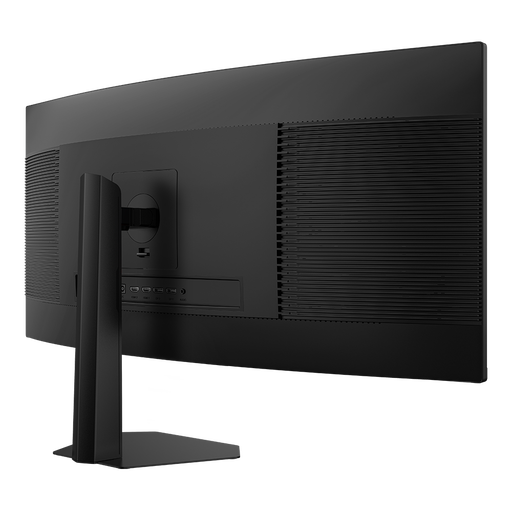
For arranging your manuscript and outline side by side on a wide screen; the product name lists PIP/PBP for displaying content.
21:9 aspect ratio, 3440 × 1440 pixels, PIP/PBP and height-adjustable.
 No image available
For a laptop setup if 4K and USB-C with 90 W Power Delivery suit your workflow. Check the charging power you need and your laptop’s compatibility first.
3840 × 2160 pixels, PIP/PBP, USB-C with 90 W Power Delivery and height-adjustable.
 No image available
For viewing text in multiple windows, if QHD on a 27-inch screen keeps text easy to read at your preferred size.
2560 × 1440 pixels, IPS panel, 120 Hz and VESA mounting.
 No image available
For using a laptop at your writing desk, if the stated USB-C power delivery meets its charging requirements.
3840 × 2160 pixels at 160 Hz or Full HD at 320 Hz, USB-C with 65 W and height-adjustable.
 No image available
For working with your manuscript and section plan on a QHD screen, plus a USB-C laptop setup. Check the charging power against your laptop’s requirements.
2560 × 1440 pixels, USB-C Power Delivery up to 65 W, USB hub and height-adjustable.
Open both documents side by side in your usual writing software, then check the text size and scaling from where you plan to sit. EIZO lists 1920 × 1200 pixels in a 16:10 format for the EV2495; Dell lists 2560 × 1440 pixels for the P2425DE; and BenQ lists 3840 × 2560 pixels in a 3:2 format for the RD280U. The pixel count alone doesn’t tell you what text size will be comfortable for you to read.
Position the screen to suit your seating position and adjust the text size and brightness. Also check for reflections in your usual lighting. The Federal Institute for Occupational Safety and Health sets out ergonomic requirements for the workplaces and remote working situations covered by its rules. These don’t create a general legal obligation for a home desk.
Compare the energy labels for the specific monitors rather than assuming an advertised power-saving mode will deliver a particular saving. According to Your Europe, when you buy as a consumer, the seller must provide a minimum two-year legal guarantee from the date you receive the goods. This is separate from any voluntary manufacturer’s warranty.
EU energy-labelling rules apply to computer monitors that fall within their scope, so check the details for the exact model. When you buy online as a consumer, you generally have 14 days from receiving the goods to cancel. The Verbraucherzentrale explains that you must notify the retailer that you wish to cancel. The right to cancel is not the same as your legal rights if a product is faulty.