For a home networking guide with tracked changes, you’ll need text that’s easy to read and enough room for your document, comments and sources. A 27-inch QHD monitor could be a good choice. 4K offers a higher resolution, but on a 27-inch screen you’ll need to adjust the scaling so the text remains comfortable to read. Track Changes is a feature of your document software, not your monitor. If you use a laptop, also check that its specific USB-C port supports video output and provides enough power for charging.
Who is this monitor comparison for?
Writers working with lots of sources
If you work on a draft, technical sources and tracked changes at the same time, look for a usable amount of screen space and text that remains easy to read at your chosen scaling. Microsoft Support explains how to use Track Changes in Word, as well as how to adjust text size in Windows.
Anyone spending long hours working with text
For longer proofreading sessions, you should be able to position the screen to suit your seating position and eyesight. Also check whether windows or lights cause distracting reflections. The German Federal Institute for Occupational Safety and Health covers screen work in ASR A6, while the German Social Accident Insurance (DGUV) has reported on ergonomic conditions when working from home.
Laptop users who write
If you regularly move between your laptop and a fixed workstation, the ports on the specific monitor and laptop are important. Check that the connection supports video, the peripherals you need and, where applicable, power delivery.
What should you look for when choosing?
27-inch QHD without USB-C docking
A good fit if: You want to arrange your document, comments and sources across one screen, and already have suitable video ports.
The trade-off: Check the exact model and its ports. A docking model’s features aren’t automatically included on a similarly named model.
27-inch QHD with USB-C docking
A good fit if: You connect a compatible laptop at a fixed writing desk and want to connect your monitor, peripherals or power supply through a suitable connection.
The trade-off: USB-C alone doesn’t guarantee video output or enough charging power. Check that the monitor and laptop support the features you need.
27-inch 4K
A good fit if: You want a higher pixel density and can adjust the display scaling so text and tracked changes remain easy to read.
The trade-off: More pixels don’t automatically make text larger. Extra image or colour features aren’t essential for working with text alone.
| Priority |
What to check before buying |
Who is it important to? |
| Room for text, changes and sources |
Try a typical document page with comments and a sources window, using scaling that’s comfortable for you to read. |
If I want to review a draft, tracked changes and sources at the same time, I need a screen that’s easy to read and gives me enough room to work. Around 36% of consumers put space for text, comments and sources first. |
| Screen position and setup |
Check the height and tilt adjustments, desk space and position in relation to windows and lights. |
For long proofreading sessions, I want to be able to adjust the display to suit my seating position and the light in my workspace. Around 29% of consumers prioritise screen position. |
| Laptop connection |
Check video output, monitor input, the charging power you need, peripheral ports and which cables are included. |
If I regularly connect my laptop at my writing desk, I want to know whether the connection supports the features I need. Around 21% of consumers put laptop connectivity first. |
Which common buying mistakes should you avoid?
-
Assuming 4K automatically makes text easier to read
More pixels don’t automatically change the text size or make it easier to arrange your document and comments.
Consider resolution, screen size and scaling together, based on the way you typically view your documents.
-
Assuming every USB-C port supports docking
Video output and charging power need to be compatible with both your laptop and the specific monitor input.
Check the specifications of both devices, and see which cables and other accessories are included.
Which brands are worth considering?
Dell
Dell offers separate 27-inch QHD models for different connectivity needs.
- Dell Germany lists a resolution of 2560 × 1440 pixels for both the P2725D and P2725DE.
- The USB-C hub is a feature of the P2725DE and shouldn’t be assumed to be included on the P2725D.
Lenovo
The ThinkVision T27h-30 is a QHD monitor for laptop workstations, with USB-C and Ethernet.
- Lenovo lists a resolution of 2560 × 1440 pixels and 155 mm of height adjustment.
- Check that the ports and adjustment options suit your specific workspace.
Philips
The 27E1N5600AE/00 is a QHD USB-C option for use with a compatible laptop.
- Philips describes USB-C video, data and charging for compatible devices.
- Check that your laptop supports compatible video output and enough charging power for your needs.
EIZO
According to EIZO, the FlexScan EV2740X combines 27-inch 4K resolution with USB-C docking.
- EIZO lists a resolution of 3840 × 2160 pixels and a pixel density of 163 ppi.
- Check that text remains easy to read at your preferred scaling and that the extra resolution suits your work.
ASUS
The ProArt PA279CRV is a 27-inch 4K option with USB-C and adjustment features.
- ASUS lists 96 W USB-C Power Delivery and 0–130 mm of height adjustment.
- Features for image or colour work aren’t automatically necessary for reviewing tracked changes.
Joybuy products for working with text
The models below include 27-inch QHD and 4K options for working with text. USB-C ports or adjustable stands are specified in the product names of several models.
 No image available
INNOCN 2751S PLUS, 27-inch QHD Mini LED monitor
A QHD option for working with documents, tracked changes and sources, if the resolution suits the way you view your documents.
27 inches; QHD 2K; height-adjustable stand; HDMI and DisplayPort.
View at Joybuy
 No image available
INNOCN CB27U1, 27-inch 4K UHD
A 4K option for writers who value a higher pixel density and can adjust the scaling to suit the text size they need.
3840 × 2160 pixels; IPS; 120 Hz; USB-C with 90 W Power Delivery; height-adjustable.
View at Joybuy
 No image available
Philips 276B9, 27-inch QHD IPS
A QHD option for documents and sources. Its USB-C features are suitable for a laptop workstation only if your laptop is compatible.
2560 × 1440 pixels; 75 Hz; USB-C with 65 W Power Delivery; USB hub; height-adjustable.
View at Joybuy
 No image available
MSI PRO MP275QPDGDE, 27-inch WQHD docking monitor
A QHD option for a fixed laptop workstation, if the docking features listed in the product name are compatible with your devices.
100 Hz; USB-C with 98 W Power Delivery; daisy chain; KVM; integrated webcam.
View at Joybuy
 No image available
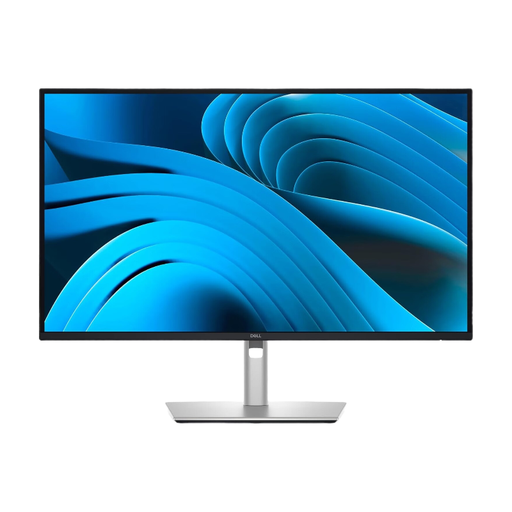
Dell Pro Plus P2725DE, 27-inch QHD USB-C hub monitor
A QHD option for documents, comments and sources if you want to use the ports on the USB-C hub model.
68.6 cm (27 inches); 2560 × 1440 pixels.
View at Joybuy
Frequently asked questions
Can a monitor track changes in a guide?
No. Track Changes is a feature of your document software; Microsoft Support explains how it works in Word, for example. Your monitor affects how clearly you can see text and tracked changes.
What can I do if text looks too small on a 4K monitor?
Check the text size or display scaling in your operating system, then check the view in your document software. Microsoft Support explains how to adjust text size in Windows. The right setting depends on how you use your monitor.
What should I check when using USB-C with a laptop?
Check that your laptop’s USB-C port supports video output and that the monitor provides enough charging power for your device. Also check that the ports and cables included with the specific model meet your needs.
How should I position a monitor for longer proofreading sessions?
Adjust the height and tilt to suit your seating position and eyesight, and look out for distracting reflections. ASR A6 from the German Federal Institute for Occupational Safety and Health sets out requirements for screen work in workplaces and home offices. It isn’t a general buying guideline for personal desks.
Do I need 4K to review comments and changes?
Not necessarily. 4K offers a higher resolution, but your choice should also take into account the text size, scaling and document window layout you prefer. Try the display with a typical page from your workflow.


