A 27-inch QHD monitor is a sensible starting point for working with a form preview, editor and tools side by side; Dell lists this size and resolution for the P2725D. If desk space is limited, the Philips 24B2N3200D/00, with its 24.1-inch WUXGA format, could be a good fit, while 4K models such as the BenQ PD2705U or ASUS PA279CRV offer more detail. Even so, check how your work looks in a narrow browser window and when zoomed in. A USB-C hub is only useful if it suits your laptop and its power requirements.
Who should consider their monitor choice?
Form designers working across multiple windows
If you want to arrange a preview, editor and testing tools side by side, choose a screen size and resolution that suit the way you actually work. Dell and ASUS list the size and resolution of their respective models, making them easier to compare.
Designers focused on readability
You check labels, contrast and how the design looks when zoomed in. A monitor can support this work, but it cannot replace testing the finished form in a browser. The W3C Web Accessibility Initiative explains the requirements for reflow and text contrast.
Laptop users at a home-working desk
You want to position the screen to suit your setup, and may need to check that the video connection, peripherals and power supply are compatible with your laptop. Germany’s Federal Institute for Occupational Safety and Health covers screen-based work in its ASR A6; for your specific setup, check the specifications of all the devices involved.
What to look for when buying
First decide how many work windows you need open at once, then compare screen positioning and the connections your laptop actually supports.
Compact 16:10 screen
A good fit if: desk space is limited and you work with form fields and longer pages arranged vertically.
The trade-off: You get less horizontal resolution for side-by-side windows than with a 27-inch QHD monitor.
27-inch QHD
A good fit if: you often need to see the form preview, editor and tools at the same time.
The trade-off: QHD has fewer native pixels than 27-inch 4K. Also check the scaling and the full model number.
27-inch 4K
A good fit if: you also want to assess fine details and on-screen colours.
The trade-off: Text size and scaling need to suit the way you arrange your windows. Colour coverage does not tell you whether your form text has sufficient contrast.
| Buying consideration |
What to check |
Who it matters most to |
| Screen space |
Compare the space available, your preferred text size and how many windows you need side by side. |
If I need to use a preview, editor and testing tools at the same time, screen space matters most to me; for around 33% of consumers, it is likely to be the main reason for buying. |
| Readability and colour |
Choose suitable scaling and a colour mode; check text contrast and how the page looks in a narrow browser window separately. |
If I need to assess labels and design details, how they actually look on screen is what matters; for around 27% of consumers, this is likely to be the top priority. |
| Screen positioning |
Check the height, tilt and, if needed, pivot against the available space and your seating position. |
If I want to adapt the screen to my home-working setup, positioning is key; for around 20% of consumers, it is likely to make the difference. |
| Laptop connectivity |
Check video output, the USB-C cable, the power required and the hub connections individually. |
If I want to connect my laptop and peripherals through the monitor, the specifications need to work together; for around 20% of consumers, laptop connectivity is likely to be the main reason for buying. |
Common misconceptions
-
4K automatically gives you a good mobile form view
A monitor’s pixel count does not tell you whether form fields remain usable in a narrow browser window without losing content.
Plan your screen space around the windows you use, and also check the finished page in a narrow view and when zoomed in.
-
Colour coverage proves that form text is easy to read
A manufacturer’s sRGB rating does not tell you the contrast ratio of specific field labels.
Use a suitable colour mode for on-screen design work, and check the text contrast on the actual form separately.
-
USB-C automatically means you can use a single cable
Both devices need to support the right features for video transmission and sufficient power delivery.
Before buying, compare your laptop’s specifications with the monitor connection, cable and charging requirements.
Depending on the connection, you may also need a suitable cable or a separate power supply for your laptop.
-
The Dell P2725D and P2725DE have the same features
Dell lists the P2725DE as a USB-C hub model; you cannot assume the P2725D has the same features.
Check the full model number and the connections available on the specific version being sold.
Key brands at a glance
Dell
The P2725D and P2725DE offer different QHD configurations: an office monitor and a separate USB-C hub model.
- Dell lists the P2725D as a 27-inch QHD monitor with a height-adjustable stand.
- The P2725DE’s hub features are not automatically included on the P2725D.
Philips
The Business Monitor 24B2N3200D/00 is a more compact 16:10 option for form work arranged vertically.
- Philips lists this model as a 24.1-inch WUXGA monitor with 1920 × 1200 pixels and an IPS panel.
- It has fewer horizontal pixels than a 27-inch QHD model.
BenQ
The PD2705U is aimed at buyers looking for a detailed 4K view and a documented sRGB mode.
- BenQ states that the PD2705U has 99% sRGB coverage.
- This is a manufacturer’s claim, not an independent measurement, and does not prove the contrast of your finished form.
ASUS
According to its UK specification, the ProArt PA279CRV combines a 27-inch 4K screen with several colour modes and an adjustable stand.
- ASUS lists sRGB and Adobe RGB modes, as well as USB-C Power Delivery of up to 96 W.
- Extra colour modes are not necessarily needed for a simple contact form; ASUS notes that specifications may vary by country.
EIZO
The FlexScan EV2740X is a 27-inch 4K office monitor with USB-C docking.
- EIZO documents DisplayPort Alt Mode, LAN and up to 94 W through the designated USB-C upstream port.
- Whether docking and power delivery work depends on the connected laptop.
Joybuy products for form design
This selection features 27-inch QHD and 4K monitors for working on forms and checking how they look on screen. If you choose a USB-C model, check that it is compatible with your laptop.
 No image available
MSI PRO MP273UPDE E6 27-inch 4K UHD IPS monitor
For working with a preview and tools side by side, if you also need an adjustable screen position.
27 inches, 3840 × 2160 pixels, IPS, 60 Hz and HDR Ready. The product name specifies a matt screen and height-adjustable stand; the description also lists tilt, swivel and pivot adjustment.
Joybuy
 No image available
INNOCN 2751S PLUS 27-inch QHD monitor
For working with a preview and tools side by side, if you’re looking for a QHD screen with an adjustable position.
27 inches, 2560 × 1440 pixels, IPS and 275 Hz. The product description lists a height-adjustable stand and pivot, as well as sRGB and Adobe RGB coverage figures.
Joybuy
 No image available
INNOCN CB27U1 27-inch 4K UHD monitor
For a 4K workspace and a USB-C connection to your laptop, provided the power delivery is suitable for your device.
3840 × 2160 pixels, IPS and 120 Hz. The product details list USB-C with up to 90 W Power Delivery, PIP and PBP, as well as a height-adjustable stand.
Joybuy
 No image available
KTC M27P6 27-inch 4K Mini LED monitor
For a 4K workspace, if you also check the refresh rate you want and how it connects to your laptop before buying.
This model is listed as a dual-mode display, offering 4K at 160 Hz or FHD at 320 Hz. The title specifies Fast IPS, USB-C with 65 W and a height-adjustable stand.
Joybuy
 No image available
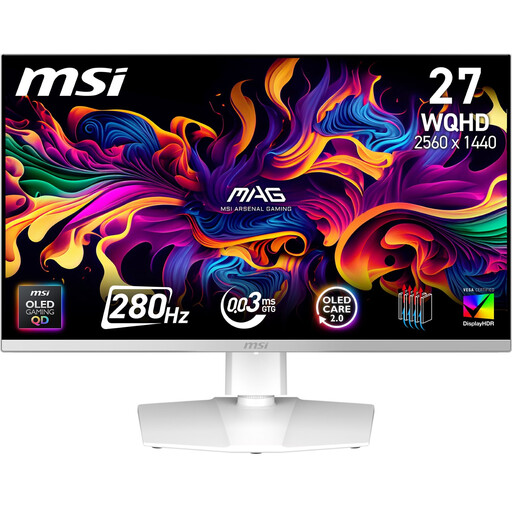
MSI MAG 272QPWDE QD-OLED X28 27-inch monitor
For viewing a form preview and tools on a 27-inch screen, if you’re happy with the QHD resolution and screen positioning.
The product details list 2560 × 1440 pixels, a QD-OLED panel and a stand with height, pivot and tilt adjustment. Coverage figures are given for sRGB, DCI-P3 and Adobe RGB.
Joybuy
Frequently asked questions
Can a 4K monitor replace testing the mobile view of a form?
No. Also check the form in a narrow browser window and when zoomed in. The W3C Web Accessibility Initiative discusses reflow at a width of 320 CSS pixels, among other things; a monitor’s native resolution is not the same as this browser view.
How can I check that form labels are easy to read?
Check the contrast between text and background directly on the form. In its guidance on WCAG 2.2, the W3C Web Accessibility Initiative specifies a minimum ratio of 4.5:1 for normal text and 3:1 for large text at Level AA. An sRGB mode or 4K resolution does not guarantee these values.
What should I check before connecting a USB-C monitor?
Compare your laptop’s video output with the monitor input, and check the cable and required power delivery. For the EV2740X, EIZO documents DisplayPort Alt Mode and up to 94 W at the designated USB-C upstream port; this does not guarantee compatibility with every laptop.
Does a home-working monitor bought for personal use need to be a specific size?
Germany’s workplace regulations do not set a blanket screen size for all personal purchases. The Federal Institute for Occupational Safety and Health describes the scope of ASR A6, which includes workplaces and teleworking workplaces; use in a private setting outside such teleworking workplaces is excluded. Where a designated teleworking workplace is involved, the relevant employer obligations should be considered separately.


