For occasional holiday videos, a colour-focused 4K monitor is a good fit if you want to check footage in fine detail; QHD may be enough for less detail-critical editing. On a shared desk, the ports, charging power and height adjustment should suit the laptops and seating positions that change throughout the day. An HDR logo alone does not prove that a monitor is suitable for demanding HDR colour grading.
Who are the different monitors for?
Occasional holiday video editors
If you edit clips and want to make sensible judgements about colour without needing a professional colour workflow, look for a suitable colour mode and consider how much preview resolution you actually need. PRAD recommends starting your monitor search with the way you plan to use it.
Laptop switchers sharing a desk
If several people use the same screen and desk, having the right connections and an easily adjustable screen position matters. BenQ and ASUS list different USB-C power outputs and adjustment options for their respective models, so check the specifications of the exact monitor and what each laptop needs.
Users who need precise colour grading
If you regularly work with colour or HDR, make calibration and display modes a deliberate part of your workflow. EIZO lists an integrated calibration sensor for the ColorEdge CG2700X; an HDR label alone is not enough to determine whether a monitor is suitable for a particular HDR deliverable.
What should you look for when buying?
| Buying priority |
What to look for |
Who it matters to most |
| Accurate colour display |
Check for colour modes such as Rec.709 or sRGB, as well as details of factory calibration. For repeatable colour decisions, find out whether and how the specific model can be calibrated. |
If you want to judge colour for an SDR workflow, you need a suitable preview mode, but don’t assume that advertised colour gamut coverage means proven accuracy. Around 29% of consumers put colour display at the top of their list. |
| Switching between users at a shared workstation |
Check that the laptop port supports the monitor’s video signal, and compare the laptop’s charging requirements with the stated USB-C power output. Also check height adjustment and the inputs you need. |
If you switch between laptops and seating positions with other people, you’ll want to connect your devices and adjust the screen easily. Around 29% of consumers say switching devices at a shared workstation is their top priority. |
| Image detail and workspace |
Consider the resolution of your footage and the preview size you want. Desk space, viewing distance and your computer’s scaling settings also play a part. |
If you want to check 4K footage in detail or leave room for the timeline beside your image, compare the resolution and screen size with your editing workflow. Around 21% of consumers put image detail and workspace first. |
| Features that suit your actual needs |
Distinguish between occasional editing and regular, calibrated colour grading. For HDR projects, check specific performance features rather than just an HDR signal specification. |
If you only edit holiday videos occasionally, you won’t want specialist features that your workflow doesn’t need. Around 21% of consumers say a suitable, rather than extensive, feature set is their top priority. |
Common monitor-buying misconceptions
-
Assuming HDR support means reliable HDR colour assessment
An HDR signal specification or certification level does not automatically tell you whether a monitor is suitable for your specific HDR colour workflow.
If you plan to work specifically with HDR, check the exact certification status and the brightness, contrast and colour features your workflow requires. VESA sets out different performance levels for DisplayHDR.
-
Assuming USB-C automatically gives you full one-cable connectivity
Video transmission and sufficient power depend on the features of both the laptop port and the specific monitor. BenQ lists 65 W Power Delivery for the PD2705U, while ASUS lists 96 W for the PA279CRV.
Before buying, compare the port capabilities and charging requirements of each laptop with the specifications for the exact monitor model.
-
Treating QHD, 4K and specialist calibration as interchangeable features
Resolution and calibration features serve different purposes. More features won’t necessarily solve the problem that matters most to you.
First decide whether you need native 4K detail, easy switching between devices or a regularly calibrated colour workflow.
Key brands to consider
BenQ
The DesignVue PD2705U is a 27-inch 4K option with a Rec.709 mode and features for a shared workstation.
- BenQ lists 99% Rec.709, a factory calibration report, KVM and 65 W USB-C for the PD2705U.
- The stated charging power needs to meet the requirements of the laptop you’re using.
ASUS
The ProArt PA279CRV and PA278QGV models offer different resolutions and connectivity options.
- ASUS lists 4K, 96 W USB-C and 0–130 mm of height adjustment for the PA279CRV. For the PA278QGV, ASUS lists QHD, HDMI, DisplayPort and a USB hub.
- These specifications apply to the named models and shouldn’t be assumed to apply to the other one.
LG
The UltraFine 27UP850K-W is a 27-inch 4K IPS option with USB-C and an adjustable stand.
- LG lists 95% DCI-P3 as a typical value and DisplayHDR 400 for this model.
- The DisplayHDR 400 specification alone does not prove that the monitor is suitable for demanding HDR colour assessment.
Dell
According to Dell, the UltraSharp U2725QE is a 27-inch 4K Thunderbolt hub option for a shared workstation with a suitably equipped laptop.
- Dell lists 4K, height adjustment and power delivery for this model.
- Thunderbolt features require compatible devices. These specifications apply to the U2725QE, not other UltraSharp models.
EIZO
The ColorEdge CG2700X is designed for users who need a specialist colour workflow that can be calibrated regularly.
- EIZO lists an integrated calibration sensor, 4K and PQ/HLG presets for the CG2700X.
- These features aren’t automatically necessary for occasional holiday videos; presets alone don’t prove that the monitor is suitable for a particular HDR deliverable.
Joybuy monitors for a shared desk
The following Joybuy listings include monitors with different screen sizes and resolutions. For each model, check that the connections and adjustability suit the devices and seating positions at your shared desk.
 No image available
Z-Edge AGEX 27-inch QHD monitor
Could suit you if you edit clips without needing native 4K detail and want to adjust the screen position.
27 inches; QHD at 2560 × 1440 pixels; Fast IPS panel; height-adjustable stand; HDMI and DisplayPort.
View at Joybuy
 No image available
TCL 32X3A 32-inch 4K OLED monitor
Worth considering if you want to view 4K footage on a 32-inch monitor.
The product title specifies an OLED display and 4K UHD at 3840 × 2160 pixels.
View at Joybuy
 No image available
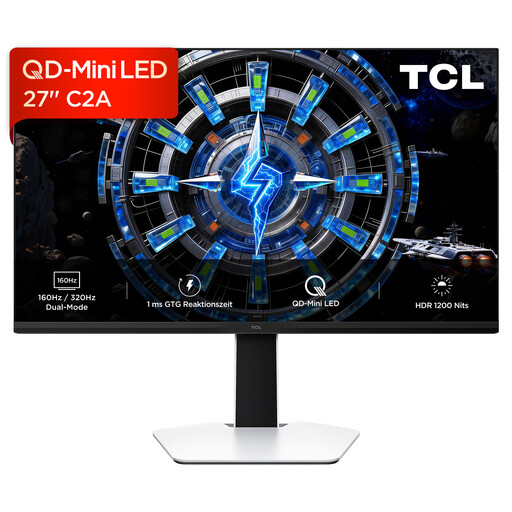
TCL 27C2A 27-inch QD Mini LED monitor
If you’re considering this model, check that its stated resolution meets your needs before buying.
The product title specifies 27 inches, QD Mini LED and 4K UHD, but also lists 3180 × 2160 pixels.
View at Joybuy
 No image available
CRUA CR320QB 32-inch curved 4K monitor
Could suit you if you want a 4K preview on a 32-inch monitor.
The product title specifies 3840 × 2160 pixels, a VA display, 3000R curvature and 100% sRGB colour gamut coverage; this does not indicate colour accuracy.
View at Joybuy
 No image available
INNOCN 40C1U 40-inch 5K monitor
Could be worth considering if you use several devices at a shared desk and want plenty of preview space.
40 inches; 5120 × 2160 pixels; IPS panel; USB-C with 65 W Power Delivery; PIP/PBP and height-adjustable stand. Check that the connections are compatible with the devices you use.
View at Joybuy
Frequently asked questions
Do I have to get a 4K monitor for holiday videos?
No. What matters is whether you want to check 4K footage at its native detail or mostly edit clips and work on your timeline. A 27-inch QHD model offers 2560 × 1440 pixels; the 27-inch 4K models mentioned here offer 3840 × 2160 pixels.
How should I set up the monitor if several people use the desk?
Adjust the screen position for whoever is sitting at the desk, and check that the laptop’s video signal and charging requirements are compatible with the monitor connections before plugging it in. Additional requirements apply to workplace display screen equipment; these don’t mean that a particular monitor must be bought for a desk used privately.
What should I know about returns and faults after buying online?
For distance purchases from a business seller, you generally have a 14-day right to cancel from the date of delivery; exceptions and the rules on return costs apply. According to the European Union, faulty goods are covered by a legal guarantee from the seller for at least two years, regardless of any additional manufacturer’s warranty.
Does German law require a particular monitor for editing personal holiday videos?
For the private use described here, the rules for workplace display screen equipment covered by the Federal Institute for Occupational Safety and Health do not prescribe a particular type of monitor in general. If it is actually a workplace for employees or a form of teleworking covered by the rules, the applicable health and safety requirements must be considered separately.


