Which buying criteria matter?
For long dialect interviews, your choice of monitor depends on whether timeline space, picture monitoring or laptop connectivity matters most to your workflow.
Widescreen 21:9 monitor
A good fit if: you want to see the preview, editing window and separate audio tracks side by side.
The trade-off: A 34-inch model with 3.440 × 1.440 pixels doesn’t offer native UHD resolution, and its extra width won’t synchronise audio tracks.
16:9 4K monitor
A good fit if: you want to assess UHD footage at native resolution or have limited desk space.
The trade-off: There’s less horizontal space for viewing editing panels at the same time than on a 34-inch 21:9 model.
| What matters |
What to look for when buying |
Who is it especially important for? |
| Space for the timeline and audio tracks |
Aspect ratio and native resolution; also check how the editing view looks at your chosen scaling setting. |
If you want to see the preview, timeline and separate audio tracks at the same time during long interviews, usable screen width is key. Around 36% of consumers prioritise space for the timeline and audio tracks. |
| Colours for your intended output |
A colour mode suited to your output format and, if needed, a calibration process that you’ll actually use. |
If you need to check colours for a specific output format, choose a mode and workflow to suit it. Around 29% of consumers prioritise colour control. |
| UHD picture detail |
Check the monitor’s native resolution against your source footage and the preview scaling in your software. |
If you want to assess UHD detail at native resolution, focus more on resolution than on extra timeline width. Around 21% of consumers prioritise UHD detail. |
| Laptop connectivity |
Check your laptop’s video output, USB-C capabilities and charging requirements against the monitor and cable. |
If you switch between a laptop and an editing desk, you’ll want to connect video and power in a way that suits your setup. Around 14% of consumers prioritise laptop connectivity. |
Joybuy products for video editing
The models below include widescreen editing options and 4K monitors for checking UHD detail. For each one, check that the resolution, format and connections suit your editing view and computer.
 No image available
INNOCN 40C1U 40-inch 5K 21:9
The wide 21:9 screen could be a good fit if you want to arrange the preview and several editing panels side by side.
5K resolution: 5120 × 2160 pixels; IPS; 100 Hz; USB-C with 65 W Power Delivery; PIP/PBP; height adjustable.
View at Joybuy
 No image available
CRUA 49-inch DQHD 32:9
The extra-wide format is an option if you want to see lots of editing panels side by side.
5.120 × 1.440 pixels; 165 Hz; 1500R; 120% sRGB according to the product title; HDMI 2.1 and DisplayPort 1.4. The resolution doesn’t reach the vertical UHD resolution of 2.160 pixels.
View at Joybuy
 No image available
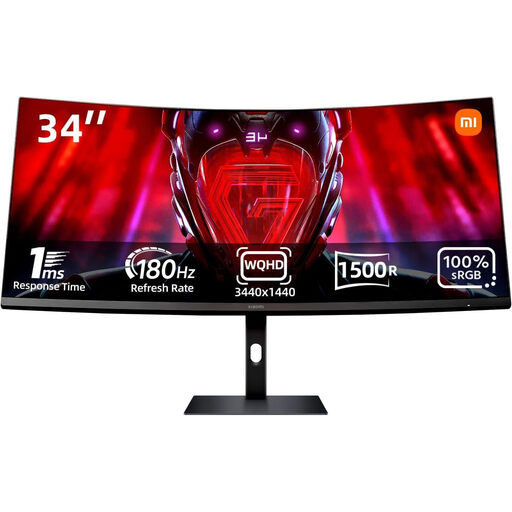
Xiaomi G34WQi 34-inch 21:9
The 21:9 format could give you more ways to arrange your editing view horizontally.
3.440 × 1.440 pixels; 180 Hz; 100% sRGB according to the product title; DisplayPort and HDMI. The resolution doesn’t offer the native vertical UHD pixel count of 2.160 pixels.
View at Joybuy
 No image available
MSI PRO MP273UPDE E6 27-inch 4K UHD
A 4K option if native UHD picture detail matters more to your work than the extra width of a 21:9 monitor.
27 inches; 3.840 × 2.160 pixels; IPS; 60 Hz.
View at Joybuy
 No image available
INNOCN CB27U1 27-inch 4K UHD
A compact 4K option if you want to assess UHD detail at native resolution and connect a laptop via USB-C.
3.840 × 2.160 pixels; IPS; 120 Hz; USB-C with 90 W Power Delivery; HDMI and DisplayPort; height adjustable. The 16:9 format offers less horizontal editing space than a widescreen 21:9 monitor.
View at Joybuy
Frequently asked questions
Will a wider monitor synchronise my separately recorded interview audio tracks?
No. A monitor gives you more space to work, but you’ll need to combine or synchronise the recordings in your editing software. Adobe explains the relevant features in Premiere, while Blackmagic Design describes how audio waveforms in DaVinci Resolve can help you find your way around a recording. Listen back to check the result, especially at difficult points in the speech.
Do I need built-in monitor speakers for dialect interviews?
Not necessarily. Built-in speakers don’t prove that you’ll be able to assess difficult-to-understand speech reliably. Before buying, decide how you’ll listen to the audio track and where you’ll connect your audio monitoring setup to your computer.
What should I consider when checking the picture after setting up?
Set the editing view to a scaling level that’s easy for you to read, and choose a colour mode that suits your intended output. If you need hardware calibration, allow time for the process on your specific model; a colour gamut specification isn’t a substitute.
Who should I contact in Germany if my monitor is faulty?
For statutory consumer rights, the seller is generally your point of contact; the consumer advice centre explains that the statutory warranty period is two years. This is separate from any voluntary manufacturer’s guarantee. Online purchases also generally come with a 14-day right to cancel; check the terms and any possible exceptions for your specific purchase.
Can I put an old monitor in household rubbish in Germany?
No. According to information from Germany’s Federal Ministry for the Environment, old electrical equipment must be handed over to an authorised collection organisation, such as a local collection point. Whether a particular retailer is required to take it back depends on the conditions set out in the German Electrical and Electronic Equipment Act (ElektroG).


