What should you look for when buying?
First, check that text and focus indicators are easy to see in your working environment. Then compare the space available for multiple windows, your preferred monitor positioning and – if you use a laptop – the connections you actually need.
| Consideration |
What to look for when buying |
Who is it important to? |
| Checking text and keyboard focus |
Check the resolution and scaling in your own browser, and test the focus indicator on the website. |
If I need to check forms and focus indicators in my usual setup, I want text and controls to be easy to see. Around 33% of consumers say checking text and focus visually is their main concern. |
| Space for multiple windows |
Compare screen size and native resolution alongside the scaling you use. |
If you work with previews, text and development tools open at the same time, you need enough usable screen space without losing sight of text size. Around 27% of consumers prioritise working with multiple windows side by side. |
| Adjustable positioning |
Check the height and tilt adjustments, as well as the space available for the stand and screen. |
If I regularly work at the same desk, I want to be able to position the screen to suit how I sit. For around 20% of consumers, adjustable positioning is a priority. |
| Connecting a laptop and peripherals |
Check USB-C video output, charging requirements and the ports you need against your laptop. |
If you often connect a laptop and want to use an external keyboard, check that the monitor and computer are actually compatible. Around 20% of consumers say laptop docking is their main concern. |
Joybuy monitors for these workspaces
The following Joybuy models are worth considering for visually checking long text and form pages, as well as for workspaces with multiple windows or a laptop connection. They don’t replace testing the website’s keyboard accessibility.
 Image unavailable
MSI PRO MP273UPDE E6 27-inch 4K UHD monitor
A suitable option if you want to check text and form pages on a high-resolution display and adjust the screen to suit your workspace.
27 inches, 3840 × 2160 pixels, IPS and 60 Hz; the stand offers 110 mm of height adjustment, plus swivel, tilt and pivot.
View at Joybuy
 Image unavailable
INNOCN 40C1U 40-inch 5K ultrawide monitor
The wide display could be useful for viewing previews, text and tools together on one screen. Check first that it will fit on your desk.
40 inches, 5120 × 2160 pixels and IPS; also listed are USB-C with 65 W Power Delivery, a USB hub and height adjustment.
View at Joybuy
 Image unavailable
INNOCN CB27U1 27-inch 4K UHD monitor
An option for visual checks on a 27-inch display with USB-C connectivity. Check that the connection and charging requirements match your laptop.
3840 × 2160 pixels and IPS; specifications list USB-C with 90 W Power Delivery and height adjustment.
View at Joybuy
 Image unavailable
MSI PRO MP275QPDGDE 27-inch WQHD docking monitor
Worth considering for a laptop workspace if you want QHD resolution and built-in connections for external peripherals.
27 inches and 2560 × 1440 pixels; features include USB-C docking with 98 W Power Delivery, RJ-45, four USB-A ports, and height, tilt, swivel and pivot adjustment.
View at Joybuy
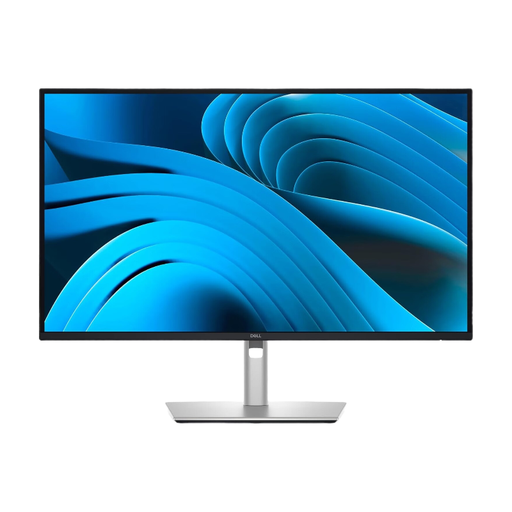 Image unavailable
Dell Pro Plus P2725DE 27-inch QHD monitor
A potential choice for viewing text and form pages at a laptop workspace, provided the USB-C features are compatible with your computer.
27 inches and 2560 × 1440 pixels; features include USB-C with up to 90 W Power Delivery, a USB hub, and height, tilt and pivot adjustment.
View at Joybuy
Frequently asked questions
Can a particular monitor make a public participation website keyboard-accessible?
No. Keyboard accessibility is a feature of the web interface. Test the features with a keyboard and check that focus is visible on interactive elements; monitor specifications can’t replace these tests.
How do I connect an external keyboard to a docking monitor?
Philips says you can connect peripherals, including a keyboard, to the built-in dock on the 273S1/00. Also check that your laptop supports the USB-C video connection and power delivery you need.
What should I consider for positioning and regular use?
Adjust the available settings to suit your working position, and check text size and scaling on your computer. Germany’s Federal Institute for Occupational Safety and Health describes requirements for workplace display screen equipment and teleworking in ASR A6; private use is outside its scope.
What connection and service details should I check before buying?
Check whether your laptop needs a suitable cable or a separate docking solution, and read the warranty and returns terms for the specific offer. Any additional connections depend on the features of the laptop and monitor in question.
Does BITV 2.0 apply to every public participation website in Germany?
No, you can’t determine that from the subject of the website alone. The Federal Accessibility Agency explains the requirements of the BGG and BITV 2.0 for federal public bodies; the relevant state rules apply at state level. Which rules apply to a specific project depends in particular on who operates it. Buying a monitor does not meet website accessibility requirements.


