First, measure the space available, including the stand, then choose a monitor based on how you plan to use your images. For mostly digital images, a suitably sized monitor with a specified sRGB mode can be a good starting point. For colour-critical prints, the right colour space and a calibrated workflow matter more. Also compare the resolution and how clearly you can read the controls at your preferred scaling setting – an HDR specification doesn’t prove that exposure brackets will blend more effectively.
Which monitor is right for you?
Landscape photographers with a small desk
If you edit exposure brackets in a student room, your monitor, stand, keyboard and cables all need to fit the space available. BenQ and EIZO publish model dimensions, making it easier to compare the footprint of different monitors.
Detail-focused digital editors
If you want to assess tonal transitions and detail in highlights and shadows while keeping your controls easy to read, native resolution, screen size and your software’s scaling all matter. Adobe describes merging multiple exposures as a way to retain detail in bright and dark areas of an image.
Photographers working on print projects
If you’re preparing landscape images for colour-critical prints, choose a colour space and calibration approach that suit your specific output workflow. EIZO points out that a colour space that’s too small or panel uniformity issues can’t simply be calibrated away.
What should you look for when buying?
Compact photo monitor with a wide colour gamut
A good fit if: you regularly prepare colour-critical prints and have the space and time for a calibrated colour-management workflow.
Trade-off: A smaller screen doesn’t guarantee a shallow stand, and a wide colour gamut is no substitute for calibration or checking your print workflow.
27-inch monitor for digital output
A good fit if: you mainly share images digitally and want more screen space for your photo and controls.
Trade-off: Check the monitor’s dimensions and how clearly you can read the screen at your chosen scaling setting. DCI-P3 coverage doesn’t tell you about Adobe RGB coverage.
Basic Full HD monitor
A good fit if: a second screen for selecting images and general work is enough, and you don’t need to assess colour-critical prints on it.
Trade-off: Compared with the QHD models mentioned, Full HD gives you fewer native pixels for your photo and controls. Colour modes and footprint vary by model.
| Buying criterion |
What to check |
Who is it important to? |
| Footprint |
Measure the available width and depth, then compare them with the monitor’s dimensions including the stand. BenQ lists the SW242Q as 533,2 mm wide and 262,6 mm deep with the stand. |
If my desk is shallow, the monitor needs to fit along with its stand and cables. Around 31 % of consumers put available desk space first. |
| Detail and tonal transitions |
Compare native resolution, screen size and how readable your software is at your preferred scaling setting. BenQ lists the SW242Q at 2560 × 1600 pixels, ASUS the PA278QV at 2560 × 1440 pixels, and LG the 27UP850K-W at 3840 × 2160 pixels. |
When merging exposures, I want to assess transitions and detail in highlights and shadows while keeping the tools easy to read. Around 31 % of consumers prioritise checking detail. |
| Colours for prints |
Match your output requirements with the exact model’s stated colour gamut and its calibration process. BenQ lists 99 % Adobe RGB and hardware calibration for the SW242Q; ASUS lists 100 % sRGB for the PA278QV. |
If I’m preparing landscape images for colour-critical prints, I need a colour space suited to my output and a calibration process I can plan for. Around 23 % of consumers put print colours first. |
| Laptop and power |
Check your laptop’s video output, cables and power requirements. BenQ lists USB-C with DisplayPort Alt Mode and 90 W Power Delivery for the SW242Q. For energy comparisons, check the EU energy label for the exact model. |
If I want to connect my laptop to the monitor, the video connection and charging power need to work with my specific device. Around 15 % of consumers prioritise their laptop setup. |
Avoid common misconceptions
-
Assuming “HDR” on a monitor means it can merge exposures
Adobe’s feature for merging multiple exposures and an HDR specification for a screen refer to different things.
First decide whether you need a particular HDR display feature or simply want to assess a finished, edited image for your chosen output.
-
Assuming a 24-inch monitor will automatically save space
The screen size doesn’t tell you how far the stand and cables will extend across your desk. BenQ lists the 24,1-inch SW242Q as 262,6 mm deep with the stand.
Compare the monitor’s full dimensions with the desk space you actually have available.
Remember to allow space for the stand and cables too.
-
Assuming factory calibration or a wide colour gamut guarantees good results for every print
EIZO explains that a colour space that’s too small and panel uniformity issues can’t simply be calibrated away. Adobe recommends monitor calibration as part of colour management.
Choose a colour space that suits your output and plan to maintain your colour-management setup.
A well-matched colour-management workflow takes extra time to set up and maintain.
-
Assuming USB-C will power any laptop
A USB-C port alone doesn’t guarantee the right video connection or enough power to charge a particular laptop. BenQ specifies DisplayPort Alt Mode and 90 W Power Delivery for the SW242Q.
Before buying, compare the video and charging requirements of both devices.
Depending on how your devices connect, you may also need another cable or your laptop’s power adapter.
Key brands at a glance
BenQ
BenQ’s SW242Q is a 24,1-inch model for colour-managed photo workflows, while the PD2732U is a larger 27-inch 4K option.
- BenQ lists the SW242Q at 2560 × 1600 pixels with 99 % Adobe RGB and hardware calibration. The manufacturer lists the PD2732U as a 27-inch model with 3840 × 2160 pixels.
- The SW242Q is 262,6 mm deep with the stand, according to BenQ. Manufacturer specifications aren’t an independent measure of colour accuracy.
EIZO
The ColorEdge CS2400S is aimed at buyers who prioritise colour gamut and hardware calibration over high native resolution on a 24,1-inch screen.
- EIZO lists more than 99 % Adobe RGB and hardware calibration for this model.
- The stated resolution is 1920 × 1200 pixels. Colour gamut figures alone are no substitute for a well-matched print workflow.
ASUS
The ProArt PA278QV is a 27-inch QHD option for workflows that are mainly digital and use sRGB.
- ASUS lists 2560 × 1440 pixels, 100 % sRGB and factory calibration.
- These specifications don’t confirm a particular level of Adobe RGB coverage or consistent accuracy over time at your own workstation. PA278QV and PA278QGV are different model names.
LG
The UltraFine 27UP850K-W is a 27-inch 4K option. Check that its USB-C features meet the needs of your device before buying.
- LG lists 3840 × 2160 pixels and a typical value of 95 % DCI-P3.
- DCI-P3 isn’t an Adobe RGB specification and doesn’t, on its own, guarantee a reliable print preview. HDR functionality is not the same as merging exposure brackets.
Dell
The UltraSharp U2724D is a general-purpose 27-inch work monitor. Check its specific colour and connectivity specifications separately for photo editing.
- Dell describes the U2724D as a 27-inch UltraSharp monitor.
- Before choosing it for photography, check the colour mode and connectivity specifications for the exact model.
Joybuy monitors for this use
The Joybuy models shown here are 27-inch monitors with QHD or 4K resolution. Compare their footprint, resolution and the colour specifications your photo workflow needs with your requirements.
 No image available
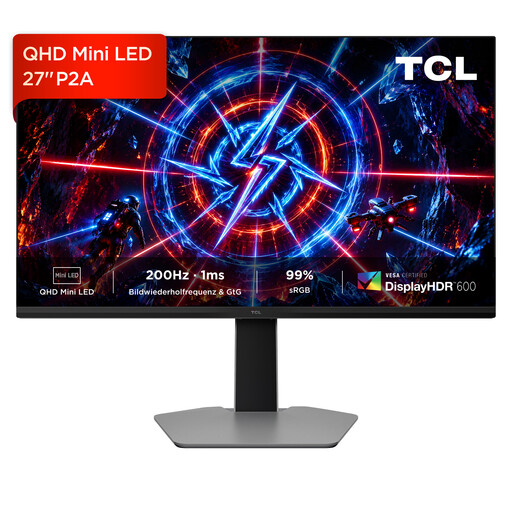
TCL 27P2A Mini-LED monitor
If you want to fit your photo and controls on a 27-inch screen, the stated QHD resolution gives you a useful point of comparison.
27 inches; QHD (2560 × 1440 pixels). Check that its colour gamut and colour mode suit your output requirements.
View at Joybuy
 No image available
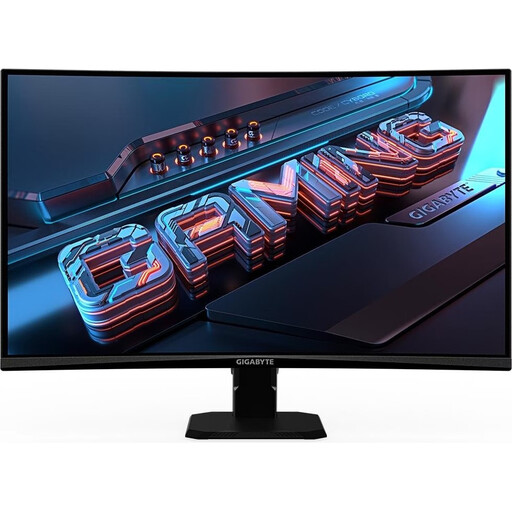
GIGABYTE GS27QCA curved QHD monitor
If you’re looking for QHD on a 27-inch screen, compare the stated resolution with the space on your desk and your preferred screen shape.
27 inches; QHD resolution; curved screen. Check the specific colour modes for your planned photo workflow.
View at Joybuy
 No image available
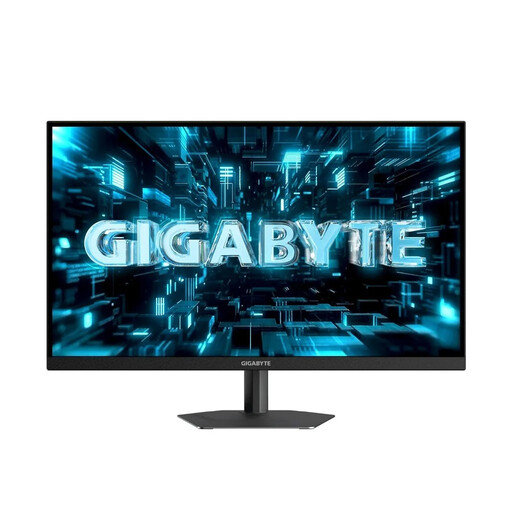
GIGABYTE G27Q26 QHD monitor
If you want to arrange your photo and tools on a 27-inch screen, compare the stated QHD resolution with your software’s scaling settings.
27 inches; 2560 × 1440 pixels; SuperSpeed IPS. Check the colour gamut and calibration requirements for your output.
View at Joybuy
 No image available
INNOCN CB27U1 4K UHD monitor
If you’re considering 4K resolution on a 27-inch monitor, check that the display and scaling settings suit your workstation.
27 inches; 4K UHD (3840 × 2160 pixels); IPS. Don’t assume resolution alone says anything about colour accuracy.
View at Joybuy
 No image available
KTC M27P6 4K Mini-LED monitor
If you’re comparing 27-inch monitors with 4K resolution, check that the screen dimensions and intended scaling suit your desk and photo editing setup.
27 inches; 4K; Fast-IPS panel. Check the exact model’s colour specifications for your output requirements.
View at Joybuy
Frequently asked questions
Do I need an HDR monitor to merge an exposure bracket?
No. Adobe describes merging multiple exposures as an editing step that preserves detail in highlights and shadows. An HDR label on a monitor refers to a different product feature. Choose based on the preview and output you actually need.
How do I set up colour for editing?
Choose a colour mode that suits your output and calibrate or profile the monitor as part of a colour-managed workflow. Adobe recommends monitor calibration for Lightroom Classic. EIZO points out that calibration won’t fix a colour space that’s too small or panel uniformity issues.
Will every USB-C photo monitor charge my laptop?
No. The connection needs to suit your specific laptop. Check video output, cables and the power required. BenQ specifically lists DisplayPort Alt Mode and 90 W Power Delivery for the SW242Q. This doesn’t guarantee compatibility with another laptop.
What rights apply when buying a monitor online in Germany?
For standard online purchases by consumers, there is generally a 14-day right to cancel from the date of delivery. Legal exceptions and any return postage costs should be taken into account. The EU Your Europe portal explains the right to cancel and the rules on return costs. Your statutory rights when goods are faulty are separate from a voluntary manufacturer’s warranty; the Verbraucherzentrale explains the difference.
Which energy label should I look for when buying a monitor?
The European Commission generally includes computer monitors under the rules for electronic displays, with an energy label from A to G. Compare the label for the exact model; exceptions apply to certain types of display.


