Photo editors with limited desk space
When space is tight, the monitor, stand and cables all need to fit the available width and depth. Check the dimensions of the specific model and the ways it can be set up.


Image-editing software corrects lens distortion; the monitor displays the edited image so you can check the results. First, measure the space available for the screen, stand and cables, then compare the resolution and scaling with your usual software layout. If you print your work, suitable colour modes and calibration options are also worth considering.
When space is tight, the monitor, stand and cables all need to fit the available width and depth. Check the dimensions of the specific model and the ways it can be set up.
When correcting curved lines and skewed edges, you need to be able to assess the adjustments and image edges clearly. Adobe explains the use of lens profiles and manual corrections in Photoshop; the corrections themselves are a software feature.
If you want to assess colours for a particular output as well as geometry, compare the monitor’s colour modes and calibration options against your workflow.
| Criteria | What to look for | Who is it important to? |
|---|---|---|
| Desk space and setup | Measure the available width and depth, allowing for the stand and cable routing. If you’re considering an alternative mounting option, check the VESA specifications and make sure it’s suitable for your desk. | If I work at a small desk, the screen, stand and cables all need to fit in the space available. Around 31% of consumers put desk space first. |
| Lines, detail and image edges | Compare the native resolution and aspect ratio, and check that the image and tools remain easy to read at your usual scaling. Adobe notes that corrections can shift parts of an image or reveal blank areas around the edges. | If I want to check lines and cropping after making corrections, I need a clear, easy-to-read workspace. Around 31% of consumers prioritise checking detail and image edges. |
| Colour workflow | First decide what you’ll be outputting, then compare the monitor’s colour modes and calibration options for that purpose. Colour gamut coverage alone doesn’t guarantee a match with a particular printing process. | If I want to assess colours for a specific output, suitable modes and a practical calibration process are important. Around 23% of consumers put colour workflow first. |
| Laptop connectivity | Check that the video output, monitor connections and required charging power are compatible. A stated USB-C power output is only useful if your computer and monitor support the connection you need. | If I want to connect my laptop and screen with as few cables as possible, the connection and charging power need to suit my computer. Around 15% of consumers prioritise convenient connectivity. |
The stand and cables take up extra space. BenQ Germany lists the SW242Q as 262.6 mm deep with the stand; the screen size alone doesn’t tell you how much desk space it needs.
Measure your desk and compare the monitor’s dimensions, including the stand and cable routing. Only consider an alternative mount if the specifications confirm it’s suitable for your particular monitor and desk.
Colour features and lens correction are two different things. Adobe explains that lens errors are corrected using suitable profiles and software settings.
Choose a workspace that suits your needs for desk space and readability. Consider additional colour features based on whether they’re right for your intended output.
Supported video output and charging power depend on the connections available and the power requirements of your particular computer.
Before buying, check your laptop’s video output and charging requirements against the connections on the specific monitor.
BenQ Germany lists the SW242Q as a 24.1-inch model with features for photography and colour management.
EIZO Germany describes the ColorEdge CS2400S as a 24.1-inch monitor for photography and retouching.
ASUS lists the ProArt PA248CRV as a 24.1-inch monitor with a compact base and laptop connectivity.
Dell lists the UltraSharp U2424H as a 23.8-inch everyday monitor with an IPS panel and an adjustable stand.
This selection includes monitors for checking images after lens corrections, including compact 23.8- and 24-inch models, as well as 27-inch models. If space is limited, pay particular attention to the stated dimensions and the actual desk space required.
 No image available
For checking detail and corrected image edges, this model has a stated resolution of 2560 × 1440 pixels. At 27 inches, it’s worth checking how much desk space you have first.
IPS panel; tilting stand; VESA 100 × 100 mm.
 No image available
For a detailed workspace, this model has a stated resolution of 3840 × 2160 pixels and an IPS panel. At 27 inches, it needs plenty of room; the product specifications give its dimensions with the stand as 613.4 × 552 × 195 mm.
USB-C with 90 W Power Delivery; height-adjustable; PIP and PBP functions.
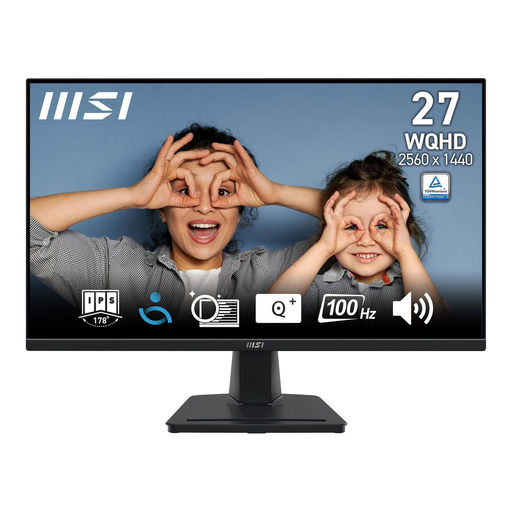 No image available
The stated resolution of 2560 × 1440 pixels gives you native pixels for both the image and your tools. At 27 inches, measure the space available on your desk.
IPS panel; 100 Hz; tilting stand.
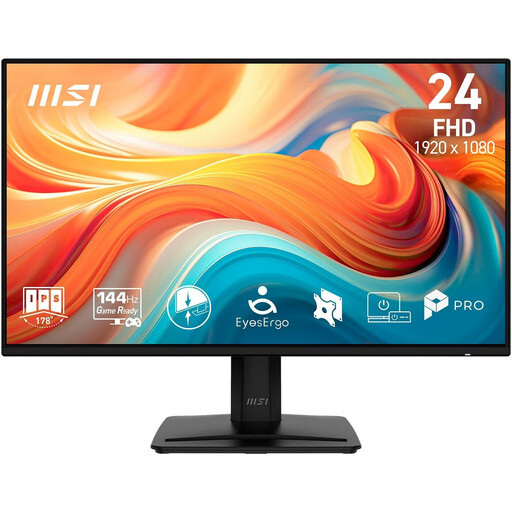 No image available
For a smaller desk setup, this 23.8-inch model is listed as 18.8 cm deep with the stand. Its Full HD resolution of 1920 × 1080 pixels gives you fewer native pixels for the image and tools than the QHD models listed here.
IPS panel; VESA 100 × 100 mm; tilting setup.
 No image available
This 24-inch model is listed as 185.1 mm deep, with a tilting setup and VESA 100 × 100 mm. Compare its 1920 × 1080 pixel resolution with your usual software layout when checking images and tools.
IPS panel; Full HD; HDMI and VGA.
No. Lens correction is done in image-editing software. Adobe explains how to use lens profiles and manual settings in Photoshop; the monitor displays the edited image.
Check whether any blank areas have appeared and whether cropping has removed important parts of the image. Adobe describes these possible effects of perspective correction in Lightroom Classic.
Only if the mount and desk are suitable for the specific monitor. BenQ lists VESA 100 × 100 mm for the SW242Q, as does ASUS for the PA248CRV; this alone doesn’t confirm that a particular arm or desk is suitable.
The European Commission generally includes computer monitors under the EU energy label for electronic displays. Compare the energy label and model information; the efficiency rating doesn’t indicate whether a monitor is suitable for image editing.
No. The consumer advice centre Verbraucherzentrale distinguishes statutory rights against the seller from a voluntary guarantee, the terms of which are set out in the guarantee conditions.