Lesson planners short on desk space
If you need to fit a keyboard, notes and teaching materials on a small desk alongside your monitor, compare the width and depth of the whole unit, including its stand.


First, measure the desk space available for the monitor and its stand, and allow room for your keyboard and papers. A compact Full HD or 16:10 model may suit you if you work with one lesson plan at a time. If you often need to view your plan and source material side by side, consider a compact QHD monitor and check how it looks at your usual text scaling. Adjustability and connections are separate buying considerations: a USB-C port alone doesn’t guarantee video output or enough power to charge your device.
If you need to fit a keyboard, notes and teaching materials on a small desk alongside your monitor, compare the width and depth of the whole unit, including its stand.
If you often have a lesson plan and source material open at the same time, check that both windows remain readable at your preferred text size and fit on the available screen space.
If you regularly switch computers, check that their video outputs match the inputs on the specific monitor. For USB-C, also check that it supports both video output and the charging power you need.
Measure the space available, then check which text display and connections suit the way you prepare your lessons.
| Criterion | What to check before buying | Who should pay particular attention? |
|---|---|---|
| Desk space | Measure the available width and depth, then compare them with the monitor’s dimensions, including its stand. Lenovo lists the ThinkVision T24i-30 as 539,8 mm wide and 199,7 mm deep; BenQ gives the GW2490T’s width and depth with stand as 540 × 241 mm. | If you need to leave room for a keyboard and papers alongside the screen, the actual desk space it takes up is crucial. Around 36% of consumers are likely to put desk space at the top of their list. |
| Text display | Open a typical lesson plan and a source side by side, using your usual font size. Compare the resolution and window layout of the specific model. | I want to read my plan and source at the same time without making the text too small for me. Around 29% of consumers are likely to prioritise viewing documents side by side. |
| Screen positioning | Check the adjustment options on the specific model and make sure its stand leaves enough room on your desk. BenQ lists 110 mm of height adjustment for the GW2490T. | If you want to position the screen comfortably for longer planning sessions, check its adjustment options and how much desk space it takes up. Around 21% of consumers are likely to prioritise an adjustable screen position. |
| Computer connections | Check your computer’s video output and charging requirements against the monitor’s documented inputs. Dell lists the P2425’s USB-C port as a data downstream port with up to 15 W; for the P2425E, Dell specifies up to 90 W Power Delivery. | I want to connect my laptop appropriately and, where possible, keep my desk cables tidy. Around 14% of consumers are likely to put computer connections first. |
The screen diagonal doesn’t tell you how much desk space the monitor and its stand will take up. Monitors with a similar screen size can still differ in width and depth.
Before choosing, compare the space available on your desk with the monitor’s full dimensions, and allow room for your keyboard and papers.
Depending on your setup, you may need to move the monitor or use a suitable mount.
What a port can do depends on the specific port and model. Dell lists the P2425’s USB-C port as a data downstream port; the P2425E is a different model with a hub.
Check the full model number, video input and charging power before planning to connect everything with one cable.
Depending on the connections available, you may need a different connection or an extra cable.
More pixels alone don’t determine whether your plan and source material are comfortable to read side by side at your preferred text scaling.
Try a typical document and source material at the magnification you actually want to use.
Dell takes several different approaches with these 24-inch models: the 16:10 P2425, the QHD P2425DE with a USB-C hub, and the 16:10 P2425E with a hub.
The Lenovo ThinkVision T24i-30 is a 23,8-inch Full HD model with an adjustable stand and VESA 100 × 100 mm mounting.
The BenQ GW2490T is a Full HD model with a height-adjustable stand.
According to the manufacturer, the Philips Business Monitor 24B2G5200/00 is a 23,8-inch Full HD office monitor with light and presence sensors.
This selection includes a 24-inch Full HD monitor and portable monitors for a flexible workspace. Before buying, check that the screen size, setup and connections suit your desk and computer.
 No image available
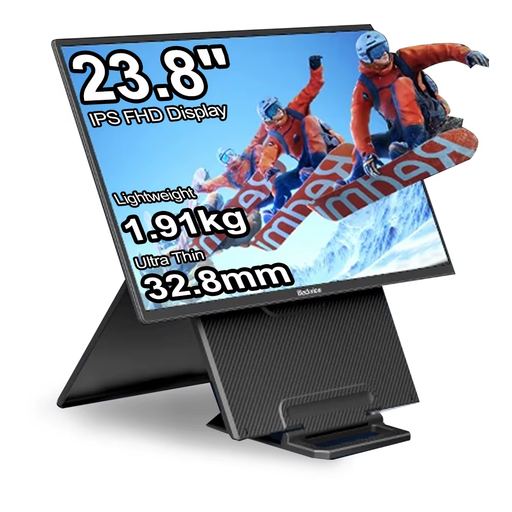
A portable model may be worth considering if you’d like a flexible display for your lesson-planning space.
The product title lists a 23.8-inch screen and 100 Hz. Check that it will fit your intended setup before buying.
 No image available
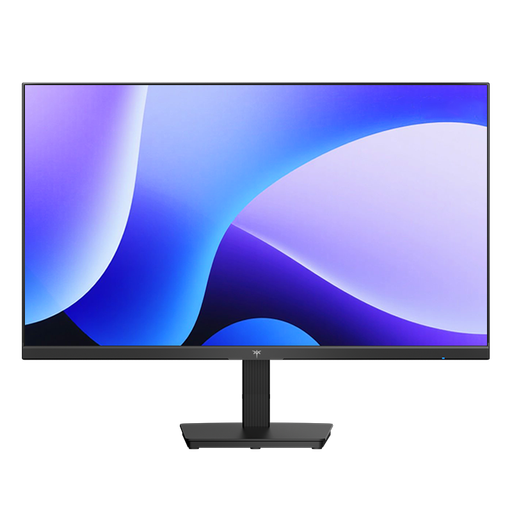
This could suit you if you’re looking for a 24-inch monitor for office work and have a computer with a compatible HDMI or DisplayPort output.
The product title lists Full HD resolution of 1920 × 1080 pixels, an IPS panel, 144 Hz, HDMI and DisplayPort.
 No image available
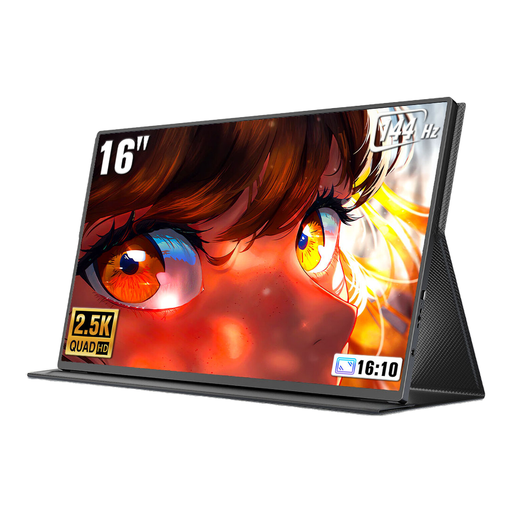
This portable model may be worth considering for a flexible workspace if 16 inches suits your planned setup.
The product title lists a resolution of 2560 × 1600 pixels, a 16:10 aspect ratio, Mini-HDMI and Type-C.
 No image available
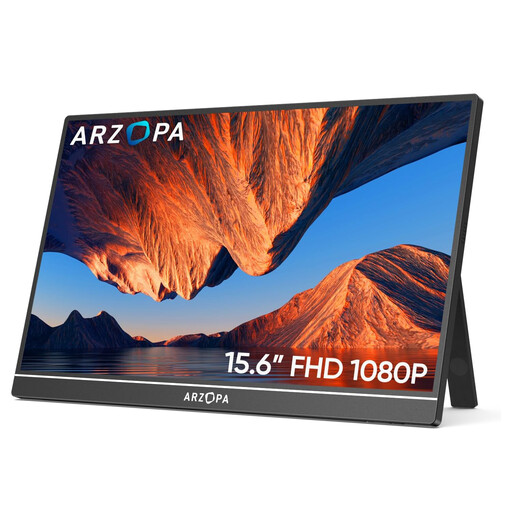
This could work as a portable screen if you can match its 15.6-inch size and connections to your laptop or PC.
The product title lists a resolution of 1920 × 1080 pixels, an IPS panel, USB-C and HDMI.
 No image available
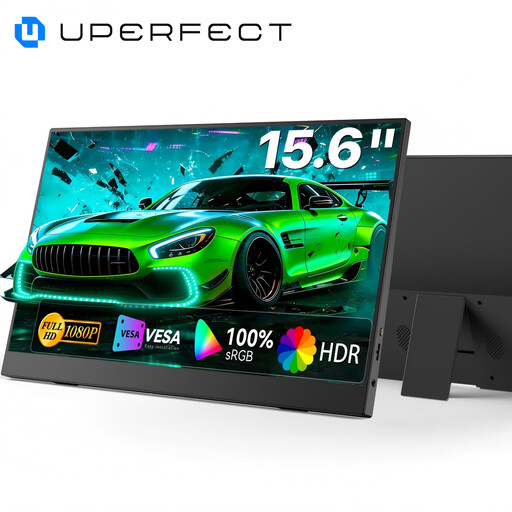
The built-in stand could make this a good option if you want to set up a portable second screen at your workspace.
The product title lists 100% sRGB, a built-in adjustable stand, VESA mounting and USB-C.
Measure the available width and depth on your desk, and allow room for your keyboard and papers. Compare these measurements with the full dimensions of the monitor, including its stand; the screen diagonal alone doesn’t tell you how much desk space it will take up.
No. It depends on the capabilities of the laptop and monitor ports. Dell lists USB-C on the P2425 as a data downstream port with up to 15 W; for the P2425E, Dell specifies up to 90 W Power Delivery. Check the video output and charging requirements of your laptop against the specific model.
Not necessarily: more pixels don’t guarantee that text and windows will remain comfortable to read at your preferred scaling. Try viewing a typical lesson plan and source side by side at the magnification you actually want to use.
No. ASR A6, issued by the Federal Institute for Occupational Safety and Health and the Committee for Workplaces, sets out its scope for screen-based workstations in workplaces and teleworking workstations; it expressly excludes screen use at home outside a teleworking workstation. Whether a specific workstation counts as a teleworking workstation should not be inferred from someone’s occupation alone.
Compare the EU energy label and the specifications for each monitor, rather than assuming a sensor feature will deliver a particular saving. The European Commission lists electronic displays as a product group covered by energy labelling.