Level designers working beside a bright window
If you spend long hours in editor windows, you need to see your content clearly in daylight and take distracting reflections into account when positioning the screen.


Start by positioning your monitor so you can control direct light from the window and distracting reflections as much as possible. An anti-glare screen and a high brightness rating alone won’t solve the problem. If you mainly work in editors and on colour, resolution and the right colour space matter most. If you playtest frequently, usable refresh rate becomes more important. The German Federal Institute for Occupational Safety and Health and RTINGS also stress the need to consider glare protection and reflection handling.
If you spend long hours in editor windows, you need to see your content clearly in daylight and take distracting reflections into account when positioning the screen.
If you assess colours and fine image details, the resolution and colour space should suit your workflow. A wide colour gamut rating alone doesn’t tell you how accurately an individual monitor performs with your settings.
If you often switch between the editor and a moving game preview, weigh up the refresh rate and connections against your needs for detail and colour work.
First, check whether you can manage window light and screen positioning in your day-to-day workspace. Then match the colour space, editor workspace and refresh rate to the way you actually work.
A good fit if: you mainly work with static editor windows, text, textures and blocks of colour. ASUS lists 4K, an anti-glare surface and typical brightness of 350 cd/m² among the PA279CRV’s features.
Trade-off: According to ASUS, the PA279CRV has a maximum refresh rate of 60 Hz. An anti-glare finish and brightness rating also don’t guarantee a reflection-free picture in direct window light.
A good fit if: you regularly test levels with fast camera movements. Gigabyte’s global spec sheet lists 4K and a maximum refresh rate of 160 Hz for the M27U.
Trade-off: The M27U is listed with USB-C Power Delivery of up to 18 W. Before buying, check the charging output and the German listing variant against your laptop.
A good fit if: contrast and motion are especially important to you, and you can control the light from the window.
Trade-off: RTINGS notes that OLED can be at risk of burn-in when static elements remain on screen for long periods. Panel technology alone also doesn’t tell you how a particular model handles direct reflections from a window.
| Buying priority | What to check | Who is it important for? |
|---|---|---|
| Reflections from a window | Compare the anti-glare finish and typical SDR brightness; also consider monitor positioning and sun protection. | If I work beside a window, I want to see editor windows without distracting reflections. That’s why around 36% of consumers put reflections first. |
| Colour and lighting | Check whether sRGB, Rec.709 or another colour mode suits your intended workflow; if you have specific colour requirements, consider calibration and settings. | If I need to assess textures and lighting, the colour space should suit my workflow. Around 29% of consumers prioritise colour work. |
| Editor detail | Consider native resolution and screen size together; check the video input and desired resolution against your computer. | If I want to keep tools and fine scene details in view at the same time, I need a workspace that suits my viewing distance. Around 21% of consumers prioritise detailed editor work. |
| Refresh rate and connections | Check refresh rate alongside resolution and connection; compare USB-C Power Delivery with your laptop’s charging requirements. | If I often test levels in motion, I want a preview that suits my computer and connection. Around 14% of consumers prioritise smooth playtesting. |
A peak HDR figure doesn’t tell you how bright the editor interface can be set for extended sessions or how strongly a particular light source will reflect on the screen.
Compare the typical SDR figures for the exact model and, where available, look at independent reflection measurements.
USB-C video transmission doesn’t automatically mean the stated Power Delivery output is right for your laptop.
Check that the video connection, cable and wattage meet your laptop’s requirements.
For long editor sessions, detail, colour reproduction and reflections may matter more. With OLED, the risk of leaving static elements on screen for long periods is another factor to weigh up.
Consider refresh rate in proportion to how much playtesting you actually do, and check how the panel’s risks fit your working routine.
Differences in model names can point to different variants and specifications.
Check the full model name and the details in the specific listing before applying specifications from another model.
The specifications below apply to the models named and come from their manufacturers. They’re no substitute for checking how a monitor actually handles reflections beside your own window.
According to ASUS, the ProArt Display PA279CRV is designed for detail- and colour-focused work.
According to BenQ, the DesignVue PD2705U is made for design workflows using sRGB and Rec.709.
The UltraSharp U2725QE is a hub-style option for a workspace with a laptop and several other devices.
According to Gigabyte’s global spec sheet, the M27U combines 4K with a high refresh rate for design and playtesting.
The 27UP850K-W listed on LG’s German site is a 27-inch 4K IPS option for image-focused work.
The models below are suited to editor work and game previews. For each listing, check the exact model variant, its connection to your computer and whether it’s suitable for your window-side workspace.
 No image available
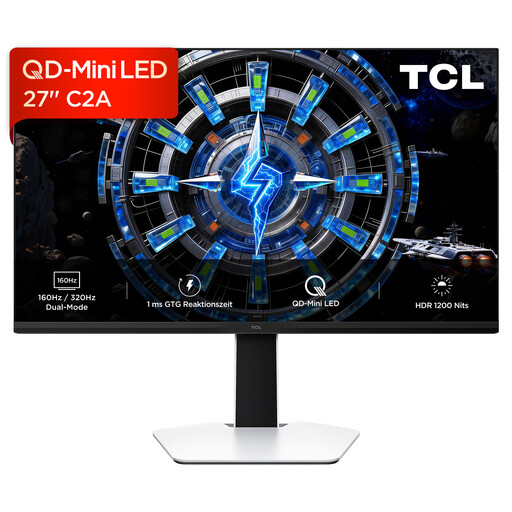
The stated combination of UHD and FHD refresh rates may be useful for frequent game previews. Check that the mode you want works with your computer and connection.
The product name lists UHD at 160 Hz, FHD at 320 Hz, Mini-LED and Rapid IPS.
 No image available
The stated refresh rate may be useful for moving game previews. Check the resolution and connection in the specific listing against your computer.
The product name lists 160 Hz. The listed peak brightness of 1200 Nits isn’t a typical SDR brightness figure for editor work.
 No image available
The refresh rate and USB-C output may be useful for laptop-based editor work and game previews. Check that the connection suits your computer and the charging output is sufficient.
The product name lists 3840 × 2160, IPS, 120 Hz and USB-C with 90 W Power Delivery.
 No image available
The two refresh rates and KVM may be useful when switching between the editor and playtesting, or between multiple computers. Check which connections your devices need.
The product name lists 4K at 160 Hz, FHD at 320 Hz, USB-C at 65 W and KVM. The stated USB-C output won’t necessarily meet every laptop’s charging needs.
 No image available
This OLED model may suit moving previews, provided you also consider the potential panel risks of leaving editor toolbars static on screen for long periods.
The product name lists 4K UHD, 240 Hz and USB-C with 90 W Power Delivery. Check the charging output against your laptop’s requirements.
Not necessarily. Also check the direction of the light, the monitor’s position and whether you can adjust the sun protection. Tests of reflections on the specific model tell you more than the screen finish alone. The German Federal Institute for Occupational Safety and Health and RTINGS treat glare protection and reflections as separate aspects of screen-based work.
For workplaces with employees, the German Workplace Ordinance requires distracting glare, reflections or mirror images to be avoided through the design and positioning of the screen workstation and its lighting. This isn’t a blanket purchase requirement for every personal monitor. The relevant provisions are in the annex to the Workplace Ordinance, published by the German Federal Ministry of Justice on the Gesetze im Internet website.
Only if your laptop supports the right video connection and the Power Delivery output of the specific monitor is sufficient for its charging needs. For example, manufacturers list 96 W for the ASUS PA279CRV, 65 W for the BenQ PD2705U and up to 18 W for the Gigabyte M27U. Also check the cable you’re using and the exact model variant.
For a typical distance purchase from a trader in the EU, you generally have a 14-day right to cancel from the date of delivery. You may have to pay return costs if the trader has properly informed you in advance and doesn’t cover them. If goods are faulty, you have at least two years of statutory consumer rights against the seller; an additional manufacturer’s warranty doesn’t replace these. This information is based on guidance from Your Europe.
For monitors that require energy labelling, compare the EU energy label for the exact model and make sure the information applies to the same product variant. The European Union’s energy labelling guidance includes online shops among the places where products are sold.